





A self-service kiosk can help a small business automate repetitive customer interactions, but it is not automatically the right solution for every store, restaurant, or service location.
Before purchasing a kiosk, a small-business owner should evaluate transaction volume, customer behavior, available space, software compatibility, payment requirements, maintenance capability, and expected return on investment.
This guide explains when a kiosk is suitable for a small business, which kiosk configuration may be required, and how to solve common deployment problems.
What Is a Small-Business Kiosk?
A small-business kiosk is a customer-facing self-service terminal that allows users to complete a specific task without continuous assistance from an employee.
Depending on the business, the kiosk may allow customers to:
- Browse products or menus
- Place and modify orders
- Scan QR codes or barcodes
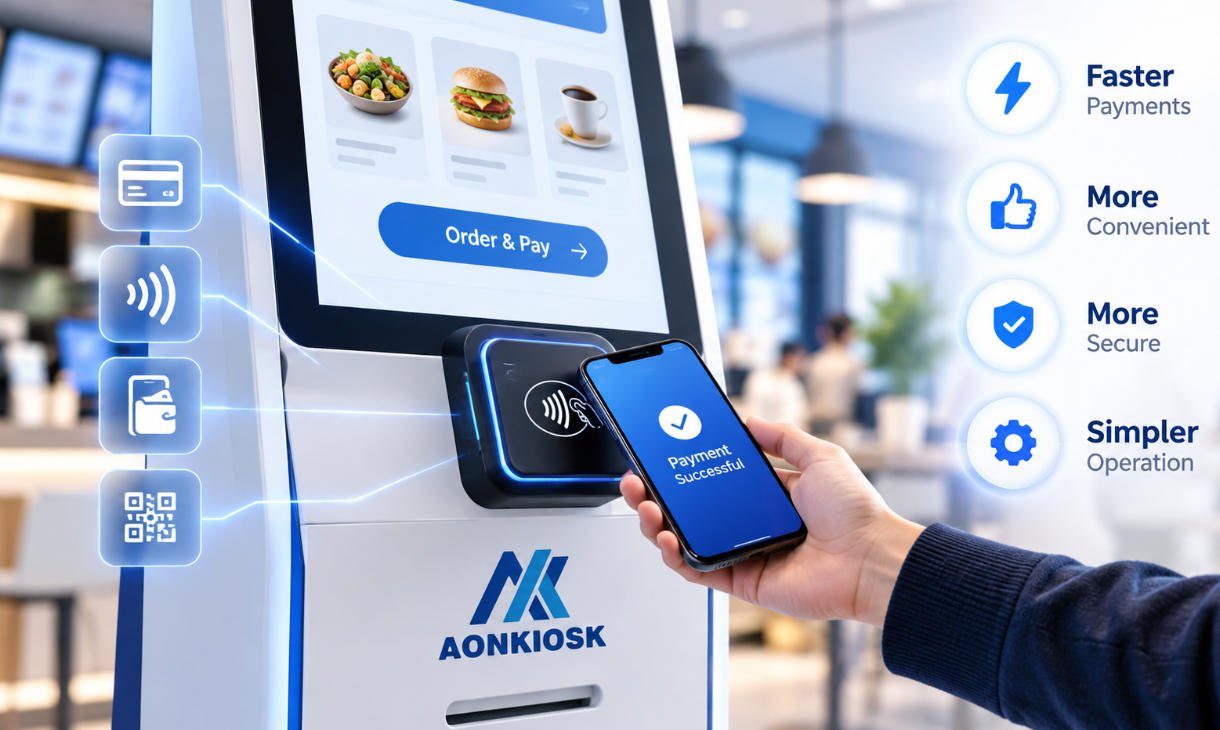
- Make card, NFC, mobile-wallet, or QR-code payments
- Print receipts, tickets, or order numbers
- Register, check in, or retrieve information
- Join a queue or submit a service request
A kiosk normally combines several hardware and software components:
| Component | Main Function |
|---|---|
| Touchscreen | Displays the user interface and receives customer input |
| Industrial computer | Runs the kiosk application and processes transactions |
| Kiosk enclosure | Protects the internal components and supports installation |
| Receipt printer | Prints receipts, tickets, or queue numbers |
| QR/barcode scanner | Reads coupons, memberships, tickets, and product codes |
| Payment terminal | Processes card or contactless payments |
| Camera or ID reader | Supports identification or verification when required |
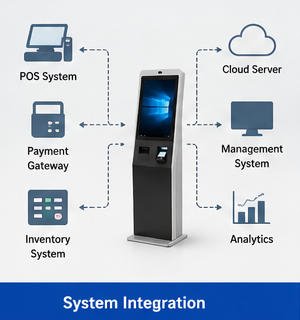
| Network connection | Connects the kiosk to POS, cloud, ERP, or backend systems |
The exact configuration should be based on the business workflow. Adding unnecessary hardware increases cost and maintenance requirements without necessarily improving the customer experience.
For an overview of integrated kiosk hardware, businesses can review the AONKIOSK self-service kiosk solutions.
Is a Kiosk Suitable for Every Small Business?
No. A kiosk is most useful when customers repeatedly complete a clear, standardized process.
A kiosk may be suitable when:
- The business handles frequent, repeatable transactions.
- Customers regularly wait to order, pay, check in, or obtain information.
- Employees spend significant time performing simple data-entry tasks.
- The business experiences predictable peak periods.
- The products or services can be presented clearly on a screen.
- The existing POS or management system can exchange data with the kiosk.
- Customers are generally comfortable using digital interfaces.
- The kiosk can be installed in a visible and accessible location.
A kiosk may be less suitable when:
- Most transactions require detailed consultation.
- Customer volume is consistently low.
- Orders involve many exceptions that cannot be standardized.
- The business depends heavily on personal interaction.
- The location does not have stable power or network access.
- There is no practical way to integrate the kiosk with the existing software.
- The available floor or counter space is very limited.
- The expected savings do not justify the equipment, integration, and maintenance costs.
The decision should be based on the complete operating process rather than the kiosk hardware alone.
Which Small Businesses Can Use a Kiosk?
Restaurants, Cafés, Bakeries, and Beverage Shops
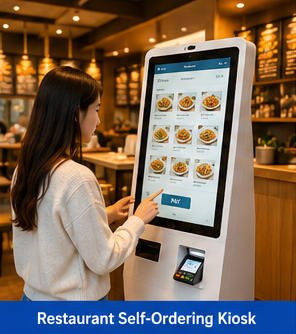
A self-ordering kiosk can allow customers to browse menus, select options, add extras, place orders, and pay independently.
It is usually most useful when the business has:
- A standardized menu
- Frequent queues during lunch or dinner
- Repeat customers
- Multiple product modifiers
- A POS or kitchen display system
- A need for multilingual ordering
A restaurant kiosk should normally synchronize orders with the POS or kitchen system. Without integration, employees may need to re-enter orders manually, which reduces the operational benefit.
Businesses evaluating this application can review AONKIOSK’s restaurant self-ordering kiosks.
Convenience Stores and Small Retail Shops
A retail kiosk may support product lookup, barcode scanning, membership identification, order review, payment, and receipt printing.
A retail payment kiosk is more practical when:
- Product information is already stored digitally.
- Inventory and pricing are managed through a POS or ERP system.
- Most products have barcodes.
- The business accepts digital payments.
- An employee can assist with exceptions, restricted products, or scanning errors.
For retail applications, see the available retail and payment kiosk solutions.
Clinics, Salons, Gyms, and Service Centers
A kiosk can be used for:
- Appointment check-in
- Customer registration
- Queue-number generation
- Membership verification
- Form completion
- Service selection
- Payment collection
These applications may require additional privacy, identification, or data-security controls. The kiosk screen should be positioned so that personal information is not easily visible to other visitors.
Cinemas, Attractions, and Small Venues
A ticketing kiosk can reduce pressure on service counters by allowing visitors to:
- Select a ticket type
- Choose a date or time
- Apply a membership or promotional code
- Make payment
- Print a ticket
- Receive or scan a digital QR ticket
The business must confirm that the kiosk can communicate with its ticketing, reservation, and access-control systems before installation.
Hotels, Hostels, and Serviced Apartments
A check-in kiosk may support reservation lookup, guest registration, identity verification, payment, room assignment, and key-card issuance.
However, hotel self-check-in is more technically complex than basic ordering or information display. It may require integration with:
- Property management systems
- Payment gateways
- Passport or ID readers
- Key-card encoders
- Reservation platforms
- Local guest-registration systems
Small accommodation providers should complete a system-integration assessment before selecting the hardware.
How to Decide Whether Your Business Needs a Kiosk
Use the following assessment before requesting a quotation.
1. Identify the Process to Be Automated
Define one primary task for the kiosk.
Examples include:
- Ordering food
- Completing checkout
- Printing tickets
- Checking in
- Registering visitors
- Looking up information
Avoid starting with a long feature list. A clearly defined workflow makes it easier to select suitable hardware and software.
A useful process description is:
Customer selects a language, browses the menu, customizes an item, scans a membership QR code, pays by card, receives an order number, and the order is automatically sent to the POS and kitchen display system.
This description is more useful to a kiosk manufacturer or software integrator than a general request for a “smart kiosk.”
2. Measure Current Transaction Volume
Record:
- Average transactions per day
- Transactions during the busiest hour
- Average service time per customer
- Average queue length
- Number of employees assigned to the task
- Frequency of order-entry or payment errors
A kiosk is easier to justify when it solves a measurable bottleneck.
For example, a café with only a few orders per hour may not require a self-ordering kiosk. A café that experiences long queues for two hours every morning may benefit from one kiosk even if its total daily volume is moderate.
3. Calculate the Complete Cost
The hardware purchase price is only one part of the project.
The total cost may include:
- Kiosk hardware
- Operating system
- Kiosk application or software licence
- POS or backend integration
- Payment-terminal certification
- Shipping and import charges
- Installation
- Network and electrical work
- On-site testing
- Replacement paper and consumables
- Remote management
- Preventive maintenance
- Spare parts
- Software updates
- Payment-processing fees
A low-cost kiosk can become expensive if it requires extensive software development. Conversely, a higher-quality integrated kiosk may reduce installation and maintenance work.
4. Estimate the Operational Benefit
The value of a kiosk may come from several sources:
- Shorter queues
- Faster customer processing
- Reduced manual order entry
- Fewer input errors
- Increased service capacity during peak periods
- More consistent product presentation
- Automated recommendations
- Reduced dependence on a single cashier
- Extended service outside staffed hours
- Improved multilingual support
Do not assume that one kiosk will completely replace one employee. In many small businesses, the better objective is to reassign employees from repetitive order entry to customer assistance, preparation, fulfilment, or exception handling.
5. Check Customer Readiness
Consider who will use the kiosk.
Review:
- Typical customer age range
- Language requirements
- Accessibility needs
- Digital-payment adoption
- Familiarity with touchscreen interfaces
- Average order complexity
- Need for staff assistance
A kiosk interface should use large touch targets, clear instructions, readable text, visible pricing, consistent navigation, and a simple way to cancel or return to the previous screen.
Customers should not need training to complete a standard transaction.
What Kiosk Size Is Suitable for a Small Business?
The correct size depends on available space, viewing distance, application complexity, and installed peripherals.
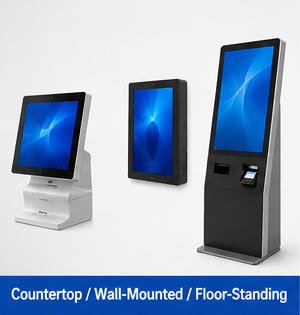
Countertop Kiosk
A countertop kiosk is often suitable for:
- Small cafés
- Reception desks
- Clinics
- Salons
- Compact retail stores
- Membership check-in
Advantages include a smaller footprint and easier installation.
Before selecting a countertop model, verify that the counter can support the kiosk weight and that there is enough space for customer interaction, cable routing, printer access, and maintenance.
Floor-Standing Kiosk
A floor-standing kiosk is useful when:
- The kiosk must be highly visible.
- No suitable counter is available.
- Multiple peripherals must be installed.
- The screen needs to be positioned at a comfortable standing height.
- The kiosk will process frequent transactions.
Floor-standing units require more space and should normally be secured to the floor or installed with an appropriate anti-tip structure.
Wall-Mounted Kiosk
A wall-mounted kiosk can save floor space, but installation requires:
- A suitable supporting wall
- Safe cable routing
- Correct mounting height
- Adequate ventilation
- Service access
- Compliance with accessibility requirements
The wall structure and mounting method must be evaluated before installation.
What Hardware Does a Small Business Need?
Touchscreen
For most ordering, check-in, and payment applications, a projected capacitive touchscreen provides familiar smartphone-style interaction.
The screen should be selected according to:
- Application layout
- Required viewing area
- Installation distance
- Available space
- Expected user volume
- Indoor or outdoor environment
A larger screen is not automatically better. The interface must be designed for the selected screen size and resolution.
Processor, Memory, and Storage
The computer specification depends on the operating system and application.
A basic web-based information kiosk may require fewer resources than a kiosk running:
- High-resolution video
- Computer vision
- Multiple peripheral drivers
- Local databases
- Offline transaction storage
- Complex POS software
The kiosk specification should include enough performance for the actual application, plus reasonable capacity for future software updates.
Receipt or Ticket Printer
A printer may be required for:
- Receipts
- Order numbers
- Queue tickets
- Admission tickets
- Collection slips
Before deployment, confirm:
- Paper width
- Printing speed
- Cutter type
- Paper-roll capacity
- Driver compatibility
- Sensor support
- Access for paper replacement
- Local availability of consumables
Printer paper is one of the most common routine maintenance items. Staff should be able to replace it without opening unrelated internal components.
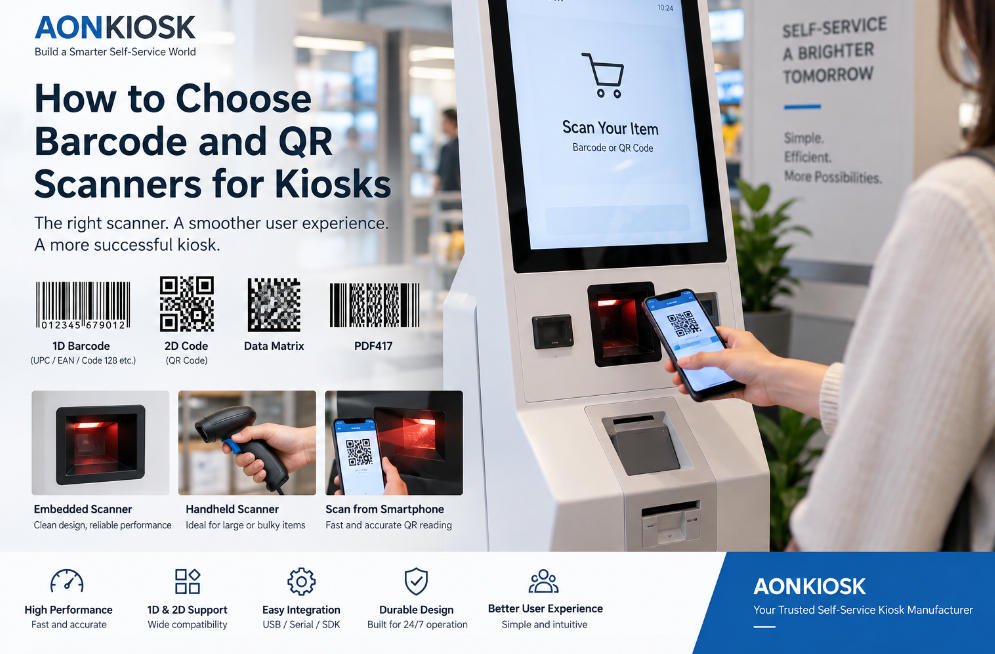
QR Code or Barcode Scanner
A scanner may be used for:
- Product barcodes
- Loyalty accounts
- Coupons
- Order collection
- Digital tickets
- Mobile payments
- Reservation confirmation
Confirm whether the application needs one-dimensional barcodes, two-dimensional QR codes, codes displayed on mobile screens, or all of these formats.
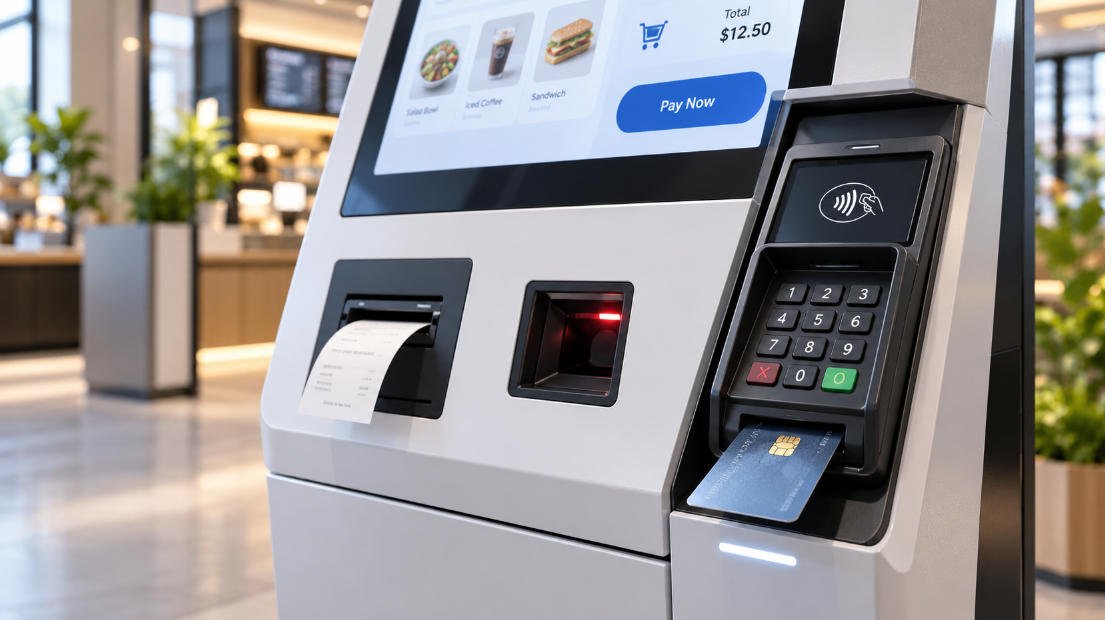
Payment Terminal
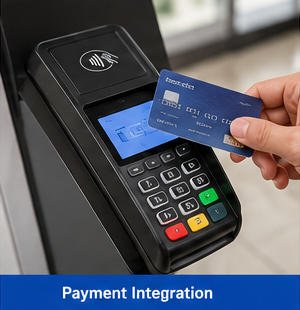
Payment integration requires more than physically installing a card reader.
The business should confirm:
- Supported card networks
- EMV requirements
- NFC and contactless support
- Local acquirer compatibility
- Payment-gateway compatibility
- Terminal mounting method
- Software communication protocol
- Certification responsibilities
- Refund and cancellation workflow
- Network-security requirements
The payment terminal is often supplied or approved by a local bank, payment processor, or acquiring partner. Hardware selection should not be finalized until regional payment requirements are understood.
Optional Modules
Depending on the workflow, a kiosk may also include:
- NFC reader
- Camera
- Passport or ID reader
- RFID reader
- Keypad
- Signature pad
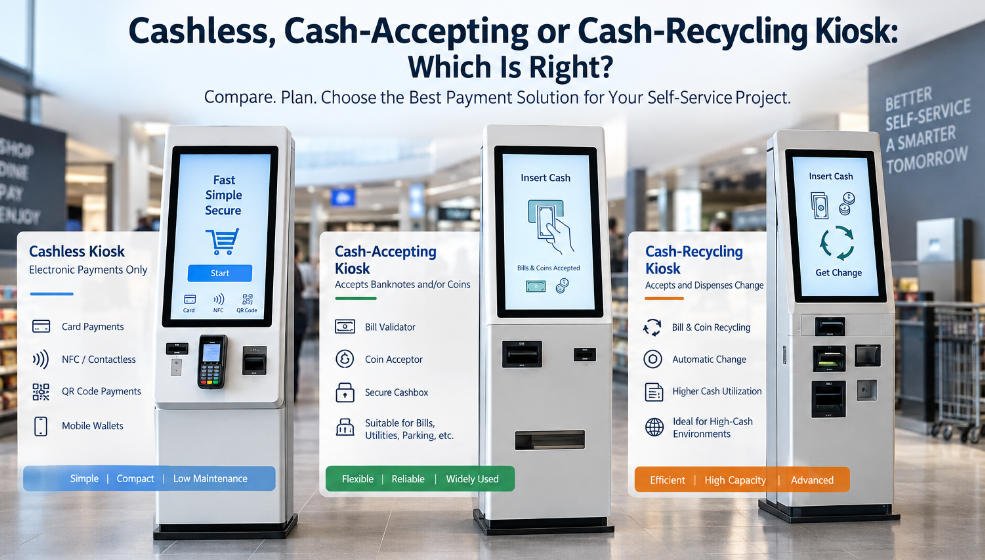
- Cash acceptor
- Coin acceptor
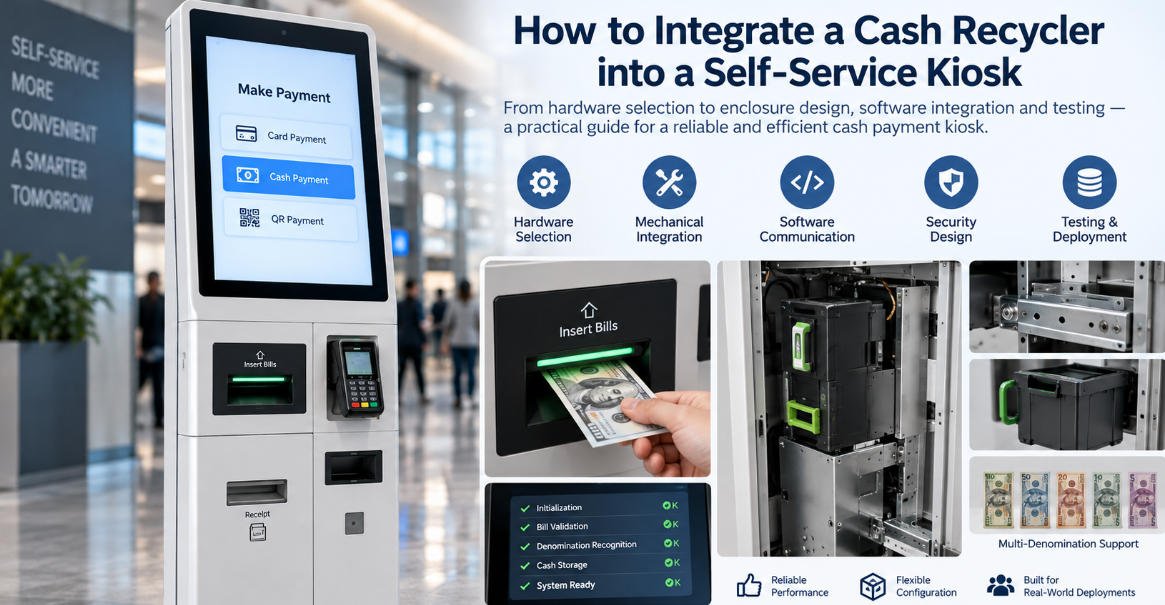
- Cash recycler
- Speaker
- Microphone
- Key-card dispenser
- Label printer
Every additional module increases integration, power, enclosure, software-driver, and maintenance requirements. Only include a module when it supports a clearly defined business process.
The AONKIOSK APK01 self-service payment kiosk is an example of a compact integrated configuration with a touchscreen, thermal printer, QR scanner, and configurable computing platform.
Can a Kiosk Connect to an Existing POS System?
In many cases, yes, but compatibility must be confirmed.
A kiosk may exchange information with a POS, ERP, kitchen display system, inventory system, booking platform, or membership database through:
- REST API
- Web API
- SDK
- Local network protocol
- Database connection
- Middleware
- Cloud integration
- File-based data exchange
Before ordering the kiosk, ask the software provider for:
- API documentation
- Authentication method
- Supported operating systems
- Peripheral requirements
- Test environment
- Order and payment workflow
- Error-response format
- Offline operating rules
- Responsibility for software support
AONKIOSK states that its restaurant and retail kiosk systems can be configured for integration with POS, inventory, loyalty, ERP, payment, and related backend platforms.
However, the final integration method depends on the third-party software and project requirements. Hardware compatibility does not guarantee that two software systems will communicate automatically.
Does a Small-Business Kiosk Need Internet Access?
Not every function requires continuous internet access, but most modern kiosk deployments need a network connection for at least some operations.
Internet or local-network access may be required for:
- Card and QR-code payments
- POS synchronization
- Cloud-based menus
- Inventory updates
- Reservation lookup
- Remote monitoring
- Software updates
- Digital receipt delivery
- Analytics
- Remote technical support
For locations with unstable internet, consider:
- Wired Ethernet as the primary connection
- Wi-Fi as a secondary connection
- 4G or 5G backup
- Local transaction caching
- Offline menu or content storage
- Automatic reconnection
- Clear offline error messages
- A staff-assisted fallback process
Offline capability must be designed in the application. It should not be assumed that a kiosk can continue processing all transactions after losing connectivity.
How Much Space Does a Kiosk Require?
Measure the complete installation area, not only the enclosure dimensions.
Allow space for:
- Customer access
- Wheelchair approach
- Screen interaction
- Door opening
- Printer maintenance
- Cable routing
- Ventilation
- Payment-terminal access
- Staff servicing
- Queue formation
The kiosk should not block entrances, emergency exits, walkways, product shelves, or employee work areas.
Place the unit where customers naturally begin the relevant process. A self-ordering kiosk installed after the ordering counter, for example, is unlikely to achieve good adoption.
How Many Kiosks Does a Small Business Need?
Many small businesses should begin with one kiosk and retain a staff-assisted option.
One kiosk may be sufficient when:
- The kiosk supports an existing counter.
- Peak queues are moderate.
- Staff can assist during exceptions.
- The business is testing customer adoption.
- The location has limited space.
Two or more kiosks may be appropriate when:
- A single device would create another queue.
- The business handles strong peak-hour demand.
- The location requires redundancy.
- Customers perform longer or more complex transactions.
- The business cannot tolerate complete self-service downtime.
The number of kiosks should be based on peak transaction demand, not only the daily average.
Common Problems and Self-Service Troubleshooting
The Touchscreen Does Not Respond
Possible causes:
- The kiosk application has stopped responding.
- The touch controller has lost connection.
- The screen is wet, dirty, or obstructed.
- A USB cable is loose.
- The operating system has not loaded the correct driver.
Recommended actions:
- Clean and dry the touchscreen.
- Restart the kiosk application.
- Restart the operating system.
- Check the internal touch-controller connection if authorized.
- Confirm that the touch device appears in the operating system.
- Contact technical support if the issue continues.
Do not use sharp objects or abrasive cleaning materials on the touchscreen.
The Printer Does Not Print
Possible causes:
- The paper roll is empty.
- The paper is installed incorrectly.
- The printer cover is not fully closed.
- Paper is jammed.
- The printer is offline.
- The application selected the wrong printer.
- The printer driver is unavailable.
Recommended actions:
- Check the paper supply.
- Reinstall the paper in the correct direction.
- Remove visible paper jams.
- Close and lock the printer mechanism.
- Print a hardware self-test if supported.
- Confirm the printer status in the operating system.
- Restart the kiosk application.
The Scanner Cannot Read a QR Code
Possible causes:
- The mobile screen brightness is too low.
- The code is damaged or incomplete.
- The scanner window is dirty.
- The code format is unsupported.
- The scanner is positioned at the wrong distance.
- The application is not receiving scanner data.
Recommended actions:
- Clean the scanner window.
- Increase the phone-screen brightness.
- Hold the code steady and adjust the distance.
- Test a known valid QR code.
- Confirm that the scanner supports screen-based codes.
- Check the scanner connection and application input settings.
The Payment Terminal Is Offline
Possible causes:
- Network connection is unavailable.
- The payment application has stopped.
- The terminal has lost power.
- The acquirer or gateway is unavailable.
- Terminal credentials have expired.
- The kiosk and payment software are not communicating.
Recommended actions:
- Check the network connection.
- Confirm power to the payment terminal.
- Restart the payment application according to the provider’s instructions.
- Test another payment method.
- Contact the payment service provider if the terminal remains offline.
Do not open, modify, or replace certified payment-terminal components without authorization from the payment provider.
The Kiosk Cannot Connect to the POS
Possible causes:
- The kiosk and POS are on different networks.
- API credentials are incorrect.
- The POS server is unavailable.
- Firewall rules are blocking communication.
- The POS API has changed.
- The kiosk software is using an incorrect endpoint.
Recommended actions:
- Confirm that the POS is online.
- Test the local or internet connection.
- Verify the server address.
- Check API credentials and expiry dates.
- Review recent POS or kiosk software updates.
- Check firewall and port settings.
- Review the kiosk application logs.
Integration errors should be tested jointly by the kiosk software provider and the POS provider.
Customers Abandon Transactions
Possible causes:
- The workflow contains too many steps.
- Buttons or instructions are unclear.
- Payment options are not visible.
- The screen layout is crowded.
- Product modifiers are confusing.
- The kiosk does not clearly confirm completion.
- Customers are unsure where to collect an order or ticket.
Recommended actions:
- Review the transaction flow from the customer’s perspective.
- Remove unnecessary screens and fields.
- Use clear buttons and progress indicators.
- Display prices and payment options before checkout.
- Provide visible confirmation after completion.
- Add simple collection or next-step instructions.
- Observe real customer use and record where users stop.
Maintenance Requirements for a Small-Business Kiosk
A kiosk requires routine inspection even when it is operating normally.
Daily Checks
- Clean the touchscreen.
- Check printer paper.
- Confirm that the scanner reads correctly.
- Test the payment terminal.
- Check for visible damage.
- Confirm that the kiosk application is running.
- Remove unnecessary receipts or paper from the surrounding area.
Weekly Checks
- Review error logs.
- Inspect cables and connectors.
- Clean scanner and camera windows.
- Check ventilation openings.
- Confirm that product, menu, and price data are current.
- Test a complete transaction.
Monthly or Scheduled Checks
- Install approved security updates.
- Review storage capacity.
- Check remote-management status.
- Inspect locks and mounting hardware.
- Back up configuration files.
- Review transaction failures.
- Test fallback and restart procedures.
- Confirm availability of spare paper and critical replacement parts.
For general product and operational questions, businesses can consult the AONKIOSK kiosk FAQ, which covers applications, customization, accessibility, payment options, and integration considerations.
Security Considerations
A customer-facing kiosk should not operate like an unrestricted personal computer.
Recommended security controls include:
- Kiosk-mode application locking
- Restricted keyboard shortcuts
- Disabled unauthorized USB access
- Automatic session reset
- Encrypted network communication
- Role-based administrator access
- Strong account credentials
- Approved operating-system updates
- Application allowlisting
- Physical locks
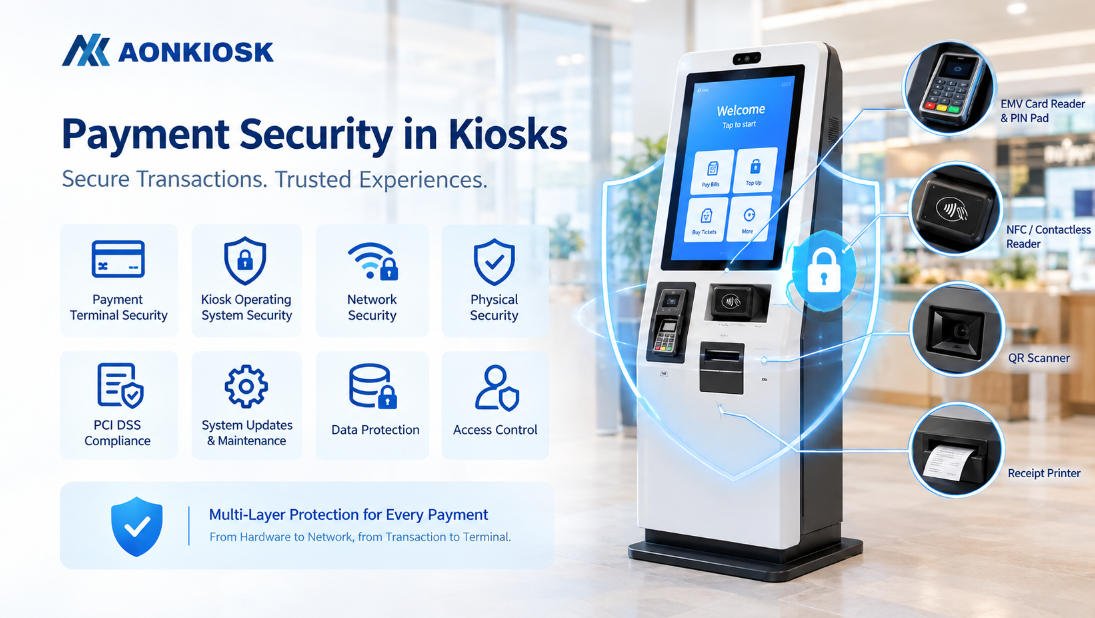
- Secure payment-terminal installation
- Remote status monitoring
- Automatic recovery after restart
The application should clear customer information after every completed, cancelled, or timed-out session.
Businesses processing payments or personal data should consult their software provider, payment provider, and local compliance adviser regarding applicable security and privacy requirements.
Accessibility Considerations
A kiosk should be usable by as many customers as possible.
Consider:
- Screen and control height
- Wheelchair approach space
- Text size
- Colour contrast
- Touch-target size
- Simple language
- Audio guidance
- Headphone connection
- Tactile controls
- Multiple languages
- Alternative staff-assisted service
- Clear timeout warnings
Accessibility requirements vary by country and installation environment. They should be considered during enclosure and interface design, not added after production.
AONKIOSK also identifies height-adjustable displays, wheelchair-friendly layouts, tactile input, voice guidance, screen-reader support, high-contrast interfaces, and alternative input methods among the available accessibility considerations for kiosk projects.
When Should a Small Business Start with a Pilot Kiosk?
A pilot deployment is recommended when:
- This is the company’s first self-service project.
- Customer adoption is uncertain.
- POS integration is newly developed.
- The workflow may require adjustment.
- Several hardware configurations are being considered.
- The business plans to deploy kiosks at multiple locations.
A pilot should test:
- Customer completion rate
- Average transaction time
- Payment success rate
- Printer and scanner reliability
- Network stability
- Staff intervention frequency
- Order accuracy
- Queue reduction
- Customer feedback
- Maintenance workload
The pilot period should include normal days and peak periods. Testing only during low-volume hours may hide operational problems.
Information to Prepare Before Requesting a Kiosk Quotation
Prepare the following project information:
- Business type and application
- Expected daily and peak-hour transaction volume
- Indoor, semi-outdoor, or outdoor installation
- Countertop, wall-mounted, or floor-standing format
- Preferred screen size
- Operating system
- Existing POS, ERP, booking, or backend software
- API or SDK availability
- Required payment methods
- Required printer type
- QR, barcode, RFID, NFC, camera, or ID requirements
- Language requirements
- Accessibility requirements
- Installation country
- Electrical and network conditions
- Branding and enclosure requirements
- Estimated order quantity
- Target deployment schedule
Providing this information early reduces configuration errors and helps the manufacturer evaluate technical feasibility.
Final Decision Checklist
A kiosk is likely suitable for a small business when most of the following statements are true:
- The business has a repeatable customer process.
- Queues or repetitive employee tasks are a real operational problem.
- Customers can complete the process through a simple interface.
- The POS or backend system can support integration.
- The location has sufficient power, network connectivity, and installation space.
- Employees can handle exceptions and basic maintenance.
- The expected operational value justifies the complete project cost.
- Payment, security, privacy, and accessibility requirements have been reviewed.
- The business is prepared to test the system before a wider rollout.
If several of these conditions are not met, the business may benefit more from improving its existing POS, mobile-ordering process, queue management, or staff workflow before installing a kiosk.
Conclusion
A kiosk can be suitable for a small business, but the best results come from solving a clearly defined operational problem.
Restaurants may use kiosks to reduce ordering queues. Retailers may use them for checkout or product lookup. Clinics and service businesses may automate check-in and registration. Venues may use them for ticketing, while hotels may use them for guest check-in.
The most important factors are not screen size or appearance. They are workflow clarity, software integration, payment compatibility, customer usability, maintenance access, and measurable operational value.
For a small business, the safest approach is usually to define one workflow, verify integration requirements, select only the necessary hardware modules, and begin with a controlled pilot deployment.