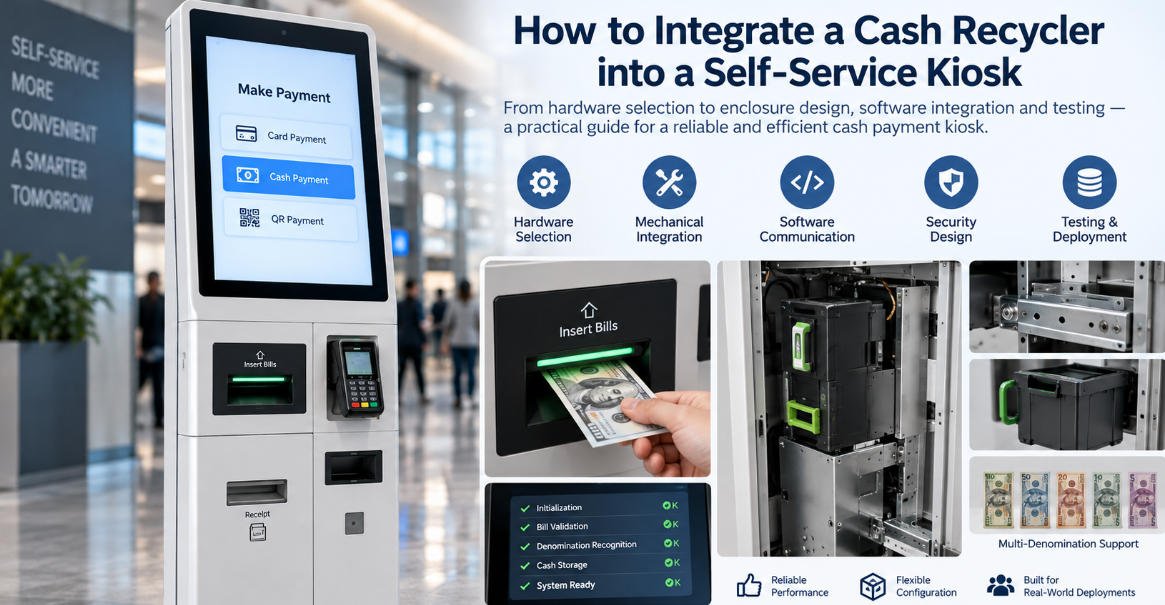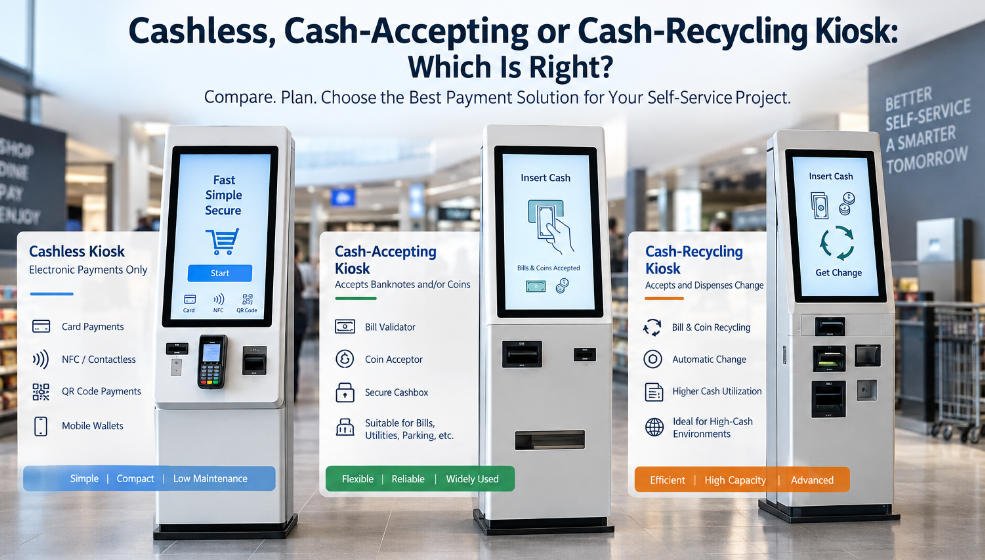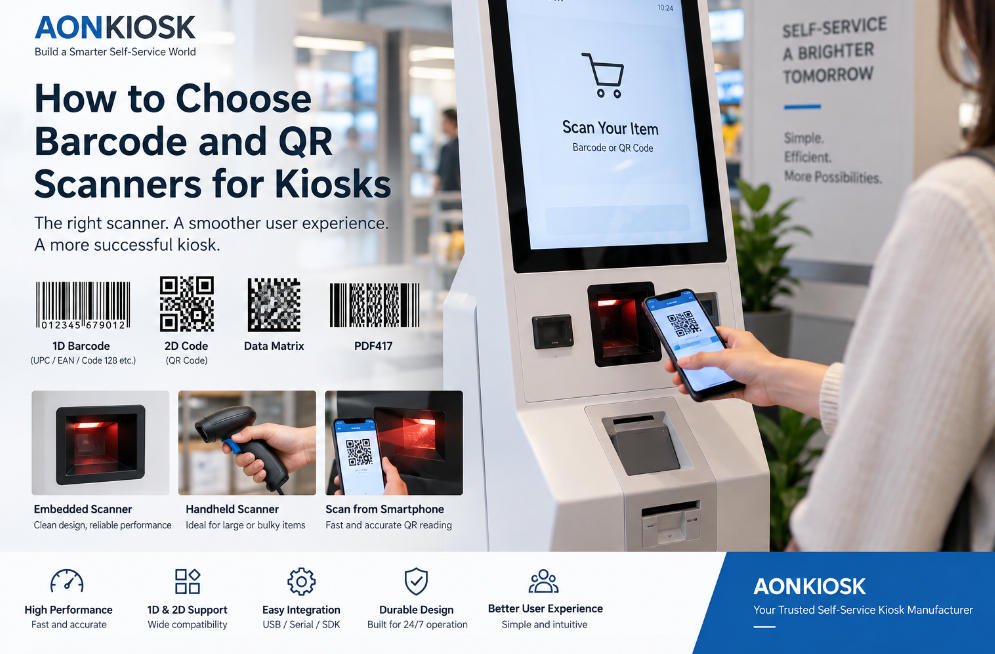






A kiosk operating system is the software foundation that connects the self-service application with the touchscreen, mainboard, network, payment terminal, printer, scanner, camera, and other integrated devices.
Although customers mainly interact with the kiosk application, the operating system controls how the complete terminal starts, communicates, updates, recovers, and remains secure. An unsuitable operating system can result in missing drivers, unstable peripherals, failed software updates, slow startup, remote maintenance difficulties, or unexpected downtime.
The correct choice is therefore not simply a comparison of Windows, Android, and Linux. It should be based on the kiosk application, processor architecture, peripheral requirements, security policy, deployment environment, maintenance resources, and expected product lifecycle.
This guide explains the main operating systems used in commercial self-service kiosks and provides practical selection, configuration, and troubleshooting guidance for kiosk developers, system integrators, IT teams, and operators.
AONKIOSK provides configurable self-service kiosk hardware that can be built around Windows, Android, or project-specific embedded computing platforms. The final operating system and hardware configuration should always be verified against the complete application and peripheral list before production.
1. What Does a Kiosk Operating System Control?
A kiosk operating system performs more functions than displaying a full-screen application. It manages the relationship between the software and the physical kiosk hardware.
Its main responsibilities include:
- Starting the kiosk application automatically
- Detecting touchscreen input
- Communicating with USB and serial peripherals
- Managing Ethernet, Wi-Fi, Bluetooth, and cellular connections
- Controlling display resolution and orientation
- Handling audio, camera, and microphone devices
- Managing local files and databases
- Applying security permissions
- Installing software and firmware updates
- Recording system and application logs
- Supporting remote monitoring and maintenance
- Recovering after power interruption or application failure
A kiosk may appear mechanically complete while remaining unusable because one printer driver, payment SDK, scanner interface, or display setting is incompatible with the selected operating system.
For this reason, operating-system selection must be completed together with the kiosk mainboard selection, rather than after the enclosure and peripheral layout have already been finalized.
2. Main Operating Systems Used in Kiosks
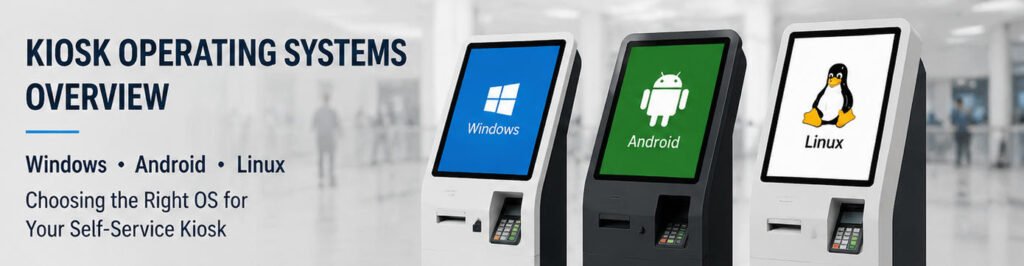
The three most common kiosk operating-system families are:
- Windows
- Android
- Linux
Some projects also use ChromeOS, proprietary embedded systems, or real-time operating systems. However, these platforms are less common in customized commercial kiosks that integrate payment devices, printers, scanners, and locally installed business applications.
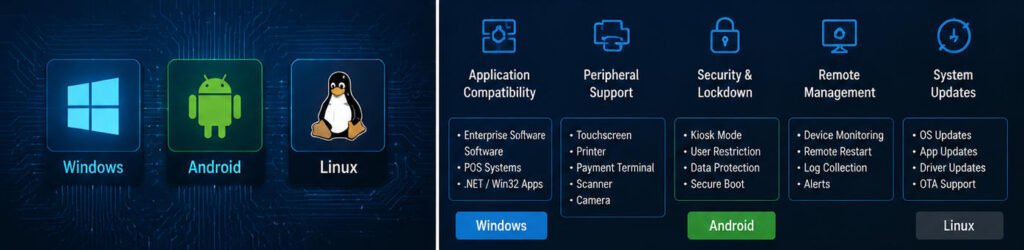
Operating-System Comparison
| Selection Area | Windows | Android | Linux |
|---|---|---|---|
| Typical processor | Intel or AMD x86 | ARM-based SoC | x86 or ARM |
| Software compatibility | Broad desktop and enterprise support | Android APK and web applications | Custom Linux and web applications |
| Peripheral support | Generally strong | Driver and SDK availability must be confirmed | Depends heavily on manufacturer support |
| Hardware cost | Medium to high | Usually lower | Varies by hardware and development scope |
| Power consumption | Usually higher | Usually lower | Low to medium |
| Customization | High | Medium to high with firmware access | Very high |
| Deployment complexity | Moderate | Relatively simple for standardized projects | Higher technical requirements |
| Common applications | Payment, POS, check-in, ticketing, retail | Ordering, inquiry, registration, signage | Embedded terminals, specialized systems, signage |
| Maintenance resources | Widely available | Familiar to mobile-development teams | Requires Linux administration experience |
This comparison is general. Actual performance depends on the processor, memory, storage, operating-system build, device drivers, firmware, application design, and deployment policy.
3. Windows Kiosk Operating Systems
Windows is widely used in self-service kiosks that require enterprise software, existing POS applications, specialized peripherals, local databases, or integration with established IT infrastructure.
Typical Windows kiosk configurations include:
- Windows 10 or Windows 11
- Windows IoT Enterprise editions
- Intel Celeron, Processor N-series, Core i3, Core i5, or Core i7 hardware
- 4 GB to 16 GB or more RAM
- M.2, mSATA, or SATA solid-state storage
- USB, RS-232, RS-485, Ethernet, Wi-Fi, and Bluetooth interfaces
Microsoft Windows supports Assigned Access, which can restrict a device to a single application or a defined group of applications. A kiosk can also be configured to open Microsoft Edge or another approved application automatically in a controlled full-screen environment.
Advantages of Windows Kiosks
Broad Application Compatibility
Windows is often selected when the kiosk must run:
- Existing POS software
- Win32 desktop applications
- .NET applications
- Local database services
- Browser-based applications with background services
- Enterprise authentication software
- Remote-support utilities
- Device-manufacturer configuration programs
It is particularly useful when a self-service terminal is being added to a business environment that already depends on Windows applications.
Strong Peripheral Support
Payment terminals, thermal printers, passport readers, document scanners, cash-handling modules, and industrial card dispensers frequently include Windows drivers, test tools, and SDK packages.
This does not guarantee compatibility, but it normally provides more integration options than platforms for which only limited drivers are available.
Windows is commonly suitable for retail and payment kiosks that require several transaction-related peripherals.
Enterprise Management
Windows kiosks can be integrated with familiar device-management, antivirus, disk-encryption, domain, user-policy, and remote-support systems.
This can simplify deployment for organizations that already operate a managed Windows environment.
Limitations of Windows Kiosks
Windows normally requires more processing power, storage, and internal cooling than a basic Android platform. Updates may also restart the device or affect drivers if update policies are not carefully controlled.
Licensing, account configuration, security software, recovery partitions, and long-term update management should be included in the project cost.
A Windows kiosk should not be delivered with an unrestricted desktop. User access to system settings, file management, task switching, external storage, and unauthorized applications should be blocked according to the deployment requirements.
4. Android Kiosk Operating Systems
Android is commonly used for cost-controlled kiosks with touch-oriented applications and standardized workflows.
Typical applications include:
- Restaurant self-ordering
- Queue registration
- Visitor check-in
- Product information
- Membership inquiry
- Digital directories
- QR-code payment
- Advertising and interactive signage
- Basic ticket selection
Android kiosk systems usually use ARM-based boards with integrated processors, graphics, communication controllers, and multimedia functions.
Common configurations include:
- Quad-core or octa-core ARM processor
- 2 GB, 4 GB, or 8 GB RAM
- 16 GB to 128 GB eMMC storage
- Ethernet
- Wi-Fi and Bluetooth
- USB ports
- HDMI, LVDS, or eDP display output
- Customized Android firmware
Advantages of Android Kiosks
Lower Hardware Cost
Android boards are generally economical for standardized volume deployments. The cost difference can become important when hundreds or thousands of kiosks use the same hardware and application.
Low Power Consumption
ARM platforms normally produce less heat than full x86 computers. This can simplify internal thermal design, especially in countertop, wall-mounted, and slim floor-standing kiosks.
Compact Mainboard Size
A smaller board leaves more internal space for power supplies, receipt printers, payment terminals, scanners, speakers, and maintenance access.
Touch-Oriented Interface
Android is designed around touchscreen interaction and is suitable for applications developed as APK packages or controlled web interfaces.
For example, AONKIOSK restaurant self-ordering kiosks can be configured around different computing platforms according to the ordering software and POS integration requirements.
Limitations of Android Kiosks
The main limitation is peripheral compatibility.
A USB device may connect physically but still fail to operate because Android lacks the correct:
- Driver
- SDK
- API
- Serial protocol
- USB permission configuration
- Processor-compatible library
- Firmware support
This issue often affects specialized payment terminals, passport readers, cash recyclers, card dispensers, biometric readers, and some receipt printers.
Android version numbers should not be evaluated alone. A newer version does not automatically guarantee better kiosk compatibility. The board firmware, kernel, drivers, Google service requirements, application framework, and processor support period must also be checked.
For volume projects, the exact firmware image should be frozen, documented, and tested before mass production.
5. Linux Kiosk Operating Systems
Linux is used in projects that require extensive customization, reduced software licensing dependency, a controlled embedded environment, or specialized application architecture.
Linux kiosks may run:
- Ubuntu
- Ubuntu Core
- Debian
- Yocto-based systems
- Other customized embedded Linux distributions
Ubuntu Frame, for example, is designed to run graphical applications in a dedicated full-screen environment and can be used for interactive kiosks and digital signage. Ubuntu Core provides an embedded platform with application confinement and managed update capabilities.
Advantages of Linux Kiosks
High Customization
Developers can control the operating-system image, startup process, window manager, services, application permissions, update mechanism, and system interface.
Unnecessary packages and services can be removed to create a dedicated operating environment.
Flexible Processor Support
Linux can run on both x86 and ARM hardware, depending on the distribution and available drivers.
Suitable for Embedded Products
A carefully configured Linux image can provide a stable foundation for a single-purpose kiosk, industrial terminal, information display, or custom IoT device.
Limitations of Linux Kiosks
Linux integration usually requires more engineering experience.
Peripheral manufacturers may not provide Linux drivers or configuration utilities. Even when a device uses a standard USB or serial interface, integration may require protocol development, library compilation, permission configuration, or kernel changes.
A Linux kiosk should therefore be selected only when the software team can support the complete system lifecycle, including updates, security patches, driver maintenance, logging, recovery, and remote diagnostics.
6. Native Applications vs Web-Based Kiosk Applications
The operating-system decision is closely related to the application architecture.
Native Applications
Native applications are installed directly on the kiosk and developed for a specific operating system.
Advantages include:
- Direct access to hardware
- Better offline operation
- Predictable local performance
- More control over background services
- Easier integration with complex peripherals
The main disadvantage is platform dependency. A Windows application cannot normally be transferred directly to Android or Linux without redevelopment.
Web-Based Applications
A web kiosk runs the user interface through a browser or embedded browser engine.
Advantages include:
- Centralized content updates
- Cross-platform development
- Easier interface maintenance
- Reduced local installation work
- Faster deployment across multiple locations
However, browser compatibility does not solve all hardware-integration problems. Printing, payment, serial communication, scanner control, and local file access may still require a native service, browser extension, middleware package, or device-specific API.
Web authentication, pop-up windows, file downloads, certificates, and redirect behavior should also be tested in the actual locked kiosk environment rather than only in a normal desktop browser.
7. Peripheral Compatibility Checklist
Before confirming an operating system, create a complete peripheral list containing the manufacturer, model number, communication interface, power requirement, and driver or SDK version.
Check at least the following devices:
- Touchscreen controller
- LCD display
- Payment terminal
- NFC or RFID reader
- Barcode or QR-code scanner
- Thermal printer
- Ticket printer
- Camera
- Microphone
- Speaker
- ID card reader
- Passport reader
- Fingerprint reader
- Card dispenser
- Cash acceptor or recycler
- GPIO controller
- Wi-Fi or cellular module
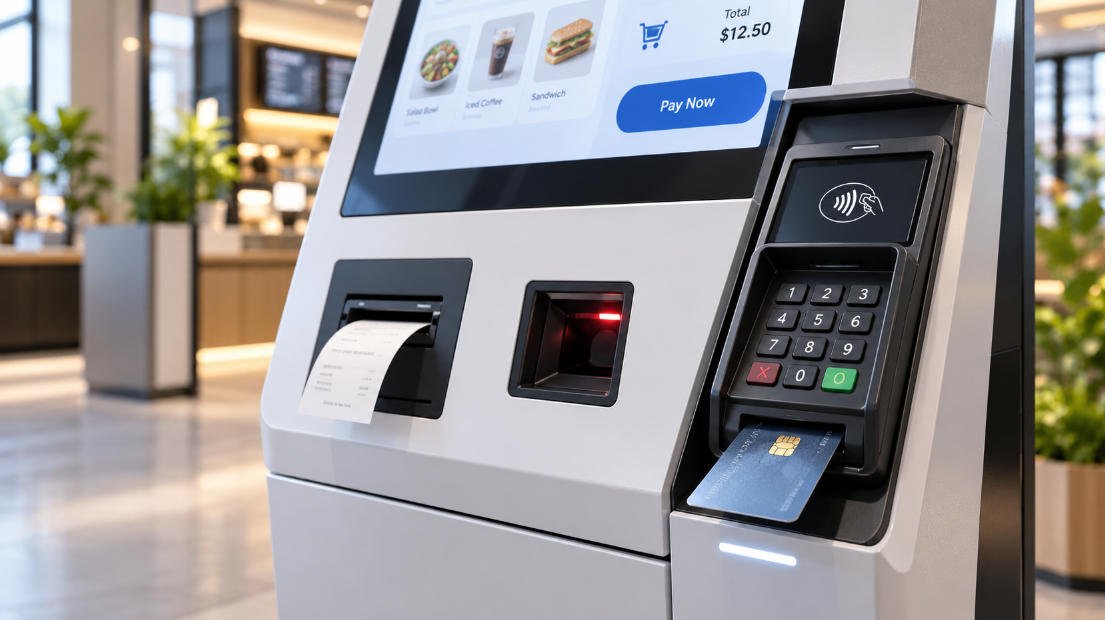
The kiosk hardware structure overview explains how these components are normally arranged and connected inside a self-service terminal.
Do not assume that devices using the same interface are interchangeable. Two USB printers may require different drivers, command sets, paper-status reporting methods, or cutting controls.
8. Kiosk Security and Lockdown Requirements
A commercial kiosk must prevent users from leaving the intended application or accessing system functions.
A secure configuration may include:
- Automatic login to a restricted account
- Automatic application launch
- Disabled desktop and task switching
- Blocked system settings
- Restricted keyboard shortcuts
- Disabled external storage
- Application allowlisting
- Encrypted local data
- Secure boot configuration
- Controlled administrator access
- Network firewall rules
- Certificate management
- Session reset after each user
- Automatic recovery after application failure
- Protected remote-maintenance credentials
The kiosk application should also clear personal or transaction data after every session. Sensitive information should not remain visible when the next user approaches the terminal.
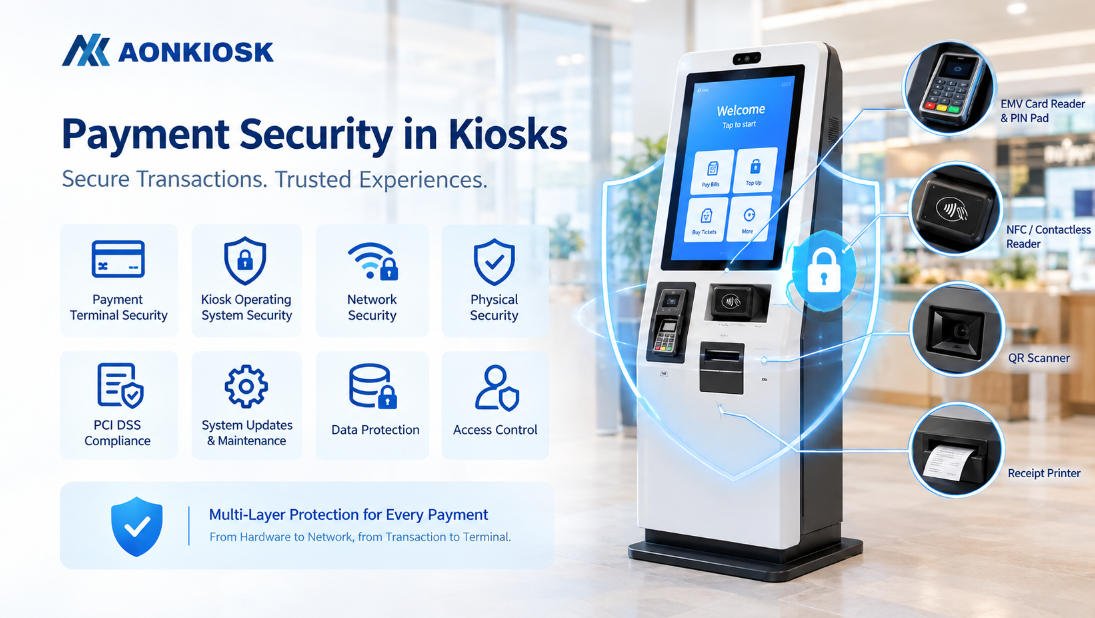
Physical security remains important. Operating-system restrictions cannot prevent unauthorized access if service doors, USB ports, network ports, or storage devices are physically exposed.
9. Updates and Remote Device Management
Operating-system updates should be controlled rather than completely ignored.
Unmanaged updates may introduce unexpected restarts or driver changes. Permanently disabling updates may leave security vulnerabilities unresolved.
A practical update process should include:
- Testing the update on a reference kiosk
- Verifying the application and every peripheral
- Scheduling installation outside operating hours
- Monitoring the kiosk after deployment
- Maintaining a rollback or recovery method
- Recording the approved OS, driver, and firmware versions
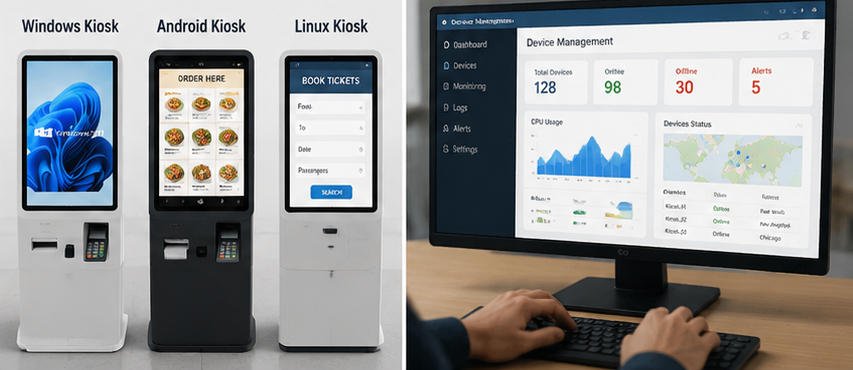
Remote-management tools should provide relevant functions such as:
- Online and offline status
- Application health monitoring
- Remote restart
- Log collection
- Screenshot capture where privacy rules permit
- Storage and memory monitoring
- Software deployment
- Configuration updates
- Peripheral-status reporting
- Alert notifications
Remote tools must be tested through the customer’s real network environment, including firewalls, proxy servers, VPNs, restricted ports, and unstable connections.
10. Common Operating-System Problems
Kiosk Application Does Not Start
Check:
- Auto-start configuration
- User permissions
- Application path
- Required runtime components
- Network availability
- Database service status
- Security software restrictions
- Operating-system event logs
Configure a watchdog or recovery service when the kiosk must restart the application automatically after a failure.
Touchscreen Is Inaccurate or Unresponsive
Verify:
- Touch controller driver
- USB connection
- Display scaling
- Screen orientation
- Touch calibration
- Multi-display mapping
- Application touch support
A rotated display may show the correct image while the touch coordinates remain in the original orientation.
Printer Works During Testing but Fails in Kiosk Mode
The restricted kiosk account may not have permission to access the printer, driver, port, spooler service, or application folder.
Test the printer using the same user account and lockdown configuration intended for production.
Scanner Inputs Incorrect Characters
Check the scanner’s keyboard layout, language settings, suffix configuration, USB HID mode, serial mode, and application input focus.
Kiosk Loses Network Connection
Review:
- Ethernet cable and switch port
- Wi-Fi signal strength
- Power-saving settings
- Network adapter driver
- DHCP lease behavior
- DNS configuration
- Proxy settings
- Firewall rules
- Cellular signal and SIM status
The application should display an understandable offline message instead of showing a blank page.
Device Becomes Slow Over Time
Investigate:
- Log-file growth
- Browser cache
- Temporary files
- Database size
- Memory leaks
- Storage health
- Background updates
- Antivirus scans
- Overheating and processor throttling
11. How to Select the Right Kiosk Operating System
Choose Windows when the kiosk requires existing enterprise software, complex payment integration, legacy applications, broad peripheral support, or familiar corporate device management.
Choose Android when the project uses a standardized touch application, requires compact low-power hardware, has a controlled peripheral list, and prioritizes cost-efficient deployment.
Choose Linux when the development team requires extensive system control, owns the complete software stack, and can maintain drivers, security, updates, and remote-management infrastructure.
Before approval, complete the following:
- Confirm the application platform.
- Verify every peripheral model.
- Test all drivers and SDKs.
- Define the lockdown method.
- Confirm offline behavior.
- Test remote maintenance.
- Establish an update policy.
- Validate power-loss recovery.
- Perform repeated startup testing.
- Run a production-equivalent pilot.
Operating-system selection should be completed during the initial OEM project-planning stage. AONKIOSK’s OEM and ODM kiosk manufacturing services can support processor selection, internal hardware integration, enclosure engineering, prototype validation, and production configuration.
12. Final Recommendation
There is no universal best operating system for every self-service kiosk.
Windows offers broad software and peripheral compatibility. Android provides an efficient platform for standardized touch applications. Linux gives experienced development teams extensive control over embedded systems.
The most reliable choice is the platform that has been tested with the actual application, mainboard, touchscreen, network environment, and complete peripheral configuration.
A production kiosk should be treated as an integrated system rather than a computer placed inside a metal enclosure. Operating-system stability depends on the interaction between hardware, drivers, application services, security settings, thermal conditions, power management, and maintenance procedures.
For assistance with hardware compatibility, prototype configuration, or deployed-terminal troubleshooting, customers can use the AONKIOSK technical support center. For transaction-focused deployments, the operating system should also be validated with the selected ticketing kiosk hardware or other application-specific kiosk platform before volume production.