





Selecting a kiosk industrial PC is rarely as simple as choosing a processor, RAM capacity, and SSD.
For a commercial kiosk project, the computing platform sits at the intersection of software, peripheral devices, thermal design, enclosure space, power management, field maintenance, and long-term production.
A PC that performs perfectly on an engineer’s desk can become a weak point after it is installed inside a compact metal enclosure with a receipt printer, payment terminal, scanner, power supply, and display operating for 16 or 24 hours per day.
There is another challenge for OEM projects: the configuration selected for the first prototype must ideally remain available—or at least replaceable with minimal engineering changes—when the project enters mass production two or three years later.
For system integrators, kiosk software companies, distributors, and procurement teams, the right question is therefore not:
“Which industrial PC has the better specifications?”
It is:
“Which computing platform can support this kiosk reliably throughout its deployment lifecycle?”
This guide examines the engineering and procurement decisions that matter when selecting a kiosk industrial PC, fanless PC kiosk configuration, or integrated kiosk motherboard.
1. Select the PC From the Workload Backward
A common procurement mistake is selecting a processor first and asking whether it is sufficient later.
Reverse that process.
Start by mapping the actual workload the kiosk will run.
Consider a basic information kiosk that displays a web interface and communicates with a QR scanner. Compare it with a hotel check-in kiosk running Windows, connecting to an ID scanner, payment terminal, key-card encoder, printer, camera, and property-management system.
Both are “kiosks,” but their computing requirements are completely different.
Before selecting the CPU, define:
- Operating system and version
- Kiosk application architecture
- Browser or native application
- Number of simultaneous background services
- Local database requirements
- Video resolution and playback
- Number of displays
- Required peripherals
- Encryption or security software
- Remote device-management software
- Expected future application updates
For relatively lightweight applications, an Intel N-series processor or ARM platform may provide sufficient performance with lower power consumption.
More demanding Windows applications, multi-display systems, local analytics, computer vision, or complex peripheral environments may justify Core i3, Core i5, or higher-performance platforms.
The goal is not maximum processing power.
The goal is sufficient performance headroom without creating unnecessary cost and heat.
2. CPU TDP Matters Almost as Much as CPU Performance
Processor comparisons often focus on benchmark scores.
Inside a kiosk, power consumption and thermal output can be equally important.
A higher-performance processor normally creates more heat. That heat must leave an enclosure that may already contain:
- A commercial LCD
- Touch controller
- AC/DC power supplies
- Thermal receipt printer
- Payment device
- Scanner
- Network equipment
- Other peripheral modules
This is why CPU selection cannot be separated from mechanical engineering.
Imagine two processors that can both run the kiosk application comfortably. One requires significantly more cooling capacity while the other operates within a lower thermal envelope.
The faster processor may offer no practical improvement to transaction speed but could require larger heatsinks, additional ventilation, or active cooling.
For large deployments, it may also increase total power consumption.
A well-specified kiosk industrial PC should therefore provide enough processing headroom while remaining compatible with the thermal limits of the enclosure.
3. Fanless PC or Fan-Cooled PC?
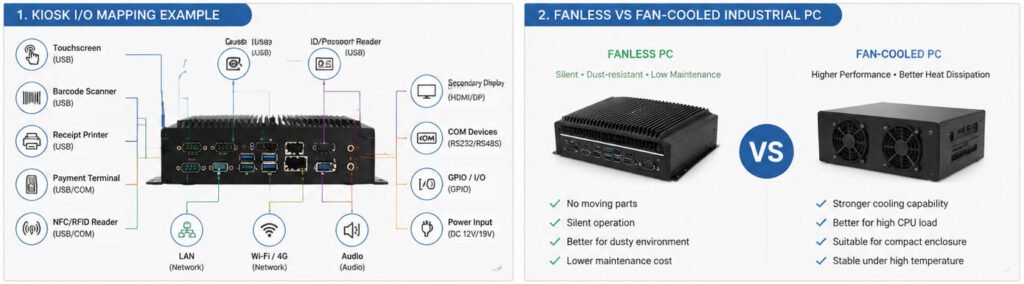
A fanless PC kiosk configuration is attractive for obvious reasons.
Removing a mechanical fan eliminates one moving component, reduces noise, limits dust being actively pulled through the computer, and can reduce one category of maintenance failure.
But “fanless” should not automatically be interpreted as “more reliable.”
A fanless industrial PC still produces heat. It simply transfers that heat through its chassis and passive cooling structure instead of using forced airflow.
For passive cooling to work properly, the surrounding kiosk enclosure must allow that heat to dissipate.
A fanless PC is often a good choice when:
- The processing workload is moderate
- The kiosk operates indoors
- Low maintenance is important
- Dust exposure is a concern
- Silent operation is preferred
- The enclosure has sufficient passive ventilation
- The PC can be mounted with adequate clearance around its heatsink
Active cooling may be more appropriate when:
- The processor generates substantial heat
- High CPU/GPU load is continuous
- The enclosure is very compact
- Several heat-generating modules are installed together
- Ambient operating temperatures are high
- The kiosk uses high-brightness displays or other high-power components
There is no universal winner.
The correct approach is to evaluate the complete kiosk thermal system, not whether the PC specification sheet says “fanless.”
A fanless PC installed in a badly ventilated cabinet can operate under worse thermal conditions than a properly engineered actively cooled system.
4. Don’t Count Ports—Build an I/O Map
This is one of the most important parts of kiosk PC selection.
A specification saying “6 × USB” looks useful, but it does not tell the complete story.
A commercial kiosk may simultaneously connect:
| Device | Possible Interface |
|---|---|
| Capacitive touchscreen | USB |
| Receipt printer | USB / RS232 / LAN |
| Barcode or QR scanner | USB / RS232 |
| Payment terminal | USB / RS232 / LAN |
| NFC/RFID reader | USB / Serial |
| Camera | USB |
| ID/passport reader | USB |
| Card dispenser | RS232 / USB |
| Secondary display | HDMI / DP |
| Service sensors | GPIO / Serial |
Create an I/O map before approving the kiosk motherboard or industrial PC.
For every peripheral, document:
Device → Interface → Connector → Power Requirement → Driver → OS Compatibility
This catches problems that a simple port count will miss.
For example, four devices may all require USB, but placing several high-bandwidth devices on the same internal USB controller can create a different engineering situation from distributing them across independent controllers.
Power requirements matter too.
A USB port existing physically does not guarantee that connecting multiple bus-powered peripherals through an inexpensive hub will produce a stable commercial system.
Where several USB peripherals are required, evaluate whether a powered industrial USB hub is appropriate.
For serial devices, confirm the actual communication standard. RS232, RS485, and TTL serial interfaces are not interchangeable merely because they are all described informally as “serial.”
AONKIOSK’s Kiosk Hardware Structure Overview provides a broader view of how computing, peripheral, power, communication, and mechanical layers are organized within a complete kiosk.
5. Motherboard vs Box Industrial PC: Choose at System Level
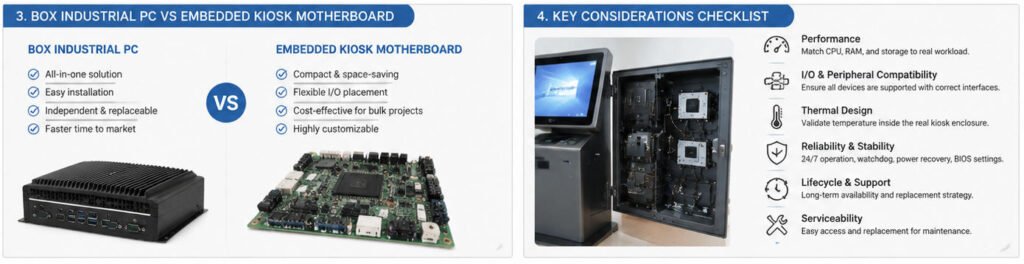
Another decision is whether to integrate a complete box industrial PC or install a kiosk motherboard directly inside the enclosure.
Neither architecture is automatically better.
Box Industrial PC
A complete industrial PC provides its own chassis, cooling structure, connectors, storage mounting, and often a more standardized replacement method.
It can be attractive when:
- Fast integration is important
- Field replacement should be simple
- The enclosure has sufficient internal space
- A clearly defined PC module simplifies maintenance
- The customer wants the computing system separated from the kiosk wiring architecture
The trade-off is additional volume, weight, and potentially higher hardware cost.
Embedded Kiosk Motherboard
Installing the motherboard directly can reduce internal volume and provide greater flexibility over connector placement and system architecture.
This may be useful for:
- Slim wall-mounted kiosks
- Compact countertop terminals
- High-volume projects
- Cost-sensitive deployments
- Highly integrated enclosure designs
However, motherboard-level integration places more responsibility on the kiosk manufacturer.
Mounting, grounding, airflow, cable retention, power input, SSD placement, antenna positioning, and protection against accidental service damage all need to be considered.
The cheapest board is not necessarily the cheapest complete solution once these engineering requirements are included.
For projects comparing Android and Windows architectures, AONKIOSK’s Kiosk Mainboard Options: Android vs Windows explains how operating system, driver availability, peripheral requirements, and workload influence kiosk motherboard selection.
6. Treat Peripheral Compatibility as a Validation Task
One of the most dangerous assumptions in kiosk integration is:
“It has USB, so it should work.”
Physical interface compatibility is only the first layer.
A peripheral also needs the correct:
- Driver
- SDK or API
- Operating-system support
- Communication protocol
- Firmware
- Power supply
- Application integration
This becomes particularly important for specialized devices such as:
- Passport readers
- EMV payment terminals
- Fingerprint readers
- RFID modules
- Card dispensers
- Cash acceptors
- Thermal printers
- Industrial scanners
Before freezing the PC specification, provide the kiosk manufacturer with the exact peripheral model numbers.
If possible, test actual samples.
For OEM projects, this is much safer than specifying “80 mm printer + QR scanner + NFC” and assuming that all models within those categories behave identically.
7. Leave I/O and Performance Headroom
A prototype represents today’s requirements.
A commercial deployment may need to support tomorrow’s requirements as well.
A retailer might later add a loyalty reader. A restaurant may add a camera. A software provider may introduce more demanding UI animations or local services. A hotel project may require another USB security device.
If every USB port, COM port, storage interface, and processor resource is already occupied during the first deployment, even a small change can force a hardware redesign.
Where practical, leave:
- Spare USB capacity
- At least one service-accessible interface
- RAM expansion capability
- Storage headroom
- Processing headroom
- Network expansion options
The additional cost is often small compared with revalidating a completely different PC platform later.
8. BIOS Features Can Matter More Than Buyers Expect
Consumer PC buyers rarely care about BIOS configuration beyond boot order.
Kiosk deployments should.
An unattended terminal needs predictable recovery behavior.
Useful industrial PC or motherboard capabilities can include:
- Power-on after AC recovery
- Scheduled power-on
- Watchdog timer
- Wake-on-LAN
- PXE/network boot
- USB boot control
- Automatic startup behavior
- Hardware monitoring
Consider a kiosk installed in a shopping center that loses power overnight.
When electricity returns, requiring an employee to open the enclosure and press a power button is not an acceptable operating model.
The system should return to its intended operating state automatically.
For this reason, BIOS configuration should be documented as part of the production specification rather than configured informally on the prototype.
9. Think About the PC’s Physical Position Inside the Kiosk
A powerful industrial computer can still become difficult to operate and maintain if it is installed in the wrong location.
The PC should ideally:
- Receive adequate airflow
- Remain accessible for replacement
- Allow connectors to be reached
- Avoid blocking printer paper changes
- Remain away from likely liquid-entry paths
- Avoid unnecessary heat concentration
- Allow sensible cable routing
- Be removable without dismantling unrelated modules
Connector orientation deserves particular attention in slim kiosks.
A PC may physically fit into the available space while leaving insufficient clearance for HDMI, USB, LAN, or power connectors once cables are attached.
This is especially relevant to wall-mounted and compact kiosks where internal depth is limited.
The computing platform must therefore be evaluated against the real 3D internal layout, not only its external dimensions.
10. Specify RAM and SSD for the Production Environment
RAM and storage should be selected using the complete production software stack.
Do not test only the kiosk application.
The deployed system may simultaneously run:
- Operating system
- Kiosk application
- Browser engine
- Database
- Payment middleware
- Peripheral services
- Antivirus or endpoint protection
- Remote management agent
- Logging services
- Update services
A Windows application that appears comfortable with 4 GB during development may behave differently after these background services are installed.
The same principle applies to storage.
SSD capacity should include room for:
- OS updates
- Application updates
- Local transaction logs
- Cached content
- Crash dumps
- Diagnostic files
- Recovery partitions
Avoid designing a commercial system around storage that is nearly full at launch.
11. Ask About Motherboard Lifecycle Before Approving the Prototype
This is where commercial procurement differs significantly from building a single PC.
Suppose you approve a prototype today using motherboard A.
Six months later, you order 100 units.
Eighteen months later, you need another 300.
What happens if motherboard A is no longer available?
Consumer computing hardware can change rapidly. OEM kiosk deployments often need greater configuration continuity.
Before approving the kiosk motherboard, ask:
- What is the expected product lifecycle?
- Is the CPU likely to remain available?
- Is this an industrial or consumer-oriented board?
- What is the replacement strategy if it reaches EOL?
- Will the replacement maintain the same physical dimensions?
- Will connector locations change?
- Will drivers change?
- Will the existing OS image remain compatible?
- How will we be notified about substitutions?
These questions become increasingly important as deployment volume increases.
A motherboard substitution that seems minor to the purchasing department can require new driver validation, software testing, thermal verification, cable changes, or even mechanical modifications.
12. Control Substitutions During Mass Production
A quotation stating “Intel Core i5, 8 GB RAM, 256 GB SSD” is not a complete production specification.
There are many generations and models of Core i5 processors. RAM and SSD products also differ.
For projects where hardware consistency matters, the Bill of Materials should define an appropriate level of component control.
Critical components may include:
- Motherboard manufacturer and model
- CPU model
- RAM specification
- SSD type and capacity
- Wi-Fi module
- Power adapter
- BIOS version or configuration
- Operating-system image
This does not mean every component must remain unchanged forever.
It means substitutions should follow an agreed change-control process.
A replacement component should be evaluated for software compatibility, electrical requirements, mechanical fit, thermal behavior, and peripheral compatibility before entering production.
For buyers planning a larger deployment, this principle also applies to the wider procurement process described in the AONKIOSK Self-Service Kiosk Buying Guide, from prototype validation through pilot deployment and mass production.
13. Prototype Testing Should Include Failure Conditions
Testing whether the kiosk boots successfully is not enough.
Commercial validation should reproduce realistic operating conditions and common failures.
For the computing system, useful tests include:
Extended Operation
Run the complete kiosk continuously with the production application and peripherals active.
Monitor:
- CPU temperature
- Storage temperature
- Memory utilization
- CPU utilization
- Unexpected restarts
- Peripheral disconnections
Power Recovery
Cut AC power and restore it.
Confirm that the kiosk automatically boots and returns to the application without manual intervention.
Network Failure
Disconnect Ethernet or Wi-Fi.
Observe whether the application and connected devices recover correctly when connectivity returns.
Peripheral Stress
Repeatedly trigger printing, scanning, payment communication, camera operation, and other connected devices.
High Workload
Run the most demanding realistic transaction workflow rather than leaving the kiosk idle during the test.
Thermal Testing
Measure temperatures after the kiosk reaches thermal equilibrium with the enclosure closed.
Testing the PC outside the kiosk cannot reproduce the real thermal environment.
14. Don’t Optimize the PC Price in Isolation
For a deployment of 500 kiosks, reducing the industrial PC price by $20 saves $10,000 during purchasing.
That sounds attractive.
But if the cheaper configuration creates additional service visits, premature replacements, compatibility problems, or an early motherboard migration, the saving can disappear quickly.
The opposite mistake also occurs: specifying an unnecessarily expensive Core i7 configuration for a kiosk that could operate reliably on a lower-power processor.
The correct comparison is not:
PC A price vs. PC B price.
It is:
Total computing-platform cost over the expected kiosk lifecycle.
That includes:
- Initial hardware cost
- Cooling requirements
- Power consumption
- Integration engineering
- Software validation
- Failure rate
- Field replacement time
- Spare inventory
- Platform availability
- Future requalification
A well-selected kiosk industrial PC is not necessarily the cheapest or fastest option. It is the platform that creates the fewest compromises across the entire system.
15. A Practical Industrial PC Specification Sheet for Your RFQ
Instead of sending a supplier a request such as:
“We need an i5 industrial PC for our kiosk.”
Provide a specification that looks more like this:
| Requirement | Example |
|---|---|
| Operating System | Windows 11 IoT / Windows 11 |
| Application | Self-service ordering |
| CPU Performance | Supplier recommendation based on workload |
| RAM | 8 GB minimum |
| Storage | 128/256 GB SSD |
| Display Output | 1 × HDMI minimum |
| Touchscreen | USB |
| Printer | USB |
| Scanner | USB |
| Payment Terminal | LAN / USB |
| Additional COM | 2 × RS232 required |
| Network | Gigabit LAN + Wi-Fi |
| Cooling | Fanless preferred, subject to thermal validation |
| Power Recovery | Auto power-on required |
| Watchdog | Preferred |
| Operation | Up to 24/7 |
| Service | PC must be independently replaceable |
| Lifecycle | Long-term availability preferred |
| Change Control | Approval required for motherboard substitution |
This gives the manufacturer enough information to recommend an appropriate platform instead of simply quoting whatever computer happens to match a processor name.
For customized kiosk projects, computing hardware should ultimately be reviewed together with enclosure structure, peripherals, thermal management, and service access. AONKIOSK’s OEM/ODM kiosk manufacturing approach supports configurable computing platforms and peripheral integration as part of the complete hardware design.
Final Selection Checklist
Before freezing the industrial PC specification for production, confirm five areas.
Performance: Can the PC run the complete production software stack with reasonable headroom?
Integration: Does it provide the correct interfaces—not simply enough ports—for every peripheral?
Thermal design: Has the PC been tested inside the final closed kiosk enclosure under realistic workload?
Serviceability: Can a technician replace the PC or storage device without dismantling unrelated hardware?
Lifecycle: Can the same platform be supplied for future batches, and is there a controlled replacement strategy if it cannot?
If any of these questions remains unanswered, the computing platform is probably not ready to be frozen for mass production.
Conclusion
Choosing a kiosk industrial PC should be treated as a system-engineering decision rather than a PC purchasing decision.
CPU performance matters, but so do thermal output, I/O architecture, BIOS behavior, peripheral drivers, physical installation, power recovery, component lifecycle, and production consistency.
A fanless PC kiosk architecture can reduce moving parts and simplify maintenance, but only when the enclosure provides an appropriate thermal environment. An integrated kiosk motherboard can reduce size and cost, but it requires careful attention to cooling, power, mounting, connectivity, and future replacement.
For commercial deployments, the strongest configuration is usually not the one with the most impressive specification sheet.
It is the one that runs the required software comfortably, communicates reliably with every peripheral, fits naturally into the enclosure, survives the intended operating environment, remains easy to service, and can be reproduced consistently when the next production order arrives.
That is the standard by which a commercial kiosk computing platform should be selected.