





La carte mère constitue le cœur informatique d’une borne libre-service. Elle exécute le système d’exploitation et l’application de la borne, traite les entrées de l’écran tactile, communique avec les périphériques, gère les connexions réseau et échange des données avec les plateformes POS, ERP, de paiement, de fidélité ou cloud.
Le choix d’une carte mère de borne ne se résume donc pas simplement à une sélection entre Android et Windows. La plateforme adaptée dépend de l’environnement logiciel, des périphériques requis, de la charge de traitement, des politiques de sécurité, de la méthode de maintenance, de l’échelle de déploiement et de la durée de vie attendue.
Ce guide explique les différences pratiques entre une carte mère de borne Android et une carte mère de borne Windows. Il est destiné aux éditeurs de logiciels, intégrateurs de systèmes, chefs de projet, équipes de maintenance et exploitants de bornes qui doivent sélectionner, configurer ou diagnostiquer une plateforme informatique de borne.
AONKIOSK développe des solutions configurables Matériel de borne libre-service pouvant être construites autour de différentes plateformes informatiques et combinaisons de périphériques. La spécification finale de la carte mère doit toujours être confirmée en fonction du logiciel du client et de la liste complète des appareils avant la production.
1. Qu’est-ce qu’une carte mère de borne ?
Une carte mère de borne, parfois appelée carte mère de kiosque, carte informatique embarquée, PC industriel ou carte de contrôle Android, est la plateforme électronique centrale à l’intérieur de la borne.
Elle se connecte normalement à :
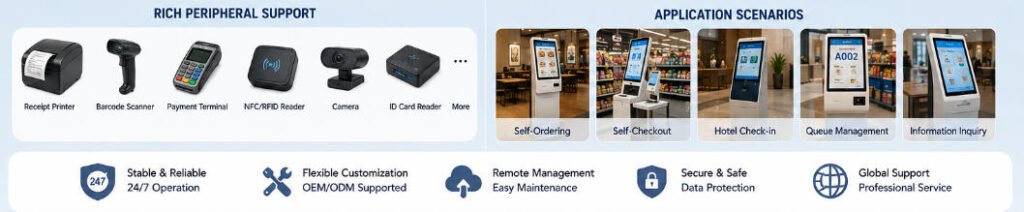
- L’écran tactile et le panneau LCD
- Les imprimantes de reçus ou de tickets
- Les lecteurs de codes QR et de codes-barres
- Terminaux de paiement
- Les lecteurs NFC ou RFID
- Les caméras et microphones
- Haut-parleurs
- Les lecteurs de cartes d’identité ou de passeports
- Les boutons et indicateurs contrôlés par GPIO
- Les modules Ethernet, Wi-Fi, Bluetooth ou cellulaires
- Les systèmes de gestion à distance des appareils
La carte mère détermine quel système d’exploitation peut être utilisé, la rapidité d’exécution de l’application, le nombre de périphériques pouvant être connectés et la facilité de maintenance de la borne.
Une carte correctement spécifiée doit offrir des performances de traitement adéquates sans ajouter de coûts, de chaleur ou de consommation d’énergie inutiles.
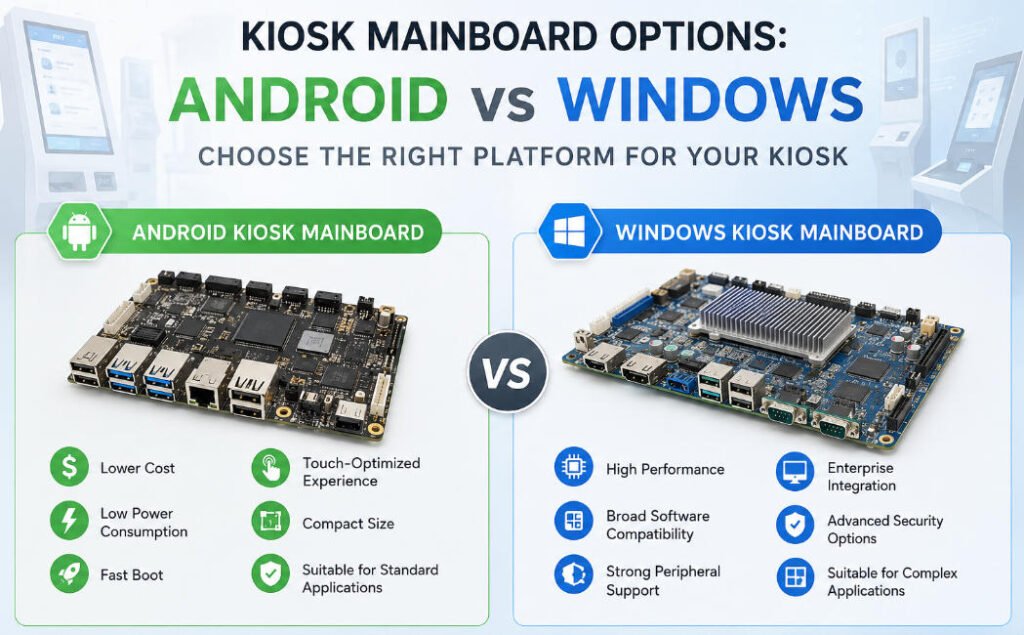
2. Aperçu des cartes mères Android et Windows
| Domaine de sélection | Carte mère de borne Android | Carte mère de borne Windows |
|---|---|---|
| Plateforme de processeur typique | Système sur puce basé sur ARM | Plateforme x86 Intel ou AMD |
| Applications courantes | Commande, consultation d’informations, signalétique numérique, enregistrement en file d’attente | Intégration POS, libre-service de caisse, enregistrement hôtelier, billetterie, contrôle de périphériques complexes |
| Coût matériel | Généralement inférieur | Généralement plus élevée |
| Consommation électrique | Généralement plus faible | Généralement plus élevée |
| Temps de démarrage | Souvent plus rapide | Dépend du matériel et de la configuration Windows |
| Compatibilité logicielle | Idéal pour les applications Android et les systèmes basés sur le web | Large compatibilité avec les logiciels de bureau, d’entreprise et hérités |
| Intégration périphérique | Adapté lorsque des pilotes ou SDK Android sont disponibles | Prise en charge solide des périphériques USB, série, basés sur SDK et hérités |
| Capacité de traitement | Suffisante pour des charges légères à moyennes | Mieux adaptée aux charges de travail complexes ou gourmandes en ressources |
| Options de stockage | Généralement eMMC ; certaines cartes prennent en charge un stockage supplémentaire | SSD, M.2, SATA ou autre stockage extensible |
| Complexité de maintenance | Relativement simple dans les déploiements contrôlés | Une configuration et une gestion des mises à jour plus approfondies peuvent être nécessaires |
| Profil de projet type | Déploiement sensible aux coûts, standardisé et axé sur l'application | Déploiement à forte intégration ou géré au niveau entreprise |
Cette comparaison est une référence générale. Les performances réelles dépendent du processeur, de la mémoire, du stockage, de la version du système d'exploitation, du micrologiciel, des pilotes et de la conception logicielle.
3. Cartes mères Android pour bornes
Une carte mère Android pour borne utilise généralement un système sur puce (SoC) basé sur ARM. Le processeur, l'unité graphique, les fonctions multimédia et de nombreux contrôleurs de communication sont intégrés dans une plateforme compacte.
Les configurations courantes des bornes Android incluent :
- Processeur ARM quadricœur ou octocœur
- 2 Go, 4 Go ou 8 Go de RAM
- Stockage eMMC de 16 Go, 32 Go, 64 Go ou plus
- Ethernet
- Wi-Fi et Bluetooth
- Plusieurs ports USB
- Sortie d'affichage HDMI, LVDS ou eDP
- Interfaces de communication série sur certaines cartes industrielles sélectionnées
- Micrologiciel Android personnalisé pour l'application de la borne
Avantages d'une carte mère Android pour borne
Coût matériel réduit
Les cartes Android offrent généralement une solution rentable pour les déploiements standardisés. Elles sont couramment utilisées lorsque la borne exécute un nombre limité de tâches clairement définies, telles que l'affichage d'un menu, la collecte d'une commande, le scan d'un code QR ou la soumission d'informations à une plateforme cloud.
Le coût inférieur de la carte peut devenir significatif dans les projets impliquant des centaines ou des milliers de terminaux.
Faible consommation d'énergie
Les cartes Android basées sur ARM consomment normalement moins d'énergie que les ordinateurs x86 complets. Une consommation réduite peut diminuer la chaleur interne et simplifier la gestion thermique.
Cela est utile dans les boîtiers minces, les bornes murales, les terminaux de comptoir et les appareils disposant d'un espace de ventilation limité.
Taille physique compacte
Les cartes Android sont souvent plus petites que les PC industriels Windows. Leurs dimensions compactes laissent plus d'espace pour les imprimantes, les dispositifs de paiement, le routage des câbles, les alimentations électriques et l'accès à la maintenance.
Démarrage rapide
Une borne Android correctement configurée peut généralement démarrer son application rapidement après la mise sous tension. L'application peut également être configurée pour se lancer automatiquement et empêcher les utilisateurs d'accéder aux paramètres système.
Adaptée aux applications orientées tactile
Android est conçu autour de l'interaction par écran tactile. Il peut constituer une plateforme pratique pour :
- Commande en libre-service en restaurant
- Les catalogues de produits
- Annuaires numériques
- L'inscription aux files d'attente
- Enregistrement des visiteurs
- Consultation des adhésions
- La publicité et l'affichage d'informations
- Les flux de paiement par code QR
- La sélection simple de billets
Par exemple, la borne de commande en libre-service APK04 pour restaurant d'AONKIOSK prend en charge les configurations Android et Windows, permettant d'adapter la plateforme informatique à l'écosystème de commande ou de point de vente du restaurant.
Limites d'une carte mère Android pour borne
La disponibilité des pilotes doit être confirmée
Un périphérique USB peut être physiquement connecté à Android mais ne pas fonctionner si aucun pilote compatible, SDK, interface de programmation d'application ou protocole de communication série n'est disponible.
Ce problème affecte couramment :
- Les dispositifs de paiement spécialisés
- Les lecteurs de passeports
- Certaines imprimantes thermiques
- Les modules de gestion d'espèces
- Les distributeurs de cartes industriels
- Les lecteurs biométriques
- Les dispositifs série hérités
Ne supposez pas qu'un périphérique est compatible simplement parce qu'il utilise un connecteur USB.
Compatibilité limitée avec les applications Windows
Un logiciel développé comme exécutable Windows ne peut pas fonctionner directement sur Android. Il doit être redéveloppé, remplacé par une version Android, fourni via un navigateur ou hébergé à distance.
La personnalisation du micrologiciel peut être spécifique à la carte
Des fonctionnalités telles que le démarrage automatique, le contrôle programmé de l'alimentation, la rotation de l'écran, la suppression de la barre d'état, le comportement du chien de garde ou les autorisations USB peuvent nécessiter un micrologiciel personnalisé.
Changer ultérieurement de modèle de carte mère peut donc nécessiter le développement d'un nouveau micrologiciel et des tests d'application.
Moins adaptée au traitement local complexe
L'analyse vidéo haute résolution, les grandes bases de données locales, la vision par ordinateur avancée, les sorties d'affichage multiples ou les services d'arrière-plan complexes peuvent nécessiter une capacité de traitement supérieure à celle fournie par une carte Android de base.
4. Cartes mères Windows pour bornes
Une carte mère Windows pour borne utilise normalement un processeur x86 Intel ou AMD. Elle peut être fournie sous forme de carte mère embarquée, de mini PC sans ventilateur, d'ordinateur industriel ou de PC intégré à cadre ouvert.
Les configurations typiques incluent :
- Intel Celeron, processeurs de la série N, Core i3, Core i5 ou Core i7
- 4 Go, 8 Go, 16 Go ou plus de RAM
- Stockage SSD M.2, mSATA ou SATA
- Plusieurs ports USB
- Ports série RS-232 ou RS-485
- Ethernet
- Wi-Fi et Bluetooth
- Sortie HDMI, DisplayPort, LVDS ou eDP
- Windows 10 ou Windows 11, selon les exigences du projet et la prise en charge matérielle
Avantages d'une carte mère de borne Windows
Large compatibilité logicielle
Windows est souvent choisi lorsque la borne doit exécuter :
- Logiciel TPV existant
- Applications de bureau
- .Applications .NET
- Applications basées sur navigateur avec services locaux
- Clients de bases de données
- Utilitaires de contrôle de périphériques
- Logiciels de sécurité d'entreprise
- Applications métier héritées
Cela rend Windows particulièrement adapté lorsqu'une borne est intégrée à un environnement informatique existant.
Prise en charge solide des périphériques et des pilotes
De nombreux appareils commerciaux sont initialement conçus pour Windows. Les fabricants fournissent souvent des pilotes Windows, des outils de configuration, des utilitaires de test et des kits SDK.
Cela peut simplifier l'intégration avec :
- Terminaux de paiement
- Imprimantes de reçus et de tickets
- Lecteurs de codes-barres
- Lecteurs de cartes d'identité et de passeports
- Scanners de documents
- Distributeurs de cartes
- Accepteurs et recycleurs de billets
- Dispositifs de pesage
- Matériel biométrique
Windows est donc fréquemment utilisé pour les intégrations complexes les bornes de vente au détail et de paiement.
Capacité de traitement locale supérieure
Les PC industriels sous Windows peuvent offrir des performances processeur plus élevées, une capacité mémoire plus importante et un stockage extensible plus rapide.
Ils sont souvent préférables pour :
- Grandes bases de données locales
- Plusieurs applications exécutées simultanément
- Médias haute résolution
- La vision par ordinateur
- Interfaces multi-écrans
- Intégrations POS complexes
- Rapports locaux
- Services de sécurité avancés
- Clients de réseaux privés virtuels
Gestion d'entreprise familière
De nombreux services informatiques utilisent déjà des outils Windows de déploiement, de surveillance, d'antivirus, de gestion de comptes, de chiffrement de disque et d'assistance à distance. L'utilisation du même environnement peut simplifier la gestion opérationnelle.
Limites d'une carte mère de borne Windows
Coût plus élevé
Les ordinateurs industriels compatibles Windows coûtent généralement plus cher que les cartes Android d'entrée de gamme. La mémoire, le stockage SSD, les licences de système d'exploitation et les processeurs plus performants peuvent encore augmenter le coût matériel total.
Exigences de puissance et thermiques plus élevées
Un processeur x86 peut générer plus de chaleur qu'une carte basée sur ARM. Le boîtier de la borne doit assurer une ventilation adéquate, une diffusion de la chaleur ou un flux d'air contrôlé.
Une mauvaise conception thermique peut entraîner :
- Une limitation de la fréquence du processeur
- Des arrêts inattendus
- Une durée de vie réduite des composants
- Une instabilité des applications
- Du bruit de ventilateur ou une panne de ventilateur
Davantage de maintenance système
Les systèmes Windows peuvent nécessiter plus d'attention concernant :
- Les mises à jour du système d'exploitation
- Mises à jour des pilotes
- Autorisations utilisateur
- Politiques antivirus
- Services de démarrage
- Espace disque
- Planification des redémarrages
- Liste blanche des applications
Des mises à jour non contrôlées peuvent provoquer un redémarrage du kiosque pendant les heures d'ouverture ou introduire un problème de compatibilité des pilotes. Les politiques de mise à jour doivent donc être planifiées avant le déploiement.
Temps de démarrage plus long
Windows peut mettre plus de temps à démarrer, en particulier lorsque de nombreux services, outils de sécurité ou applications de démarrage sont activés. Un shell de kiosque ou un écran de démarrage peut être utilisé pour masquer le bureau pendant le chargement de l'application.
5. Quelle carte mère choisir ?
La décision doit commencer par les logiciels et les périphériques, et non par le nom du processeur.
Choisissez Android lorsque :
- L'application de kiosque est déjà développée pour Android.
- Le flux de travail repose principalement sur une application web.
- Le coût et la faible consommation d'énergie sont des priorités.
- L'appareil exécute un ensemble standardisé de tâches.
- Tous les périphériques requis disposent d'une prise en charge Android confirmée.
- Un boîtier compact ou mince est requis.
- Le déploiement utilise une gestion centralisée des appareils Android.
- Un démarrage rapide est important.
- Les exigences de traitement local sont modérées.
Android est souvent approprié pour les commandes en restaurant, les demandes d'information, l'enregistrement en file d'attente, la publicité, l'annuaire et les applications simples d'enregistrement.
Choisissez Windows lorsque :
- Le kiosque doit exécuter des logiciels Windows existants.
- Le projet nécessite une intégration approfondie avec un système de point de vente ou une intégration d'entreprise.
- Plusieurs périphériques spécialisés doivent être connectés.
- Les fournisseurs de périphériques fournissent des pilotes ou des SDK exclusivement pour Windows.
- Une performance de traitement local plus élevée est requise.
- Le kiosque utilise de grandes bases de données locales ou plusieurs services en arrière-plan.
- Le service informatique gère déjà des appareils Windows.
- Du matériel ou des logiciels hérités doivent être conservés.
- Le projet nécessite une plus grande extension de stockage ou de mémoire.
Windows est fréquemment sélectionné pour les caisses automatiques en supermarché, l'enregistrement hôtelier, les services financiers, la billetterie, l'enregistrement médical, la vérification d'identité et les projets de gestion d'espèces.
Ne choisissez pas uniquement en fonction du prix d'achat
Une carte mère moins chère n'est pas économique si elle nécessite ultérieurement un redéveloppement logiciel, des périphériques de remplacement, une maintenance manuelle ou des visites répétées sur site.
Le calcul correct doit inclure :
- Le coût de la carte mère et du système d'exploitation
- Le développement logiciel
- Les pilotes périphériques et l'intégration des SDK
- Tests
- Gestion à distance
- Consommation électrique
- La main-d'œuvre de maintenance
- La disponibilité des pièces de remplacement
- La durée de vie prévue du déploiement
6. Processus de spécification recommandé
Avant de confirmer une carte mère de kiosque Android ou Windows, préparez une liste complète des exigences techniques.
Étape 1 : Confirmer l'application
Documentez :
- Le nom et la version de l'application
- Les systèmes d'exploitation pris en charge
- L'exigence minimale en matière de processeur
- Exigence minimale en matière de RAM
- Stockage requis
- Exigences graphiques
- Version du navigateur ou de l’environnement d’exécution
- Exigences relatives à la base de données
- Exigences de fonctionnement hors ligne
Ne vous fiez pas uniquement aux spécifications minimales du logiciel. Un kiosque nécessite généralement une marge de performance supplémentaire pour les services du système d’exploitation, les mises à jour, la journalisation, le support à distance et les futures versions du logiciel.
Étape 2 : Inventorier chaque périphérique
Créez un tableau des dispositifs contenant :
- Fabricant
- Numéro de modèle
- Type de connexion
- Pilote requis
- SDK requis
- Exigence d’alimentation
- Protocole de communication
- Support du système d'exploitation
- Statut du test
Ce processus est particulièrement important pour les projets impliquant des terminaux de paiement, des imprimantes, des modules de caisse, des lecteurs de passeports ou des dispositifs biométriques.
Étape 3 : Vérifier les ports requis
Comptez les interfaces réellement nécessaires :
- USB 2.0
- USB 3.x
- RS-232
- RS-485
- Ethernet
- HDMI
- LVDS ou eDP
- Audio
- GPIO
- Mini PCIe
- M.2
- Interface carte SIM
Prévoyez des ports de rechange pour la maintenance et l’expansion future. Un concentrateur USB peut ajouter des connecteurs, mais il n’offre pas toujours la même stabilité ni la même capacité d’alimentation que les ports natifs de la carte mère.
Étape 4 : Évaluer les conditions thermiques
Confirmer :
- Température ambiante de fonctionnement
- Volume du boîtier
- Ouvertures de ventilation
- Sources de chaleur à proximité de la carte
- Heures de fonctionnement continu
- Exigence sans ventilateur ou avec refroidissement par ventilateur
- Exposition à la poussière
- Emplacement d’installation
Le processeur doit être testé à l’intérieur du boîtier final du kiosque, et non uniquement sur un établi ouvert.
Étape 5 : Définir la méthode de maintenance
Déterminez comment les techniciens vont :
- Accéder au BIOS ou au micrologiciel
- Réinstaller le système d’exploitation
- Remplacer le stockage
- Récupérer les journaux
- Redémarrer le kiosque
- Connecter un clavier ou un dispositif de service
- Effectuer des diagnostics à distance
- Restaurer l’image système approuvée
La gamme de kiosques services de fabrication de bornes en OEM et ODM Peut prendre en charge la sélection de la plateforme du processeur, la disposition interne, la conception thermique, le cheminement des câbles, l’intégration des périphériques et les exigences d’accès à la maintenance.
7. Recommandations en matière de performance et de stockage
Il n'existe pas de spécification universelle pour les bornes interactives. Les fourchettes suivantes constituent des points de départ plutôt que des exigences fixes.
Borne Android de base
Adaptée aux applications simples d'information, de commande ou basées sur le web :
- Processeur ARM quadricœur ou octocœur
- 2 à 4 Go de RAM
- 16 à 32 Go de stockage
- Ethernet et Wi-Fi
- Interfaces USB ou série requises
Prévoyez davantage de mémoire et de stockage lorsque l'application contient de grands fichiers multimédia, des menus hors ligne, des journaux de transactions ou plusieurs services en arrière-plan.
Borne Android avancée
Adaptée aux interfaces plus riches ou aux fonctions intégrées multiples :
- Processeur ARM octa-core plus performant
- 4 à 8 Go de RAM
- 32 à 128 Go de stockage
- Gigabit Ethernet si nécessaire
- Interfaces série ou GPIO supplémentaires
- Chien de garde matériel
- Micrologiciel personnalisé
Borne Windows de base
Adaptée aux applications navigateur, aux logiciels de caisse légers ou à l'enregistrement standard :
- Processeur Intel d'entrée de gamme
- 8 Go de RAM
- SSD de 128 Go
- Ethernet Gigabit
- Ports USB et série requis
Borne Windows avancée
Adaptée aux systèmes de caisse complexes, à la vision par ordinateur, au fonctionnement multi-écrans ou aux grandes bases de données :
- Processeur de classe Intel Core sélectionné en fonction de la charge de travail
- 16 Go de RAM ou plus
- SSD de 256 Go ou plus
- Sorties d'affichage multiples
- Chien de garde matériel
- Interfaces réseau et série industrielles
Évitez de sélectionner un processeur surdimensionné uniquement pour sa valeur marketing. Des performances inutilisées augmentent le coût et la chaleur sans améliorer la fiabilité de la borne.
8. Liste de contrôle de compatibilité des périphériques
Avant la production en série, testez l'ensemble de la chaîne matérielle.
Écran tactile
Confirmer :
- Pilote du contrôleur tactile
- L’interface USB ou série
- Exigence multi-tactile
- Comportement d'étalonnage
- Rotation de l'écran
- Fonctionnement après redémarrage
- Fonctionnement après mise en veille ou extinction de l'affichage
Imprimante
Confirmer :
- Pilote ou SDK du système d'exploitation
- Protocole USB ou série
- Largeur du papier
- Contrôle du coupeur
- Signalement de niveau de papier faible
- Signalement de fin de papier
- Récupération après erreur
- Encodage et prise en charge des langues
Scanner
Confirmer :
- Mode USB HID, COM virtuel ou SDK
- Formats de codes-barres pris en charge
- Configuration des préfixes et suffixes
- Comportement de mise au point dans l'application
- Numérisation dans des conditions d'éclairage réelles
Terminal de paiement
Confirmer :
- Dimensions physiques et montage
- Connexion USB, Ethernet ou série
- Certification du fournisseur de paiement
- SDK ou middleware
- Compatibilité du système d’exploitation
- Exigences réseau
- Sécurité des câbles
- Responsabilité de conformité régionale
Un fabricant de bornes peut intégrer le dispositif physique et le matériel de communication, mais la certification de paiement, l’approbation de la banque acquéreuse, la configuration de la passerelle et la conformité du logiciel de transaction impliquent généralement le fournisseur de paiement et l’intégrateur de solutions.
Caméras et dispositifs d’identité
Confirmer :
- Résolution et fréquence d’images
- Bande passante USB
- Prise en charge des pilotes
- Architecture du SDK
- Exigences d’éclairage
- Politique de confidentialité
- Charge de travail de traitement locale ou cloud
9. Considérations de sécurité
Android et Windows peuvent tous deux être déployés de manière sécurisée, mais aucune plateforme n’est sécurisée par défaut.
Mesures de sécurité Android
Les mesures de contrôle recommandées comprennent :
- Mode kiosque restreint
- Barres d’état et de navigation désactivées
- Lancement automatique des applications
- Paramètres protégés par mot de passe
- Accès USB non autorisé désactivé
- Micrologiciel et applications signés
- Communication API sécurisée
- Identifiants uniques de l’appareil
- Contrôle des mises à jour à distance
- Politiques de nettoyage des données et des journaux
Évitez d’installer des applications provenant de sources inconnues ou de partager un mot de passe administrateur unique sur l’ensemble du parc.
Mesures de sécurité Windows
Les mesures de contrôle recommandées comprennent :
- Accès assigné ou shell kiosque dédié
- Compte utilisateur standard au lieu d’un accès administrateur
- Liste blanche d’applications
- BitLocker lorsque cela est approprié
- Politiques de mise à jour Windows contrôlées
- Pare-feu et protection des points de terminaison
- Désactivation des services inutiles
- Mot de passe BIOS
- Périphériques de démarrage restreints
- Configuration sécurisée du support à distance
Les projets de paiement et de données personnelles peuvent nécessiter des contrôles supplémentaires définis par le fournisseur de logiciels, le processeur de paiement, le service informatique du client ou les réglementations applicables.
10. Dépannage d’une carte mère de kiosque Android
La borne ne s'allume pas
Vérifier :
- Entrée CA et sortie de l’adaptateur d’alimentation.
- Tension d’entrée CC et polarité de la carte mère.
- Câblage du bouton d’alimentation ou de la mise sous tension automatique.
- Connecteurs internes desserrés.
- État du fusible ou de la carte de distribution d’alimentation.
- Dommages visibles sur la carte ou chaleur anormale.
Ne rebranchez pas l’alimentation à plusieurs reprises tant que la tension ou la polarité n’a pas été confirmée.
Android démarre mais l’application kiosque ne s’ouvre pas
Vérifier :
- Vérifier si le lancement automatique est activé.
- Autorisations de l'application.
- Compatibilité de l'application avec la version Android.
- Disponibilité du stockage.
- Services de démarrage dépendants du réseau.
- Journaux d'erreurs (crash logs).
- Vérification si le package a été modifié après la configuration du firmware.
Un périphérique USB n'est pas détecté.
Vérifier :
- Le périphérique sur un autre port USB.
- Câble USB et longueur de prolongateur.
- Consommation électrique USB.
- Prise en charge du pilote Android ou du SDK.
- Configuration OTG et mode hôte.
- Autorisations de l'application.
- Nécessité d'un hub USB alimenté.
L'écran est noir mais la carte mère fonctionne.
Vérifier :
- Alimentation LCD.
- Alimentation du rétroéclairage.
- Câble HDMI, LVDS ou eDP.
- Synchronisation et résolution d'affichage correctes.
- Configuration d'affichage du firmware.
- Câbles d'affichage internes desserrés ou inversés.
11. Dépannage d'une carte mère de borne Windows.
Windows ne démarre pas.
Vérifier :
- Vérification de la détection du SSD dans le BIOS.
- Ordre de démarrage.
- Stabilité de l'alimentation électrique.
- État de récupération de Windows.
- Modifications récentes de mises à jour ou de pilotes.
- État de santé du stockage.
- Possibilité de restaurer l'image système approuvée.
Un périphérique se déconnecte par intermittence.
Vérifier :
- Qualité et longueur du câble USB.
- Paramètres de gestion de l'alimentation USB.
- Messages d'erreur du Gestionnaire de périphériques.
- Version du pilote.
- Capacité d'alimentation du hub USB.
- Mise à la terre et interférences électriques.
- Vérification si le problème survient en charge système maximale.
La borne devient lente avec le temps.
Vérifier :
- Espace SSD disponible.
- Fichiers temporaires et journaux d'application.
- Processus de mise à jour en arrière-plan.
- Analyse antivirus.
- Utilisation de la mémoire.
- Température du processeur.
- Croissance de la base de données.
- Services de démarrage inutiles.
Windows affiche le bureau au lieu de l'application de la borne.
Vérifier :
- Configuration des tâches de démarrage.
- Paramètres du shell de la borne ou de l'accès assigné (Assigned Access).
- Autorisations du compte utilisateur.
- Chemin d'accès exécutable de l'application.
- Indication si une mise à jour a modifié le processus de connexion.
- Indication si l'application s'est fermée en raison d'une erreur.
12. Validation avant la production en série
Un prototype qui s'allume n'est pas encore prêt pour un déploiement commercial.
Complétez les étapes de validation suivantes avant d'approuver la production :
Test fonctionnel
Vérifiez chaque fonction de l'application et chaque périphérique.
Test de redémarrage
Effectuez des démarrages à froid répétés et des redémarrages logiciels. Confirmez que tous les périphériques se reconnectent automatiquement.
Test de récupération réseau
Déconnectez et rétablissez les connexions Ethernet, Wi-Fi et cellulaires. Confirmez que l'application se rétablit sans intervention manuelle.
Test d'interruption de courant
Interrompez l'alimentation pendant le fonctionnement au repos et lors de transactions de test contrôlées. Vérifiez la récupération du système et de la base de données.
Test thermique
Faites fonctionner le kiosque complet en continu dans le boîtier final dans des conditions ambiantes attendues.
Test de stockage
Confirmez une capacité libre suffisante pour le système d'exploitation, l'application, le cache, le contenu hors ligne, les enregistrements de transactions et les journaux.
Test de support à distance
Vérifiez les fonctions de surveillance, de redémarrage, de mise à jour, de collecte de journaux et d'accès à distance avant le déploiement sur le terrain.
Test de récupération d'image
Confirmez que les techniciens peuvent restaurer le micrologiciel Android ou l'image système Windows approuvés.
Un déploiement pilote doit être effectué avant la production en volume, en particulier lorsque le projet utilise de nouveaux logiciels, du matériel de paiement ou des périphériques spécialisés.
13. Android et Windows peuvent-ils être utilisés dans le même modèle de kiosque ?
Oui. Le même boîtier de kiosque peut souvent être conçu pour prendre en charge soit une carte Android, soit un PC industriel Windows.
Cependant, le changement de plateforme informatique peut également nécessiter des modifications de :
- Supports de montage de la carte mère
- Adaptateurs d'alimentation
- La conception du refroidissement
- Câbles d'extension d'E/S
- Emplacement des antennes
- Montage du stockage
- Image du système d'exploitation
- Pilotes de périphériques
- Logiciel applicatif
- Le cheminement interne des câbles
La plateforme doit donc être sélectionnée avant l'approbation de la structure interne finale et du faisceau de câbles.
AONKIOSK prend en charge des structures configurables et des modules matériels pour les projets de restauration, de vente au détail, de paiement, d'enregistrement, de billetterie et de terminaux d'information. Les clients peuvent consulter la documentation applicative correspondante dans le Base de connaissances AONKIOSK.
14. Informations à fournir lors d'une demande de configuration de carte mère
Pour aider l'équipe matérielle à recommander une configuration appropriée, fournissez :
- Application du kiosque et cas d'utilisation
- Système d'exploitation requis et version
- Spécifications minimales et recommandées du logiciel
- Liste complète des modèles de périphériques
- Interfaces de connexion requises
- Nombre d'écrans, taille, résolution et orientation
- Heures d'exploitation quotidiennes prévues
- Méthode de connexion réseau
- Exigences de gestion à distance
- Exigences de stockage et de données hors ligne
- Température ambiante et environnement d'installation
- Quantité cible et durée de vie prévue du produit
- Exigences de certification régionale ou informatiques du client
- Plans d'extension futurs
Fournir ces informations dès le début réduit les risques de compatibilité et évite des modifications inutiles après la production du prototype.
Foire aux questions
Android est-il meilleur que Windows pour un kiosque ?
Aucune plateforme n'est universellement supérieure. Android est souvent préférable pour les applications standardisées, tactiles et sensibles aux coûts. Windows est généralement préférable pour les logiciels de bureau existants, l'intégration de périphériques complexes et les exigences de traitement local plus élevées.
Un logiciel Windows peut-il fonctionner sur une carte mère de borne Android ?
Non, pas directement. Le logiciel doit disposer d'une version Android, être redéveloppé, fonctionner via un navigateur, ou utiliser une autre méthode de diffusion compatible.
Une borne Android peut-elle se connecter à une imprimante de reçus ?
Oui, à condition que l'imprimante propose un SDK Android, un pilote, un protocole ou une interface de commande compatible. La compatibilité doit être testée avec le modèle d'imprimante exact.
Une borne Windows nécessite-t-elle un processeur haut de gamme ?
Pas toujours. Un processeur haut de gamme n'est pas nécessaire pour une application simple de navigation ou de commande. Le processeur doit être sélectionné en fonction de la charge logicielle réelle et de la marge de performance requise.
Quelle quantité de RAM une borne nécessite-t-elle ?
Une application Android de base peut fonctionner avec 2 à 4 Go, tandis que des systèmes Android plus complexes peuvent nécessiter 4 à 8 Go. Les bornes Windows commencent généralement à 8 Go, avec 16 Go ou plus pour les applications exigeantes. La recommandation du fournisseur de logiciels doit avoir la priorité.
Le matériel grand public est-il adapté à une borne commerciale ?
Le matériel grand public peut être acceptable pour des prototypes ou des projets légers contrôlés, mais les déploiements commerciaux bénéficient normalement d'une disponibilité stable des composants, de températures de fonctionnement adaptées, d'un montage sécurisé, d'interfaces suffisantes et de tests de fiabilité à long terme.
La carte mère peut-elle être mise à niveau ultérieurement ?
Parfois, mais une mise à niveau peut affecter le montage, l'alimentation, le refroidissement, les licences du système d'exploitation, les pilotes et la compatibilité logicielle. Planifier une marge de performance adéquate pendant le développement est normalement plus économique.
Conclusion
Le choix entre une carte mère de borne Android et Windows doit être basé sur le système complet plutôt que sur le seul système d'exploitation.
Android est généralement une option solide pour les bornes compactes, économes en énergie et à coût maîtrisé avec des flux tactiles standardisés. Windows est généralement plus adapté aux logiciels d'entreprise, aux applications héritées, aux périphériques spécialisés et aux opérations à forte intensité de traitement.
Avant de faire la sélection finale :
- Confirmez la compatibilité logicielle.
- Vérifier chaque modèle de périphérique.
- Comptez toutes les interfaces requises.
- Évaluez les conditions thermiques et d'alimentation.
- Définissez les politiques de sécurité et de mise à jour.
- Tester la maintenance à distance.
- Validez la borne complète dans des conditions d'exploitation réelles.
Une carte mère bien sélectionnée réduit les problèmes d'intégration, améliore la disponibilité et rend la maintenance future plus prévisible. Pour une sélection personnalisée du processeur, l'intégration des périphériques, la structure interne et le matériel de borne prêt au déploiement, consultez AONKIOSK dès la phase initiale de conception du projet.