





An industrial PC is the main computing and control unit inside many commercial self-service kiosks. It runs the kiosk application, communicates with peripheral devices, processes user input, manages network connections, and exchanges data with backend systems.
Unlike a consumer desktop computer, a kiosk PC is installed inside an enclosed machine and may operate continuously in restaurants, retail stores, hospitals, transportation hubs, hotels, factories, government facilities, or outdoor public areas. It must therefore be selected as part of the complete kiosk hardware system rather than as an independent computer.
This guide explains the role of an industrial PC in a kiosk, how to select the correct configuration, how it connects to other components, and how to diagnose common PC-related kiosk failures.
1. What Is an Industrial PC in a Kiosk?
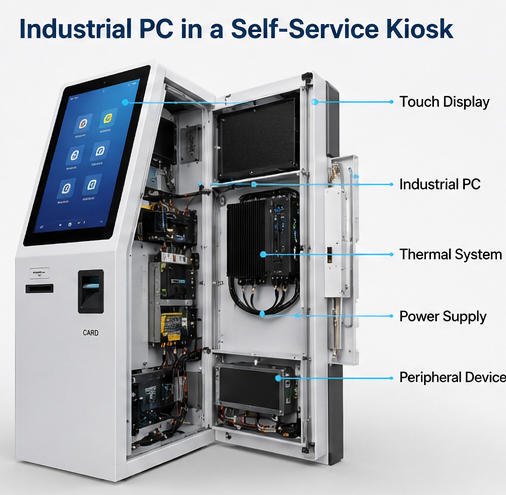
An industrial PC, sometimes called an embedded PC, kiosk computer, industrial computer, or box PC, is a computing platform designed for stable operation in commercial or industrial equipment.
In a self-service kiosk, it normally performs the following functions:
- Runs the operating system and kiosk application
- Processes touchscreen input
- Controls printers, scanners, cameras, card readers, and other peripherals
- Communicates with payment terminals
- Connects to cloud platforms, local servers, POS systems, or business databases
- Stores local application files, logs, drivers, and cached transaction data
- Supports remote monitoring and software maintenance
- Controls automatic startup, shutdown, and recovery procedures
The industrial PC is one part of the wider kiosk hardware structure. Its performance depends on correct integration with the display, power supply, cooling system, network equipment, internal cables, and peripheral devices.
A high-performance processor alone does not guarantee a reliable kiosk. Port availability, driver compatibility, thermal behavior, power stability, storage endurance, and service access are often equally important.
2. Industrial PC vs Consumer PC
A consumer PC may work during prototype development, but it is not always suitable for a production kiosk.
Industrial computers are generally selected because they offer a combination of:
- Longer product availability
- Stable hardware configurations
- Extended operating-temperature options
- Better resistance to vibration and continuous use
- More serial and industrial communication ports
- Configurable automatic power-on functions
- Watchdog timers
- Fanless designs
- Flexible mounting options
- Better support for embedded deployment
A consumer mini PC may still be acceptable for a controlled indoor project with moderate operating hours. However, its model, motherboard, wireless module, or internal components may change during the deployment period. This can create driver, imaging, certification, and spare-parts problems when additional kiosk batches are produced later.
For multi-year projects, the project team should evaluate not only the purchase price but also hardware continuity, replacement availability, operating environment, and maintenance requirements.
3. Industrial PC, Embedded Motherboard, or Android Board?
Not every kiosk requires a separate industrial box PC. Three computing architectures are commonly used.
Industrial Box PC
A box PC is a complete computer with an enclosure, motherboard, processor, memory, storage, and external I/O ports.
It is suitable when the kiosk requires:
- Windows or Linux
- High processing performance
- Multiple USB or serial devices
- Easy computer replacement
- Independent thermal management
- Multiple displays
- Advanced local software
- Machine vision or AI processing
The box PC can usually be mounted on an internal bracket and replaced without removing the display assembly.
Embedded Motherboard
An embedded motherboard is installed directly inside the kiosk enclosure.
This approach can reduce size and cost while allowing flexible port positioning. However, the kiosk enclosure must provide suitable protection, grounding, airflow, cable control, and mounting support.
Embedded motherboards are commonly used in compact kiosks, wall-mounted terminals, self-ordering kiosks, and customized machines where internal space is limited.
Android Mainboard
An Android board normally integrates the processor, memory, storage, display output, networking, and basic I/O on one compact board.
It is suitable for:
- Information inquiry
- Menu browsing
- Simple self-ordering
- Digital signage with touch interaction
- Queue management
- Lightweight check-in applications
- Projects using Android applications or web-based interfaces
Android platforms can reduce hardware cost and simplify the physical structure, but peripheral drivers and application compatibility must be confirmed before production.
For a broader comparison, refer to Kiosk Mainboard Options: Android vs Windows.
4. How to Select a Kiosk Industrial PC
The industrial PC should be selected after the application workflow and peripheral list are defined.
4.1 Operating System
The operating system determines software and driver compatibility.
Windows is commonly selected when the project uses existing POS software, .NET applications, Windows-based device SDKs, Active Directory, enterprise management tools, or specialized payment and identification hardware.
Linux may be appropriate for custom applications, controlled software environments, lightweight deployments, and projects requiring greater operating-system customization.
Android is often used for compact, web-based, or application-based kiosks where the required peripherals have compatible Android drivers or SDKs.
The operating system version should be confirmed before selecting the motherboard. A newer processor may not support an older operating system, while older boards may not support the security or driver requirements of a newer OS.
4.2 Processor
Processor selection should be based on actual workload.
Basic information and ordering applications may only require an entry-level embedded processor. More demanding workloads may include:
- Multiple high-resolution displays
- Video playback
- Real-time inventory synchronization
- Camera processing
- Passport or ID recognition
- Facial recognition
- Voice interaction
- AI inference
- Large local databases
- Multiple applications running simultaneously
An oversized processor increases cost and heat generation without necessarily improving the user experience. An undersized processor can cause slow startup, delayed touch response, application freezing, or transaction timeouts.
Test the application on the intended production processor rather than estimating performance from CPU specifications alone.
4.3 Memory
Memory requirements depend on the operating system and application workload.
A lightweight Android application may operate with modest memory, while a Windows kiosk running payment software, remote-management services, browser-based content, security tools, and multiple device utilities may require more.
Monitor memory usage during:
- System startup
- Application launch
- Peak transaction activity
- Software updates
- Video playback
- Remote-support sessions
- Extended continuous operation
Memory should include sufficient reserve for future application updates. A system that operates near its maximum memory usage during the pilot stage may become unstable after additional services or security tools are installed.
4.4 Storage
Industrial PCs commonly use SSD, eMMC, or other solid-state storage because mechanical hard drives are less suitable for kiosk vibration, movement, and repeated operation.
Storage capacity must cover:
- Operating-system files
- Kiosk application
- Device drivers
- Security software
- Local database
- Media files
- Temporary transaction data
- Update packages
- System restore image
- Diagnostic and application logs
Storage endurance is also important. Applications that write large logs, video files, cache data, or transaction records continuously can wear storage faster than expected.
Configure automatic log rotation and delete unnecessary temporary files. Low free space can cause failed updates, application errors, slow performance, or operating-system instability.
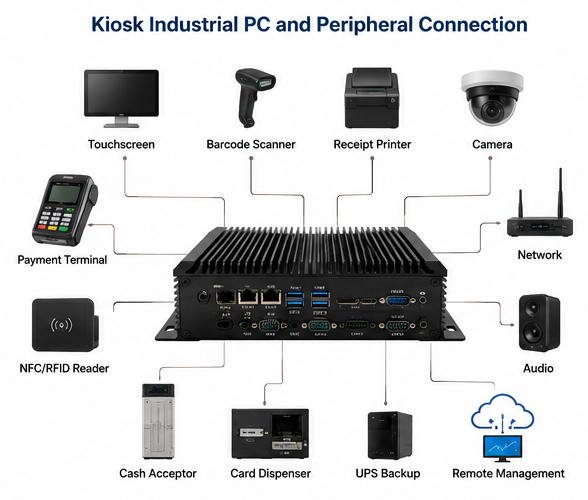
4.5 I/O Ports
Port planning is one of the most important parts of industrial PC selection.
Typical kiosk connections include:
- USB touchscreen controller
- USB or serial receipt printer
- USB barcode or QR scanner
- USB camera
- USB NFC or RFID reader
- Serial bill acceptor
- Serial card dispenser
- Ethernet payment terminal
- USB maintenance port
- Audio output
- DisplayPort, HDMI, LVDS, or eDP display connection
- GPIO for door sensors, indicator lights, or control relays
Create an I/O table before approving the PC. Record the connector type, communication protocol, power requirement, driver, cable length, and assigned port for every device.
Do not depend on multiple unpowered USB hubs for critical peripherals. Where a hub is necessary, use an industrial powered hub and verify its behavior after reboot, power interruption, and extended operation.
A detailed device overview is available in Main Components of a Self-Service Kiosk.
4.6 Network Interfaces
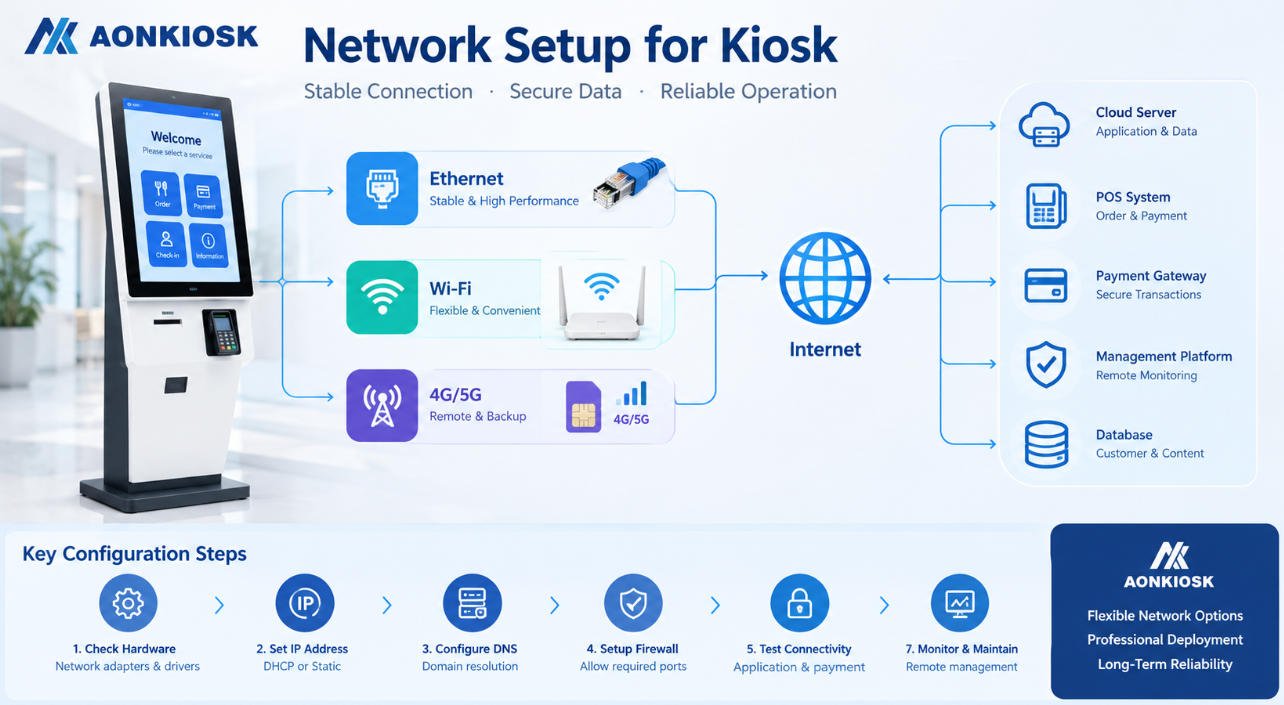
A kiosk may use Ethernet, Wi-Fi, 4G, or 5G depending on the deployment environment.
Ethernet is generally preferred when stable wired infrastructure is available. Wi-Fi provides installation flexibility but requires careful testing of signal strength, roaming behavior, authentication, interference, and reconnection.
Cellular connectivity is useful where wired networks are unavailable or as a backup connection. The installation must consider antenna position, metal-enclosure shielding, SIM access, data usage, and remote diagnostics.
For critical transactions, the application should define what happens when the network is interrupted. Possible responses include:
- Displaying an offline message
- Preventing payment initiation
- Retrying the connection
- Storing permitted data locally
- Automatically switching to backup connectivity
- Alerting the remote-management platform
5. Peripheral and Driver Compatibility
A kiosk PC must communicate reliably with every installed device.
Before production, confirm:
- Supported operating system
- Driver version
- SDK or API availability
- USB, serial, or Ethernet protocol
- Required administrator permissions
- Automatic device reconnection
- Behavior after sleep or restart
- Device enumeration order
- Firmware compatibility
- Regional payment or security requirements
A device working during a short desktop test does not prove that it will operate reliably in an unattended kiosk.
Testing should include repeated transactions, unexpected cable disconnection, network interruption, paper-out conditions, peripheral errors, power loss, application restart, PC reboot, and recovery after the kiosk remains idle.
Payment terminals should normally be treated as controlled payment devices rather than ordinary card readers. The kiosk PC exchanges approved commands and transaction results with the terminal, while sensitive card processing remains within the certified payment environment.
6. Power Management and Automatic Recovery
Unattended kiosks must recover without requiring an operator to press the PC power button.
Useful industrial PC functions include:
- Power on after AC loss
- Scheduled startup
- Watchdog timer
- Wake-on-LAN
- Remote reboot
- Automatic application launch
- Operating-system recovery
- Read-only or protected system partitions
- Hardware health monitoring
“Power on after AC loss” should be enabled in the BIOS when automatic recovery is required. After electricity is restored, the PC should boot, load required services, connect to the network, detect all peripherals, and launch the kiosk application.
The complete recovery sequence should be tested with the production power supply and all connected devices.
Power budgeting must also consider the PC’s startup current and peak load. An undersized or low-quality power supply can cause random restarts, USB disconnections, storage corruption, and unstable peripheral behavior.
7. Thermal Management
The industrial PC produces heat inside the kiosk enclosure. The processor, storage device, power supply, display, printer, payment equipment, and other modules add to the total internal heat load.
A fanless PC can reduce noise and remove a mechanical failure point, but it still requires a path for transferring heat away from the chassis.
Check:
- PC mounting orientation
- Clearance around heat sinks
- Air inlet and outlet positions
- Distance from display power supplies
- Printer exhaust and paper dust
- Solar heat gain
- Ambient operating temperature
- Internal temperature during continuous use
- Effect of filters and sealed panels
A high CPU temperature can cause frequency reduction, slow performance, shutdown, or shorter component life.
Outdoor and semi-outdoor projects require additional environmental evaluation. Refer to Outdoor Kiosk Requirements for enclosure sealing, temperature control, sunlight, condensation, and installation considerations.
8. Installation Inside the Kiosk
The computer should be mounted securely but remain accessible for maintenance.
Recommended installation practices include:
- Use a dedicated metal mounting bracket
- Prevent movement during shipping
- Maintain ventilation clearance
- Keep cables away from fans and heat sinks
- Use strain relief on connectors
- Label both ends of every cable
- Separate signal cables from high-voltage wiring
- Provide protective grounding
- Keep the PC away from printer paper dust and liquid exposure
- Allow access to storage, memory, and primary connectors
- Provide a controlled maintenance USB port where required
The PC should not be placed loosely on the bottom of the cabinet. Loose mounting can damage connectors, restrict airflow, and make field servicing inconsistent.
Photograph the approved internal layout and include it in production and maintenance documentation.
9. Security Considerations
Because kiosks are located in public or semi-public environments, the industrial PC must be protected physically and digitally.
Typical controls include:
- Locked service doors
- Restricted access to USB ports
- BIOS password
- Secure Boot where supported
- Full-disk encryption where appropriate
- Restricted user account
- Application allowlisting
- Disabled unnecessary services
- Firewall rules
- Signed software updates
- Automatic security updates under controlled policies
- Remote health monitoring
- Centralized logs
- Kiosk-mode browser or operating-system shell
- Protection against unauthorized boot devices
Security configuration must not prevent legitimate field maintenance. The project should document how authorized technicians access the computer, recover the operating system, replace storage, and restore the kiosk application.
10. Common Industrial PC Problems and Troubleshooting
Kiosk Does Not Power On
Check the main AC input, circuit protection, internal power supply, DC output voltage, PC power connector, and power button wiring.
Confirm whether the BIOS is configured to start automatically after power loss. Disconnect nonessential peripherals and test the PC with the minimum hardware configuration.
PC Starts but No Image Appears
Check display power, video cable, input-source selection, connector retention, resolution, and display output settings.
Test with a service monitor if available. For dual-screen kiosks, confirm that the operating system has not assigned the application to a disconnected or incorrectly positioned display.
Touchscreen Does Not Respond
Confirm that the display image is normal before troubleshooting touch.
Check the touchscreen USB cable, controller driver, Windows device status, touch calibration, and application focus. Move the touch controller to a known working port and test without an intermediate hub.
USB Devices Disconnect Randomly
Possible causes include insufficient USB power, poor-quality cables, loose connectors, electrical interference, driver problems, hub overload, or operating-system power-saving settings.
Review the USB topology and move high-current devices to separately powered connections.
PC Restarts During Printing or Payment
Check the DC power supply capacity, grounding, printer current demand, payment-terminal power source, and internal temperature.
A restart that occurs only when a peripheral activates often indicates power instability or electrical interference rather than a software fault.
Application Becomes Slow Over Time
Check CPU load, memory usage, free storage capacity, log-file growth, database size, browser cache, background updates, security scans, and network timeouts.
Run a long-duration test using the same transaction frequency expected in the field.
Peripheral Is Missing After Reboot
Check whether the device powers up more slowly than the operating system, whether the application starts before the driver is ready, and whether USB device identities change between ports.
A delayed application start or peripheral-detection service may be required.
System Clock Is Incorrect
Check internet time synchronization, BIOS time, time-zone configuration, CMOS battery condition, and network restrictions.
Incorrect time can affect certificates, payment communication, transaction records, remote monitoring, and software licensing.
11. Pre-Production Validation Checklist
Before approving an industrial PC for kiosk production, verify the following:
Hardware
- Processor performance is sufficient under peak load
- Memory has adequate operating reserve
- Storage capacity and endurance are suitable
- All required ports are available
- PC mounting is secure
- Thermal limits are not exceeded
- Power supply supports startup and peak loads
- Replacement parts can be sourced during the project lifecycle
Software
- Operating system is licensed and supported
- Drivers are stored and version-controlled
- Kiosk application starts automatically
- User access is restricted
- Recovery image is available
- Updates can be deployed safely
- Logs are limited and rotated
- Remote-management tools are tested
Peripheral Integration
- Every device reconnects after reboot
- Printer errors are reported correctly
- Scanner input reaches the correct application
- Payment communication is stable
- Touch mapping is correct
- Cameras and readers recover after disconnection
- USB and serial port assignments are documented
Reliability
- Power-loss recovery is successful
- Network interruption is handled correctly
- Thermal testing has been completed
- Continuous-operation testing has been completed
- Repeated transaction testing has been completed
- The final production-equivalent kiosk has passed validation
12. Maintenance and Replacement Planning
Industrial PCs should be included in the kiosk preventive-maintenance and spare-parts plan.
Maintain records of:
- PC model and serial number
- Motherboard revision
- BIOS version and settings
- CPU, memory, and storage configuration
- Operating-system image
- Driver package
- Application version
- Network settings
- Device port assignments
- Replacement procedure
When replacing a PC, do not assume that a computer with similar performance is automatically compatible. Differences in USB controllers, display outputs, serial-port behavior, network adapters, BIOS functions, or operating-system support can affect the complete kiosk.
For large deployments, keep a validated replacement unit and a controlled recovery image. After replacement, technicians should run a functional test covering the touchscreen, network, printer, scanner, payment terminal, camera, audio, and remote-management connection.
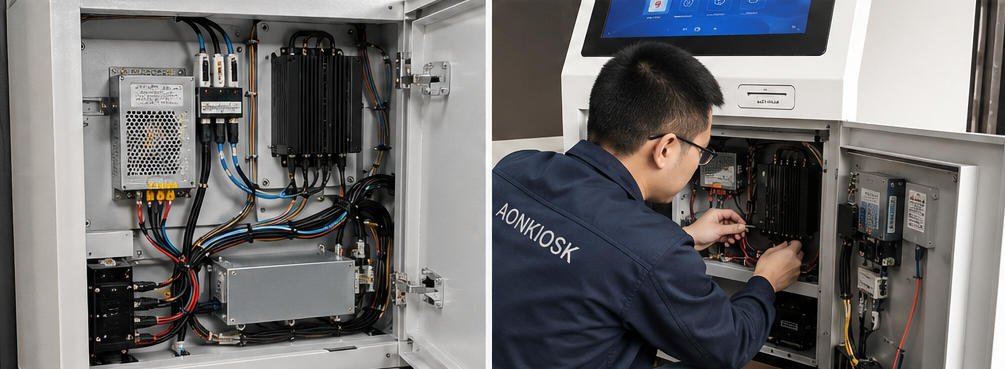
13. How AONKIOSK Approaches Industrial PC Integration
AONKIOSK develops self-service kiosk hardware for ordering, retail payment, check-in, ticketing, information, wayfinding, and other unattended applications.
Depending on the project, a kiosk can be configured with an Android computing board, an embedded Windows motherboard, or an industrial PC. The final configuration should be based on the software platform, required peripheral interfaces, environmental conditions, service strategy, and expected product lifecycle.
AONKIOSK’s OEM and ODM kiosk manufacturing process can include enclosure design, internal component layout, computing-platform selection, peripheral integration, cable management, thermal planning, assembly, and production testing.
Customers and software partners should provide the following information during project evaluation:
- Operating system and application requirements
- Minimum processor and memory specifications
- Peripheral device list
- Required ports and protocols
- Display quantity and resolution
- Network method
- Operating temperature
- Expected daily operating hours
- Remote-management requirements
- Security and certification requirements
- Project volume and expected service life
Providing these details early reduces redesign work and helps ensure that the selected industrial PC remains compatible with the complete kiosk.
Conclusion
The industrial PC is the operational center of a self-service kiosk, but it cannot be selected by CPU performance alone.
A reliable configuration requires coordinated evaluation of the operating system, application workload, memory, storage, I/O ports, peripheral drivers, networking, power recovery, thermal conditions, security, maintenance access, and replacement strategy.
The best selection process is to define the full kiosk workflow, create an accurate peripheral and port list, test the production application on the intended hardware, and validate the complete kiosk under realistic operating conditions.
This approach reduces field failures, simplifies technical support, and provides a more stable platform for long-term kiosk deployment.