





A reliable network connection is essential for most modern self-service kiosks. Whether a kiosk handles restaurant orders, retail payments, hotel check-ins, ticket validation, or information services, it must communicate with the appropriate local or cloud-based systems.
However, connecting a kiosk to the internet is only one part of the network setup process. A properly configured system must also support stable communication, secure data transmission, correct IP addressing, software synchronization, and effective troubleshooting.
This AONKIOSK knowledge base guide explains how to configure Ethernet, Wi-Fi, and cellular networks for self-service kiosks. It also covers network architecture, security settings, common connection failures, and practical maintenance procedures.
The guide is intended for kiosk operators, system integrators, software developers, IT administrators, and technical maintenance teams.
1. Understanding Network Connectivity in Self-Service Kiosks
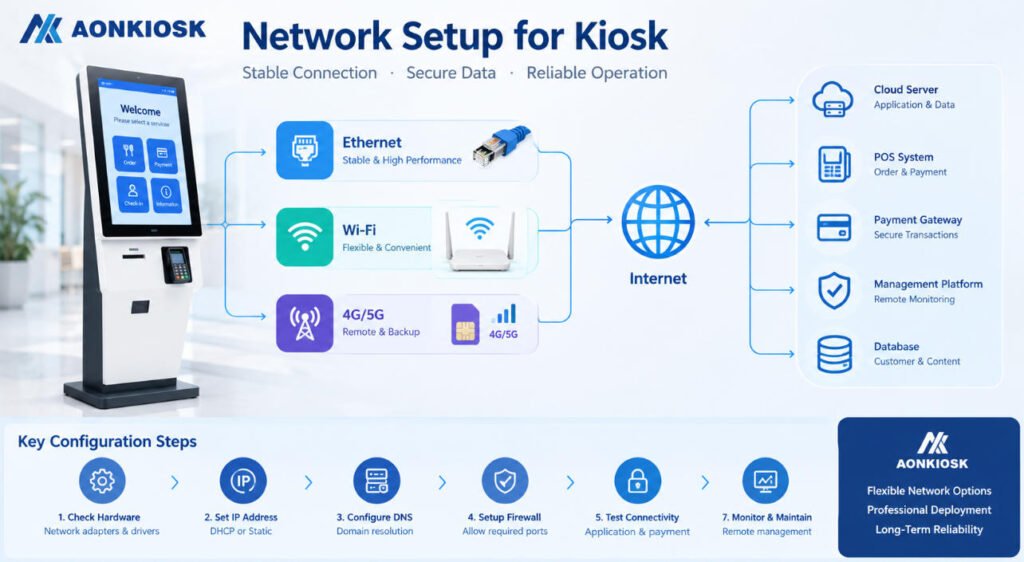
A self-service kiosk typically operates as a network-connected computer with integrated peripheral devices.
Depending on the application, the kiosk may communicate with:
- Cloud-based application servers
- Local POS or ERP systems
- Payment gateways and processing platforms
- Customer databases and membership systems
- Remote device management platforms
- Software update and monitoring services
For example, a restaurant ordering kiosk may retrieve menu information from a central server, transmit completed orders to a kitchen management system, and request payment authorization through a separate payment platform.
If the network becomes unavailable, some or all of these functions may stop working.
The network architecture should therefore be defined before installation rather than configured only after the kiosk arrives on-site.
AONKIOSK provides configurable kiosk hardware with network options that vary by model and computing platform. Network requirements should be evaluated together with the operating system, application software, and connected peripherals.
2. Common Network Connection Types for Kiosks
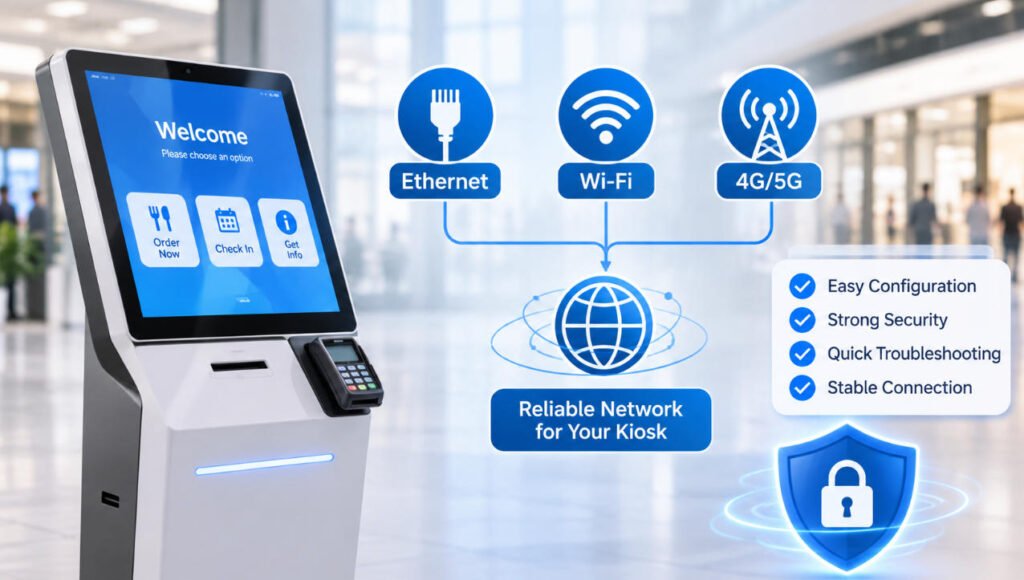
Three primary connection methods are used in commercial kiosk deployments: wired Ethernet, wireless Wi-Fi, and cellular connectivity.
2.1 Ethernet Connection
Ethernet provides a physical network connection between the kiosk and a router, switch, or local network infrastructure.
It is generally preferred for fixed installations where network cabling is available.
Advantages:
- Consistent network performance
- Reduced exposure to wireless interference
- Predictable latency
- Convenient integration into managed business networks
- Less dependence on wireless signal coverage
Limitations:
- Requires network cabling
- Installation may involve additional infrastructure work
- Kiosk placement depends partly on cable routing
For permanent installations in shopping malls, restaurants, supermarkets, and hotels, Ethernet is often the first connection method to consider.
For example, the AONKIOSK APK22 Dual-Sided Self-Service Kiosk lists an RJ45 10/100/1000 Mbps adaptive Ethernet port, Wi-Fi connectivity, and optional 4G support.
Actual interface availability should always be confirmed against the ordered hardware configuration.
2.2 Wi-Fi Connection
Wi-Fi allows kiosks to connect to a wireless access point without requiring a dedicated Ethernet cable.
It is commonly used when network cabling is difficult, when equipment locations may change, or when an installation environment already provides managed wireless infrastructure.
Advantages:
- Flexible kiosk placement
- Reduced network cabling requirements
- Convenient deployment in existing facilities
- Suitable for temporary or frequently rearranged installations
Limitations:
- Signal interference from nearby equipment
- Potential connection instability
- Dependence on access point coverage
- Additional wireless security considerations
Modern kiosk hardware may support both 2.4 GHz and 5 GHz Wi-Fi networks.
The 2.4 GHz band can provide better coverage through some obstacles, while 5 GHz often offers more usable bandwidth in suitable environments. Actual results depend on signal strength, channel congestion, access point configuration, and antenna placement.
For commercial deployments, a dedicated business network is preferable to an unmanaged public guest Wi-Fi network.
2.3 Cellular Connectivity: 4G and 5G
Cellular connectivity uses a supported modem and SIM or eSIM service to establish a mobile data connection.
It is useful when wired internet access is unavailable or when a secondary connection is needed.
Common applications include outdoor ticketing terminals, temporary event kiosks, remote information stations, and unattended payment equipment.
Advantages:
- Network connectivity independent of building broadband
- Suitable for remote deployment locations
- Can provide backup connectivity
- Flexible equipment installation
Limitations:
- Requires an active data service
- Coverage varies by location
- Data plans introduce recurring costs
- Signal quality can be affected by building materials and enclosure design
Not every kiosk includes a cellular modem by default. For example, the APK26 32-Inch Printing and Information Kiosk lists Wi-Fi and RJ45 Ethernet with optional 4G connectivity.
For cellular projects, confirm modem compatibility, antenna configuration, SIM requirements, carrier frequency bands, and local network coverage before production.
3. Comparing Ethernet, Wi-Fi, and Cellular Networks
| Network characteristic | Ethernet | Wi-Fi | 4G/5G |
|---|---|---|---|
| Physical cable required | Yes | No | No |
| Mobility | Limited | Moderate | High |
| Connection consistency | Generally high | Environment-dependent | Coverage-dependent |
| Infrastructure requirements | Switch and cabling | Wireless access point | Modem and mobile service |
| Recurring data plan | Usually no separate cellular plan | Usually no separate cellular plan | Normally required |
| Recommended application | Permanent installations | Indoor flexible deployment | Remote sites and backup |
For payment-intensive applications, wired Ethernet is generally preferable when reliable cabling is available.
Wi-Fi can also provide dependable connectivity when professionally configured. Cellular networking is particularly useful where fixed-network access is impractical.
The final choice should be based on site conditions, required uptime, application behavior, and available infrastructure.
4. How to Configure a Kiosk Network
Network configuration depends on the kiosk operating system and the administrator’s access permissions.
The following procedure describes a typical deployment workflow.
Step 1: Verify the Network Hardware
Before modifying any settings, confirm that the kiosk contains the required network components.
Check the following:
- Ethernet port or wireless network adapter is installed.
- Network drivers are recognized by the operating system.
- Ethernet cable is correctly connected, if applicable.
- Wireless antennas are attached and positioned correctly.
- Router or wireless access point is functioning.
- The kiosk has permission to access its required network services.
For Windows-based equipment, network adapters can be checked using Device Manager.
For Android-based equipment, connectivity information is usually available through the system settings or a manufacturer-provided configuration interface.
Step 2: Configure Ethernet
For a wired kiosk network:
- Connect the RJ45 Ethernet cable to the kiosk.
- Connect the opposite end to the designated switch or router port.
- Open the operating system’s network settings.
- Confirm that the Ethernet adapter is enabled.
- Select automatic IP assignment through DHCP or enter an approved static IP configuration.
- Verify that the kiosk receives a valid IP address, subnet configuration, default gateway, and DNS server.
- Test communication with required services.
For most small deployments, DHCP simplifies configuration.
For managed environments, static IP addresses or DHCP reservations may be preferred where stable device addressing is required.
Step 3: Configure Wi-Fi
For a wireless connection:
- Enable the kiosk’s Wi-Fi adapter.
- Scan for available networks.
- Select the approved business SSID.
- Enter the network credentials.
- Complete any required enterprise authentication.
- Verify the assigned IP address.
- Test access to the application server and other required services.
Avoid using networks that require a browser-based captive portal unless the kiosk application and IT team explicitly support that authentication method.
Automatic reconnection should be tested by restarting the kiosk and temporarily disconnecting the wireless access point.
Step 4: Configure 4G/5G
Cellular configuration requires additional hardware and service verification.
- Confirm that the modem is installed and recognized.
- Insert or activate the appropriate SIM or eSIM.
- Configure the access point name (APN) supplied by the cellular carrier.
- Verify signal strength and registration status.
- Confirm that the cellular interface receives valid network connectivity.
- Test the application and payment endpoints.
- Check recovery behavior following temporary signal loss.
For installations using Ethernet or Wi-Fi with cellular backup, verify that the router or operating system supports automatic failover.
A kiosk with both Ethernet and 4G hardware does not necessarily provide automatic failover without additional configuration.
5. IP Address, DNS, Gateway, and Firewall Configuration
Correct network addressing is essential for reliable communication.
A kiosk may appear physically connected while still being unable to communicate with its application server.
IP Address Configuration
Two common addressing methods are available.
DHCP (Dynamic Host Configuration Protocol)
The network automatically assigns an IP address and related settings.
DHCP is suitable for most installations with a properly managed router or DHCP server.
Static IP Address
The administrator manually configures the network address.
Static addressing may be useful when a kiosk must communicate with local servers or when IT policy requires predictable device addressing.
Example configuration for a hypothetical private network:
| Parameter | Example value |
|---|---|
| IP address | 192.168.10.50 |
| Subnet mask | 255.255.255.0 |
| Default gateway | 192.168.10.1 |
| DNS server | 192.168.10.1 |
These values are examples only. Actual addresses must match the deployment network.
DNS Configuration
DNS resolves domain names into network addresses.
Incorrect DNS settings may cause a kiosk to connect to the local network but fail to reach cloud services.
A technician should verify:
- Configured DNS server addresses
- Domain resolution for required application services
- Network policies affecting DNS requests
- Internal DNS requirements for local servers
Firewall Configuration
Kiosks should be allowed to communicate only with services required by their operational workflow.
Common examples include HTTPS-based application APIs, authorized payment endpoints, device management platforms, and approved update servers.
Do not disable the firewall as a permanent solution to a network problem.
Instead, identify the required destination, protocol, and port, and establish controlled firewall rules.
6. Network Security Requirements for Kiosks
Self-service kiosks are often installed in publicly accessible locations. Their network configuration should therefore be more restrictive than that of a general office computer.
Network Segmentation
Where possible, place kiosks on a dedicated VLAN or equivalent network segment.
This can help isolate kiosk traffic from employee workstations, guest Wi-Fi networks, and unrelated internal business systems.
Encrypted Communication
Use appropriately configured TLS-protected connections for communications involving authentication, customer information, transactions, and management interfaces.
Avoid transmitting credentials or sensitive customer data through unencrypted application protocols.
Remote Access Protection
Remote support is useful for managing geographically distributed kiosks, but administrative interfaces should not be exposed directly to the public internet.
Recommended controls include:
- VPN or other approved secure access methods
- Individual administrator accounts
- Multi-factor authentication where supported
- Role-based permissions
- Access logs and session monitoring
- Regular updates and credential rotation
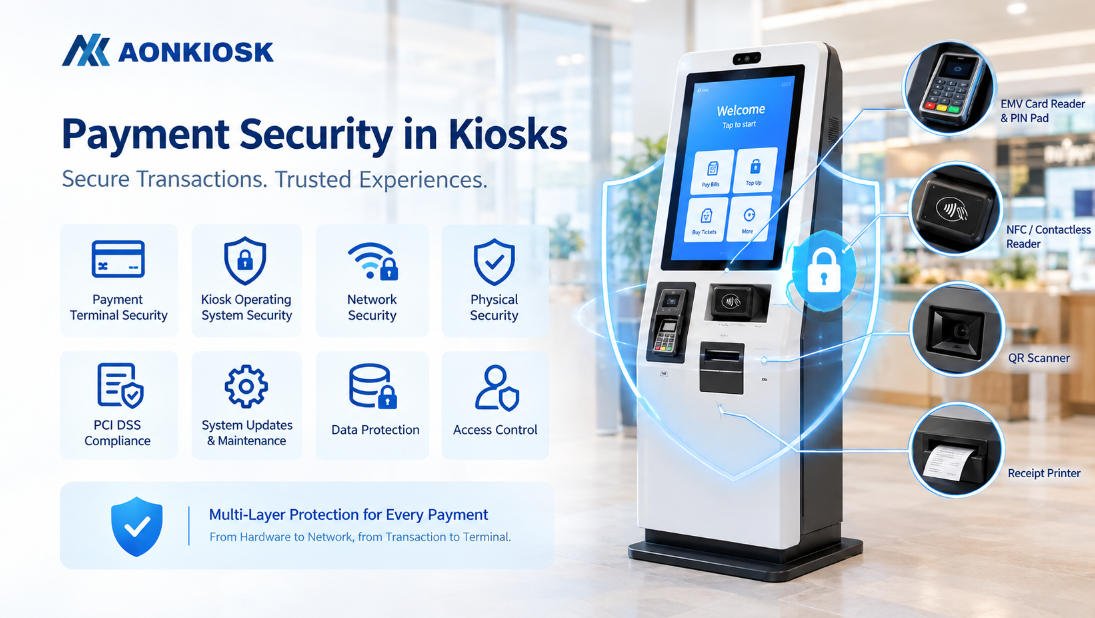
Payment Network Security
For kiosks processing electronic payments, the network architecture must also meet the applicable requirements of the payment provider and PCI DSS scope.
The payment terminal may communicate independently with the payment processor or through an approved integration architecture.
The kiosk computer should not automatically be assumed to have access to sensitive cardholder data.
For more information about payment device protection and communication requirements, refer to the AONKIOSK Payment Security in Kiosks guide.
7. Network Setup for Different Kiosk Operating Systems
The operating system determines how network interfaces, drivers, certificates, security policies, and remote management tools are configured.
Windows Kiosk Network Configuration
Windows-based kiosks commonly use standard Ethernet and Wi-Fi adapters with manufacturer-supported drivers.
Administrators can use Windows network settings, Device Manager, PowerShell, and enterprise management tools to configure and diagnose connectivity.
Useful diagnostic commands include:

These commands help identify addressing problems, gateway reachability, DNS resolution, and TCP connectivity.
The target domain and IP address should be replaced with the actual approved network endpoints.
Android Kiosk Network Configuration
Android kiosk platforms typically provide connectivity through system settings, device management APIs, or OEM-specific interfaces.
Important considerations include:
- Android version compatibility
- Wireless chipset and firmware support
- Ethernet adapter recognition
- DHCP or static IP configuration
- Application permissions
- Certificate installation
- Kiosk-mode restrictions
Some Android kiosk deployments restrict access to system settings. Network configuration may therefore require an administrator account, provisioning tool, or device management platform.
For more details about platform selection and hardware compatibility, see the AONKIOSK Kiosk Operating Systems Overview resource collection.
8. Network Troubleshooting: Common Problems and Solutions
Network issues should be diagnosed systematically.
Begin with the physical connection, continue through IP addressing and DNS, and then test the application layer.
| Problem | Possible cause | Recommended action |
|---|---|---|
| Ethernet disconnected | Damaged cable, inactive switch port | Replace cable and verify link status |
| Wi-Fi cannot connect | Incorrect credentials or unsupported authentication | Verify SSID and security settings |
| Connected but no internet | Incorrect gateway, DNS, or firewall policy | Check IP configuration and routing |
| Network disconnects frequently | Weak signal, interference, or unstable hardware | Check signal quality, logs, and adapter |
| Cloud application unavailable | DNS, TLS, firewall, or backend failure | Test the required service endpoint |
| Payment authorization fails | Payment service connectivity or integration error | Check provider status and payment logs |
| Cellular modem offline | SIM, APN, signal, or data subscription issue | Verify carrier registration and configuration |
| Kiosk receives incorrect IP | DHCP or VLAN configuration problem | Check switch port and DHCP assignment |
Problem 1: Kiosk Cannot Connect to Wi-Fi
Start by confirming that the wireless adapter is enabled.
Then verify the SSID, password, authentication requirements, and signal quality.
If other devices can connect successfully but the kiosk cannot, investigate adapter drivers, wireless security compatibility, and device-specific network restrictions.
Problem 2: Ethernet Is Connected but the Application Is Offline
A physical Ethernet link does not guarantee application connectivity.
Check whether the kiosk has a valid IP address.
Next, verify access to the default gateway, DNS resolution, and TCP connectivity to the application service.
If the infrastructure is functioning correctly, review application configuration and server availability.
Problem 3: Network Disconnects During Transactions
Intermittent connectivity can interrupt ordering, registration, or payment workflows.
Inspect network logs for link interruptions, wireless roaming, DHCP renewal problems, and cellular signal changes.
The application should also define transaction recovery behavior.
For example, a network interruption during payment authorization should not automatically trigger a second charge attempt without determining the status of the original transaction.
Problem 4: Kiosk Works Locally but Cannot Synchronize Data
This problem may occur when the kiosk can reach its local network but cannot communicate with the cloud platform.
Possible causes include incorrect DNS settings, outbound firewall restrictions, expired certificates, incorrect system time, or unavailable backend services.
Use application logs and endpoint testing to identify the failing communication step.
9. Offline Operation and Network Recovery
Not every kiosk function needs a continuous internet connection.
Some applications can maintain limited functionality using locally stored information.
For example, an information kiosk may continue displaying cached maps, directories, or instructions during a temporary connection failure.
However, offline functionality must be explicitly supported by the application.
Important considerations include:
- Which operations remain available without internet access?
- Can data be stored locally and synchronized later?
- How are duplicate records prevented?
- What happens if the network disconnects during a transaction?
- Does the application automatically reconnect when service returns?
For payment kiosks, offline authorization must not be assumed. Offline payment behavior depends on the payment provider, device configuration, acquiring requirements, and approved transaction procedures.
A properly designed application should display a clear service status and recover without requiring customers to restart the entire workflow.
10. Remote Monitoring and Network Maintenance
For organizations operating multiple self-service kiosks, remote network monitoring can reduce the need for on-site troubleshooting.
Depending on the software platform, remote management may include:
- Device online/offline status
- Network interface status
- Application connectivity monitoring
- Remote diagnostic logs
- Software and firmware updates
- Scheduled system maintenance
- Connection failure notifications
Network monitoring should distinguish between an unreachable device and an application service failure.
A kiosk may remain online while its payment gateway or backend system is unavailable.
Maintenance teams should periodically review connection logs, network credentials, security patches, modem firmware, and wireless signal conditions.
For larger deployments, centralized configuration management also helps reduce differences between individual terminals.
11. Pre-Deployment Network Checklist
Before releasing a kiosk for commercial operation, complete the following checks.
Deployment readiness
Verify the required Ethernet, Wi-Fi, or cellular hardware is installed.
Confirm network drivers and firmware are compatible with the operating system.
Verify IP addressing, DNS, gateway, and routing settings.
Test connectivity to application servers and approved payment endpoints.
Configure appropriate firewall rules and secure remote access.
Test reconnection following router restart or temporary network loss.
Verify application behavior during offline operation and recovery.
Document network configuration, responsible personnel, and support procedures.
Network testing should be performed at the actual installation site, using the final application software and production-equivalent configuration.
12. AONKIOSK Network Integration Considerations
AONKIOSK provides customizable self-service kiosk hardware for restaurant ordering, retail payments, check-in, ticketing, and information applications.
Network connectivity requirements differ according to the selected hardware platform, operating system, and integrated peripherals.
Before placing an order, project teams should confirm the required network interfaces, target deployment region, software compatibility, security requirements, and preferred remote management architecture.
For payment-oriented applications, explore the AONKIOSK Retail & Payment Kiosks product range to evaluate available hardware platforms and integration options.
Network hardware selection and application-level connectivity should be validated together during the project integration process.
Reliable kiosk network setup requires more than connecting an Ethernet cable or entering a Wi-Fi password.
Successful deployment depends on selecting the appropriate connection method, configuring network addressing correctly, protecting communication channels, validating application endpoints, and preparing a clear recovery procedure. Ethernet is generally suitable for permanent installations, Wi-Fi provides greater placement flexibility, and cellular connectivity can support remote locations or backup communication.
For long-term reliability, network configuration should be documented, tested under real operating conditions, and maintained throughout the kiosk’s service life.