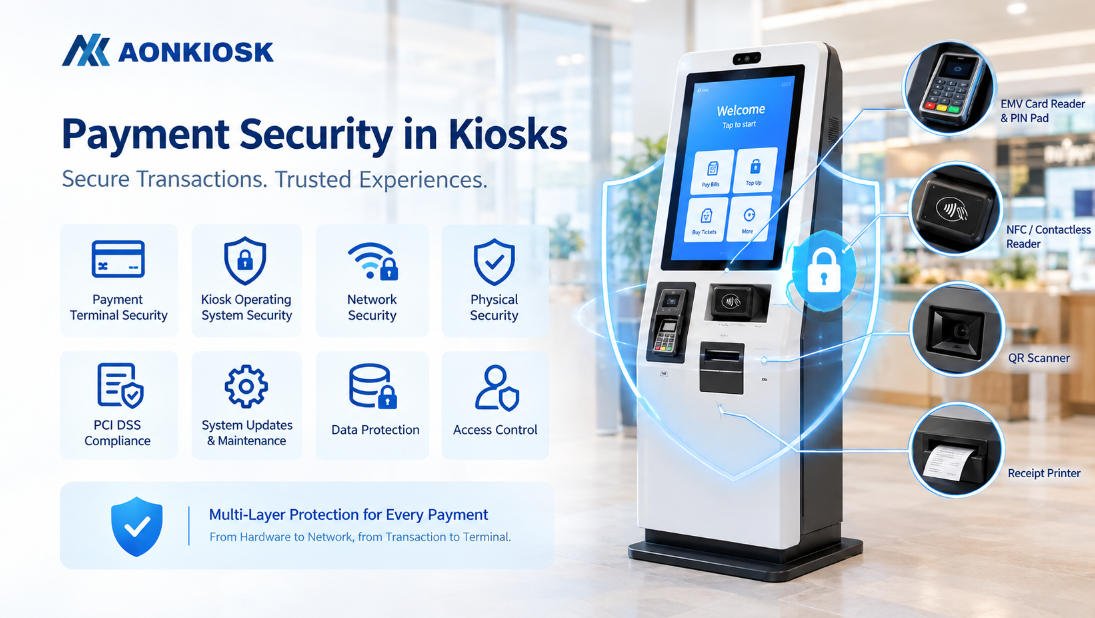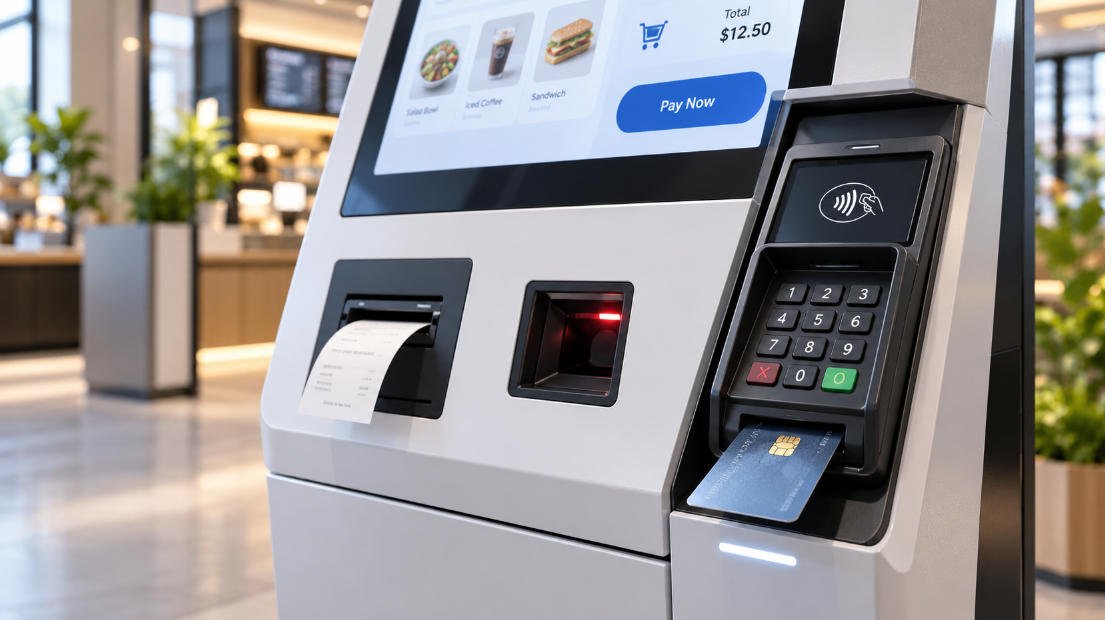






The touchscreen is the main interaction point between a self-service kiosk and its user. It affects response speed, visual clarity, accessibility, maintenance requirements, environmental resistance, and the overall reliability of the kiosk.
However, “touchscreen” is not a single technology. Projected capacitive, resistive, infrared, surface acoustic wave, and optical touchscreens detect input in different ways. A screen that performs well in an indoor restaurant may not be suitable for an outdoor ticketing kiosk, an industrial workstation, or a public information terminal.
This guide explains the main touchscreen types used in commercial kiosks, compares their strengths and limitations, and provides practical troubleshooting and selection advice for kiosk buyers, software providers, system integrators, and maintenance teams.
What Is a Touchscreen?
A touchscreen combines two basic functions:
- The display presents visual information.
- The touch sensor detects the user’s input position.
The display panel is usually LCD-based, while the touch sensor may be integrated into the display assembly or installed as a separate layer or frame.
When a user touches the screen, the touch controller converts the detected position into digital coordinates. The kiosk operating system then interprets those coordinates as a tap, swipe, drag, zoom, or another input action.
A complete kiosk touchscreen assembly may include:
- LCD or LED-backlit display panel
- Touch sensor
- Touch controller board
- Protective cover glass
- USB or serial communication cable
- Video cable
- Display driver
- Touchscreen driver or operating-system interface
- Mounting frame and sealing structure
Touch performance therefore depends on more than the touch technology alone. Glass thickness, installation pressure, grounding, cable routing, controller firmware, operating-system settings, software interface design, moisture, dust, and physical damage can all influence operation.
For a broader explanation of how the touchscreen works with the computer and peripherals, see How Does a Kiosk Work?.
Main Touch Screen Types Used in Kiosks
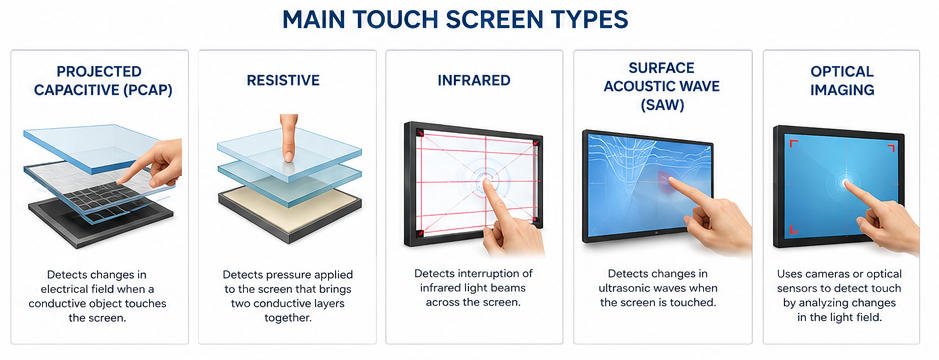
The most common commercial touchscreen technologies are:
- Projected capacitive touch
- Resistive touch
- Infrared touch
- Surface acoustic wave touch
- Optical imaging touch
Projected capacitive and infrared touch are commonly used in modern self-service kiosks. Resistive touch remains useful for certain industrial or controlled-input applications, while surface acoustic wave and optical technologies are selected for more specialized requirements.
1. Projected Capacitive Touch
Projected capacitive touch, commonly called PCAP or PCT, is the technology used in most modern smartphones, tablets, payment terminals, and indoor self-service kiosks.
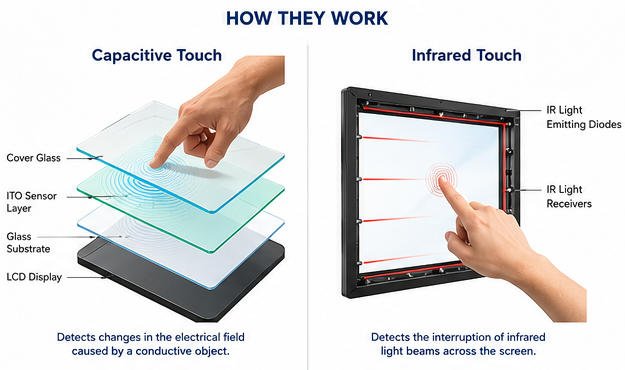
A PCAP sensor contains a grid of conductive electrodes. When a conductive object such as a finger approaches or touches the glass, it changes the local electrostatic field. The touch controller measures that change and calculates the touch position.
Advantages of Projected Capacitive Touch
Fast and accurate response
PCAP screens provide smooth, responsive interaction. They are well suited to menu browsing, payment workflows, digital forms, maps, product selection, and other interfaces that require frequent touch input.
Multi-touch support
Most modern PCAP controllers can detect multiple touch points. This allows gestures such as pinch-to-zoom, two-finger rotation, and multi-finger interaction.
Good visual clarity
The sensing layer is transparent and can be laminated behind protective glass. This produces a clean appearance with limited obstruction of the display image.
Edge-to-edge glass design
PCAP technology supports a flat front surface without a raised touch frame. This simplifies cleaning and creates a modern appearance.
Strong resistance to surface wear
Because the sensor operates through glass, the user does not press directly on a flexible sensing membrane. Properly selected cover glass can withstand frequent public use and routine cleaning.
Limitations of Projected Capacitive Touch
Glove compatibility depends on configuration
Standard PCAP systems may not recognize thick work gloves, winter gloves, or non-conductive gloves. High-sensitivity controllers can improve glove operation, but increasing sensitivity may also increase false-touch risk.
Water can affect touch detection
Rain, condensation, cleaning liquid, or standing water may create false touches or prevent normal operation. Outdoor PCAP systems require suitable controller tuning, sealing, drainage, and cover-glass design.
Cover-glass thickness must be validated
A thicker vandal-resistant glass layer can reduce touch sensitivity. The sensor, controller, glass thickness, bonding method, and firmware settings must be tested as one system.
Electrical interference can cause instability
Poor grounding, low-quality power supplies, nearby motors, improperly routed cables, or electromagnetic interference may cause cursor drift, missed touches, or random input.
Recommended Applications
Projected capacitive touch is normally suitable for:
- Restaurant self-ordering kiosks
- Retail payment kiosks
- Hotel check-in terminals
- Indoor ticketing kiosks
- Healthcare registration terminals
- Visitor management kiosks
- Countertop payment terminals
- Interactive product catalogues
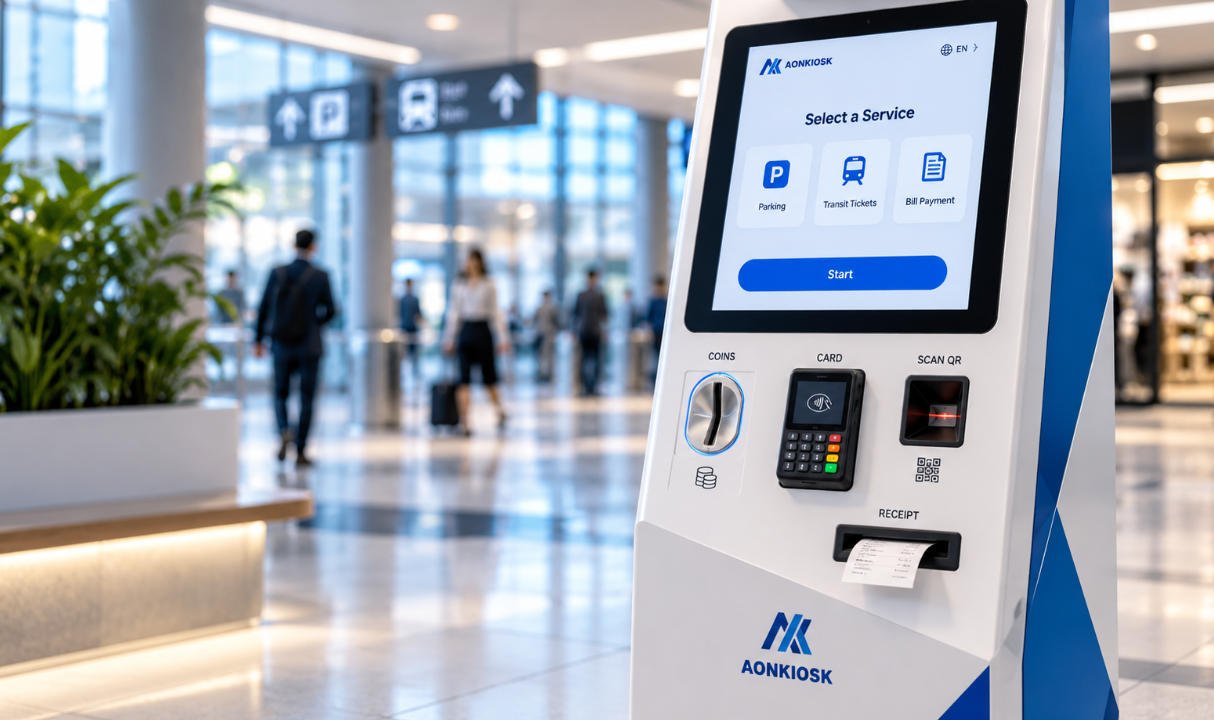
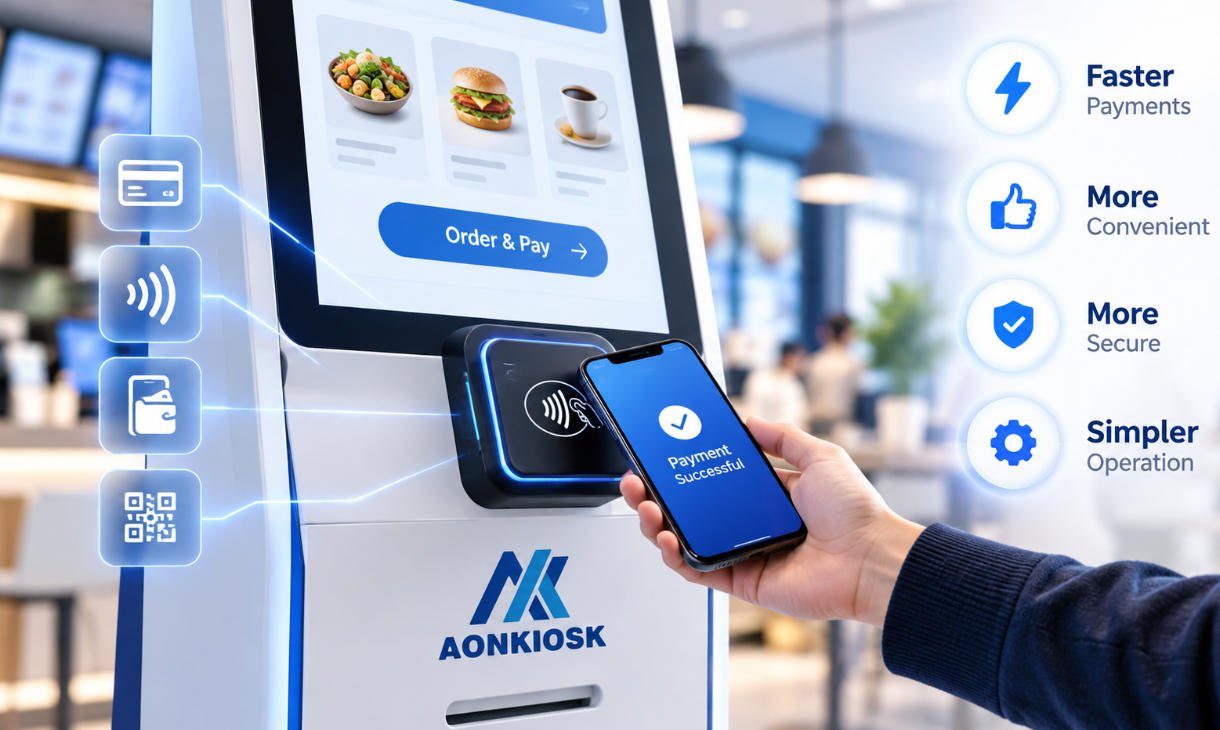
AONKIOSK commonly uses responsive commercial touch displays in its restaurant self-ordering kiosk hardware, where customers must browse menus, customize products, confirm orders, and complete payment.
2. Resistive Touch
A resistive touchscreen normally contains two thin conductive layers separated by a small gap. When the user presses the screen, the layers make contact. The controller measures the electrical change and calculates the touch location.
Unlike PCAP, resistive touch responds to pressure rather than the electrical properties of the input object.
Advantages of Resistive Touch
Works with many input objects
Users can operate the screen with:
- Bare fingers
- Gloves
- Plastic styluses
- Pen-shaped tools
- Other firm, non-sharp objects
This can be useful in factories, laboratories, warehouses, workshops, and other environments where users regularly wear gloves.
Intentional pressure reduces accidental activation
A light brush against the surface may not trigger the screen. This can be beneficial where accidental input must be limited.
Suitable for simple interfaces
Resistive touch can perform reliably for interfaces based on large buttons, data entry, machine control, or single-touch selections.
Relatively straightforward controller operation
Many resistive systems use established controller hardware and simple coordinate detection.
Limitations of Resistive Touch
Lower visual clarity
The additional flexible layers can reduce brightness, contrast, and optical clarity compared with a glass-front PCAP display.
Limited multi-touch capability
Traditional four-wire and five-wire resistive touchscreens are primarily single-touch devices. They are less suitable for gesture-based interfaces.
Surface wear
The flexible outer layer may scratch, become cloudy, or lose accuracy after extensive use. Sharp objects can damage the touch membrane.
Pressure is required
Users accustomed to smartphones may find resistive touch less natural because the screen requires deliberate pressure.
Recommended Applications
Resistive touch may be appropriate for:
- Industrial control terminals
- Factory data-entry stations
- Glove-operated workstations
- Laboratory equipment
- Legacy embedded systems
- Simple single-touch control panels
For public-facing retail, restaurant, hotel, or information kiosks, PCAP normally provides a more familiar user experience. Resistive touch should be selected when pressure-based operation or broad glove compatibility is more important than multi-touch interaction and premium visual appearance.
3. Infrared Touch
An infrared touchscreen uses a frame containing infrared emitters and receivers around the display perimeter. The emitters create an invisible grid of light beams across the screen surface.
When a finger, glove, stylus, or another opaque object interrupts the beams, the controller calculates the touch position.
The sensor does not need to be embedded in the display glass.
Advantages of Infrared Touch
Works with fingers, gloves, and styluses
Because the system detects beam interruption, the input object does not need to be conductive.
No sensing film over the image
The touch grid is generated above the display surface, so the technology can provide good image clarity.
Suitable for large displays
Infrared touch frames are available for larger screen sizes and are often used in digital directories, interactive displays, teaching screens, exhibition systems, and large-format information terminals.
Multi-touch support is available
Modern infrared controllers can support multiple simultaneous touch points.
Protective glass can be replaced separately
Depending on the mechanical design, the display, protective glass, and infrared frame may be serviced independently.
Limitations of Infrared Touch
The frame can collect contamination
Dust, dirt, grease, insects, water droplets, adhesive labels, or other objects around the bezel can block the infrared beams.
Raised frame or bezel
Infrared screens normally require a physical frame around the active area. This makes a completely flat edge-to-edge glass design more difficult.
Direct sunlight requires validation
Strong external infrared energy may affect some systems. Outdoor operation must be tested using the actual controller, frame, enclosure, sunlight conditions, and protective structure.
Objects near the surface may cause activation
Because the detection plane sits slightly above the glass, an object may be registered before it physically contacts the display.
Recommended Applications
Infrared touch is commonly considered for:
- Large information kiosks
- Interactive wayfinding displays
- Museum and exhibition terminals
- Education displays
- Meeting-room systems
- Large indoor directories
- Certain glove-operated kiosks
For example, large information and wayfinding kiosk projects may benefit from infrared touch when screen size, glove compatibility, or serviceability is more important than a completely flat front surface.
4. Surface Acoustic Wave Touch
Surface acoustic wave, or SAW, technology sends ultrasonic waves across the glass panel. Reflectors and receivers positioned around the edges monitor the wave pattern.
When a finger touches the glass, it absorbs part of the acoustic energy. The controller uses this change to determine the touch position.
Advantages of SAW Touch
- Good image clarity
- Responsive finger input
- Durable glass surface
- No flexible resistive membrane
- Suitable for some controlled indoor applications
Limitations of SAW Touch
The main limitation is sensitivity to surface contamination. Water, dirt, grease, dust, scratches, or solid contaminants can absorb or interfere with the acoustic waves.
SAW screens may also have difficulty detecting hard styluses or certain gloves because the input object must absorb acoustic energy.
For these reasons, SAW is less common in new unattended public kiosks than PCAP or infrared touch.
Recommended Applications
SAW may be considered for:
- Indoor information terminals
- Controlled reception areas
- Certain gaming or entertainment systems
- Applications where optical clarity is important and the screen can be cleaned regularly
It is generally not the first choice for wet, dusty, outdoor, or industrial environments.
5. Optical Imaging Touch
Optical imaging touchscreens use cameras or optical sensors positioned around the edges or corners of the display. The controller analyzes changes in the light field to calculate the location of a finger or object.
Advantages of Optical Touch
- Supports large display sizes
- Can recognize fingers, gloves, and styluses
- Does not require a sensing film over the display
- Multi-touch configurations are available
- Can be cost-effective for some large-format installations
Limitations of Optical Touch
- Bezels or sensor housings are required
- Dirt or objects near the edges may interfere with detection
- Ambient lighting conditions can affect some designs
- Accuracy may vary near corners or screen edges
- The system requires careful mechanical alignment
Optical touch is mainly used for large interactive displays rather than compact transactional kiosks.
Touchscreen Technology Comparison
| Feature | Projected Capacitive | Resistive | Infrared | SAW | Optical Imaging |
|---|---|---|---|---|---|
| Detection method | Electrical field change | Physical pressure | Infrared beam interruption | Ultrasonic wave absorption | Camera or optical detection |
| Bare-finger operation | Excellent | Good | Excellent | Excellent | Excellent |
| Glove operation | Controller-dependent | Excellent | Excellent | Limited | Excellent |
| Stylus operation | Conductive stylus usually required | Excellent | Excellent | Limited | Excellent |
| Multi-touch | Excellent | Usually limited | Available | Usually limited | Available |
| Image clarity | Excellent | Moderate | Excellent | Excellent | Excellent |
| Flat-front design | Excellent | Possible | More difficult | Frame normally required | Frame required |
| Water resistance | Requires tuning | Generally manageable | Beam obstruction risk | Poor | Design-dependent |
| Dust tolerance | Good when sealed | Good when sealed | Frame must remain clean | Limited | Edge sensors must remain clean |
| Large-screen suitability | Good | Limited | Excellent | Moderate | Excellent |
| Typical kiosk use | Most modern indoor kiosks | Industrial and glove use | Large displays and directories | Controlled indoor use | Large interactive displays |
How to Choose the Correct Touch Screen
The best touchscreen cannot be selected from a specification sheet alone. The complete application must be evaluated.
1. Define the Operating Environment
Confirm whether the kiosk will operate:
- Indoors or outdoors
- In a temperature-controlled building
- In direct sunlight
- In rain or snow
- Near cooking oil or food residue
- In a dusty industrial location
- In a hospital or frequently disinfected environment
- In a high-traffic public area
An outdoor touchscreen requires more than a high IP rating. Brightness, temperature range, condensation control, sealing, UV exposure, cover glass, controller tuning and drainage must also be considered.
For additional outdoor design guidance, read Outdoor Kiosk Requirements.
2. Identify How Users Will Operate It
Determine whether users will use:
- Bare fingers
- Thin disposable gloves
- Thick work gloves
- Winter gloves
- A stylus
- Mobility aids
- Multiple fingers
- Wet hands
Do not rely only on a supplier’s statement that a touchscreen “supports gloves.” Different glove materials and thicknesses produce different results. Test the actual gloves used at the deployment site.
3. Review the Software Interface
A touchscreen and user interface must be designed together.
Small buttons, narrow scroll bars, tightly spaced fields, and edge-mounted controls increase the effect of minor calibration or accuracy differences. Public kiosk interfaces should generally use large touch targets, clear spacing, visible feedback, and simple navigation.
Multi-touch is only necessary when the application uses gestures such as map zooming or image rotation. A basic payment or registration workflow may operate effectively with single-touch input.
4. Confirm Screen Size and Orientation
Touchscreen requirements may change according to:
- Display diagonal size
- Portrait or landscape installation
- Viewing distance
- User height
- Mounting angle
- Required touch accuracy
- Edge-to-edge interaction
- Accessibility requirements
Large wayfinding screens may favor infrared or optical technologies, while compact ordering and payment terminals commonly use PCAP.
5. Specify Protective Glass
Protective glass should be evaluated for:
- Thickness
- Tempering
- Impact resistance
- Anti-glare treatment
- Anti-reflective treatment
- Fingerprint resistance
- Chemical resistance
- Optical bonding
- Edge finishing
- Printed border requirements
Do not increase glass thickness without retesting touch performance. A PCAP controller tuned for 3 mm glass may not perform identically through 6 mm glass.
6. Plan Cleaning and Maintenance
Cleaning procedures should match the touchscreen material and sealing structure.
Maintenance documentation should state:
- Approved cleaning solution
- Prohibited chemicals
- Required cloth type
- Whether liquid may be sprayed directly
- How to clean the bezel
- Inspection frequency
- Calibration procedure
- Cable and connector checks
Infrared and optical systems require particular attention around the sensor frame. Resistive screens must be protected from sharp tools. PCAP screens should be checked for cracks, moisture ingress, grounding problems, and false-touch behavior after cleaning.
Common Touchscreen Problems and Troubleshooting
The Screen Displays an Image but Does Not Respond
Check the following:
- Confirm that the touchscreen USB or serial cable is connected.
- Test a different USB port.
- Restart the kiosk computer.
- Check whether the touch controller appears in Device Manager or the operating system.
- Reinstall or update the touchscreen driver when required.
- Inspect the cable for damage or pinching.
- Test the display and touchscreen separately.
- Confirm that the correct monitor is mapped in a multi-display configuration.
A working image only confirms the video connection. Touch data normally uses a separate USB or serial connection.
The Touch Position Is Incorrect
Possible causes include:
- Calibration error
- Incorrect display scaling
- Changed screen resolution
- Portrait-orientation mapping error
- Wrong monitor assignment
- Controller configuration problem
- Mechanical pressure on the sensor
- Damaged touch layer
Run the manufacturer’s calibration utility where applicable. PCAP systems often use factory calibration, while resistive systems may require manual point calibration.
The Screen Produces Random or Ghost Touches
Check for:
- Water or cleaning fluid on the surface
- Poor grounding
- Unstable power supply
- Electromagnetic interference
- Damaged USB cable
- Excessive PCAP sensitivity
- Metal parts pressing against the sensor
- Dirt blocking an infrared frame
- Cracked cover glass
- Moisture inside the display assembly
Test the touchscreen with unnecessary peripherals disconnected. If the problem disappears, investigate grounding, power quality, and interference from the disconnected device.
Touch Works in the Center but Not Near the Edges
Possible causes include:
- Incorrect calibration
- Decorative glass border covering the active area
- Enclosure pressure near the panel edge
- Infrared beam obstruction
- Optical sensor alignment
- Software buttons placed outside the reliable touch area
- Touch sensor or controller damage
The kiosk enclosure should not clamp the active touch surface too tightly. Mechanical tolerances and gasket compression must be controlled during assembly.
Touch Stops Working After Cleaning
First dry the screen and bezel completely. Then check whether liquid entered the frame or connector area.
For infrared screens, clean the entire inner edge of the touch frame. For PCAP screens, inspect for standing water and temporarily reduce environmental interference before restarting. Cleaning liquid should not be sprayed directly into unsealed edges, ventilation openings, speaker holes, or peripheral cutouts.
Recommended Selection by Kiosk Application
Restaurant self-ordering kiosk: Projected capacitive touch is normally preferred for fast menu browsing, product customization and a smartphone-like experience.
Retail payment kiosk: PCAP is suitable for most indoor projects. Cover glass, payment-device placement and resistance to repeated cleaning should be verified.
Hotel check-in kiosk: PCAP provides a familiar interface for reservation lookup, document confirmation and payment. Larger buttons and accessible positioning should be included.
Outdoor ticketing kiosk: Outdoor-rated PCAP or a protected infrared solution may be considered. The final choice must be tested for rain, gloves, sunlight, contamination and temperature.
Industrial terminal: Resistive or infrared touch may be more practical when operators wear thick gloves or use styluses.
Large information or wayfinding kiosk: Infrared, optical or large-format PCAP may be used depending on screen size, bezel design, maintenance conditions and gesture requirements.
Healthcare kiosk: A sealed PCAP surface is often easier to clean, but the cover glass and sealing materials must tolerate the approved disinfectants.
Conclusion
Projected capacitive touch is the standard choice for many modern indoor self-service kiosks because it provides responsive input, multi-touch support, strong visual clarity, and a clean glass-front design.
However, it is not automatically the best solution for every project.
Resistive touch remains useful for pressure-based and glove-operated industrial applications. Infrared touch is suitable for many large-format displays and environments requiring broad input-object compatibility. Surface acoustic wave and optical imaging technologies can also serve specialized applications when their environmental and mechanical limitations are understood.
The correct touchscreen should be selected according to the full kiosk environment, not one specification in isolation. User behavior, glove type, moisture, screen size, protective glass, operating temperature, software design, accessibility, cleaning methods, grounding, maintenance and replacement availability must all be evaluated.
As a custom self-service kiosk manufacturer, AONKIOSK can configure touchscreen technology, display size, cover glass, computing platform, enclosure structure and peripheral layout around the requirements of the customer’s application. For production projects, AONKIOSK recommends validating the complete hardware and software configuration through a production-equivalent sample before batch manufacturing.