





University campuses have become increasingly digital, but the physical service environment has not disappeared.
Students still need to find buildings, print documents, check schedules, access administrative information, scan QR codes, authenticate themselves, make payments, and locate services across libraries, student centers, academic buildings, residence halls, and administrative offices.
A campus kiosk can bring many of these interactions into a single self-service point.
The challenge is that a student service kiosk designed primarily for document access is very different from a university information kiosk installed for campus navigation. A terminal used inside a library may require printing and card reading, while one positioned in a busy student center may need a larger display, stronger enclosure, multilingual information, QR scanning, and longer operating hours.
For procurement teams, therefore, the first question should not be:
“What kiosk model should we buy?”
It should be:
“What services will students actually complete at the kiosk?”
This campus kiosk buying guide examines the hardware, integration, installation, accessibility, maintenance, and procurement decisions universities should define before requesting quotations.
1. Start With the Campus Service Workflow
Many kiosk projects become unnecessarily complicated because procurement begins with a screen specification rather than a service workflow.
Instead of asking suppliers for a “27-inch campus kiosk,” list the exact tasks students, visitors, staff, or applicants must perform.
A university information kiosk may support:
- Campus maps and building directories
- Faculty and department searches
- Classroom or lecture-hall locations
- Event calendars
- Campus announcements
- Transportation information
- Library information
- QR codes for mobile navigation
A more advanced student service kiosk might also provide:
- Student account access
- Registration information
- Appointment check-in
- Document printing
- Form retrieval
- Student ID or RFID card reading
- Barcode or QR scanning
- Payment
- Receipt printing
- Queue-number issuance
These differences directly affect enclosure design, computer specifications, peripheral selection, internal space, networking, and maintenance access.
Create a workflow before creating the hardware specification.
A useful RFQ statement could be:
Students must be able to authenticate using a campus card, access selected university services through a web application, scan QR codes, print A4 documents, and return automatically to the login screen after each session.
That gives a kiosk manufacturer substantially more engineering information than simply requesting an “interactive university kiosk.”
2. Decide Whether the Kiosk Is for Information or Transactions
One of the most important decisions in this campus kiosk buying guide is distinguishing information access from transactional self-service.
Information-focused kiosks
These terminals normally provide maps, directories, notices, schedules, events, digital signage, and general service information.
They typically require:
- Touchscreen
- Computer or Android mainboard
- Ethernet or Wi-Fi
- Speakers where multimedia is required
- Optional QR scanner
- Optional camera
Because peripheral requirements are relatively limited, information kiosks can often use thinner enclosures and larger displays.
Transaction-focused kiosks
A student service kiosk performing administrative workflows may need additional hardware such as:
- RFID/NFC reader
- Student card reader
- QR/barcode scanner
- A4 or thermal printer
- Payment terminal
- Document scanner
- Camera
- Signature device
- Receipt printer
Each device introduces additional requirements for power, interfaces, cable routing, drivers, access doors, thermal management, and serviceability.
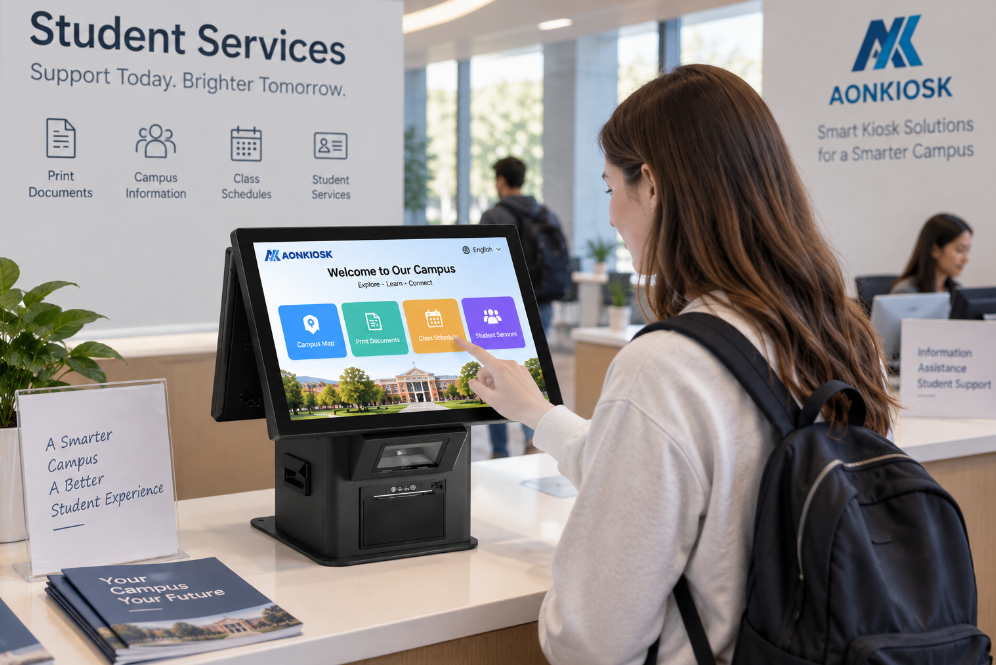
For campuses requiring document printing and information access from the same terminal, AONKIOSK’s APK26 32-Inch A4 Printing & Information Kiosk provides a useful example of this architecture. The platform combines a 32-inch touchscreen with an A4 printing configuration and is positioned for environments including university administration offices, libraries, and campus navigation applications.
3. Choose the Screen Around the User Interaction
Large screens are not automatically better.
For a student standing close to a kiosk and completing forms, searching records, or printing documents, a 21.5- to 32-inch touchscreen can provide ample working space without making controls difficult to reach.
Wayfinding applications are different.
A university information kiosk showing large maps, building directories, event content, or digital signage may benefit from a larger screen because information must sometimes be visible before the user reaches the terminal.
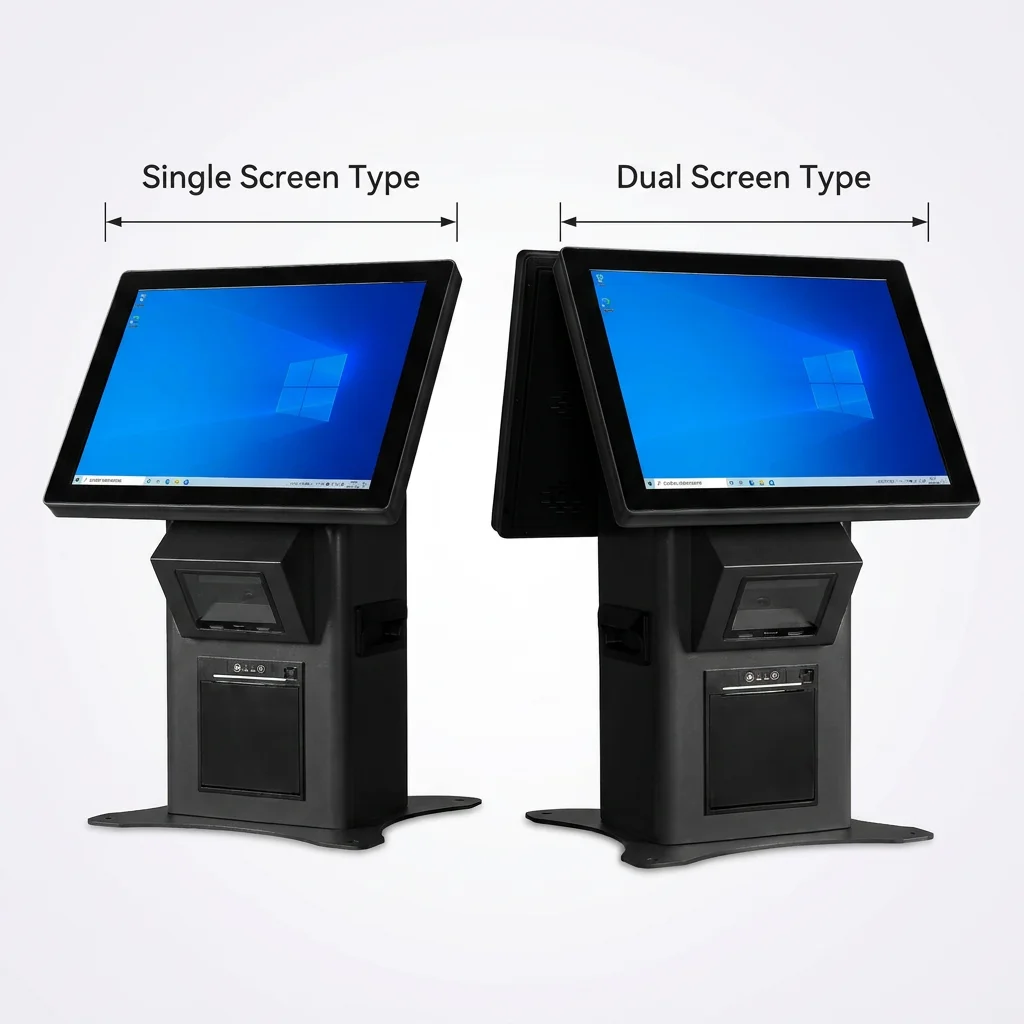
Some campuses may even consider dual-screen architecture, where one display continuously presents university announcements or signage while a smaller touchscreen handles navigation and interaction.
AONKIOSK’s existing wayfinding hardware includes this type of dual-screen configuration, demonstrating how signage and interactive functions can be separated within one terminal.
When specifying the display, evaluate:
- Screen size
- Full HD or 4K resolution
- Viewing distance
- PCAP or infrared touch
- Anti-glare treatment
- Cover-glass strength
- Brightness
- Viewing angle
- Expected daily operating hours
Do not select a screen based only on the largest specification available.
4. Select the Computing Platform From the Software Backward
The kiosk computer should be selected after the university software architecture is understood.
A browser-based directory running on a lightweight operating system does not require the same computing platform as a kiosk simultaneously running Windows, authentication services, printing software, security tools, remote management, video content, and multiple USB peripherals.
Define at least:
- Operating system
- Application type
- Browser or native application
- RAM requirement
- Storage requirement
- Graphics workload
- Number of displays
- Number and type of peripherals
- Network requirements
- Remote management software
- Security software
For campus projects expected to remain in service for several years, component availability deserves additional attention.
Universities rarely want to discover during a second deployment phase that the motherboard used in the first 40 kiosks has disappeared from the supplier’s BOM.
The manufacturer should therefore explain how computing-platform substitutions are managed and whether approval is required before components change.
5. Map Every Peripheral Before Manufacturing
Peripheral integration is one of the most common sources of kiosk redesign.
Imagine a campus terminal requiring:
| Function | Possible Hardware |
|---|---|
| Student authentication | NFC/RFID/card reader |
| Mobile credential | QR scanner |
| Forms and certificates | A4 printer |
| Queue service | Thermal printer |
| Payment | EMV/NFC payment terminal |
| Video assistance | Camera + microphone |
| Document capture | Scanner |
| Audio guidance | Speakers/headphones |
Do not merely tell the supplier that the kiosk needs “card reading and printing.”
Provide exact device models whenever possible.
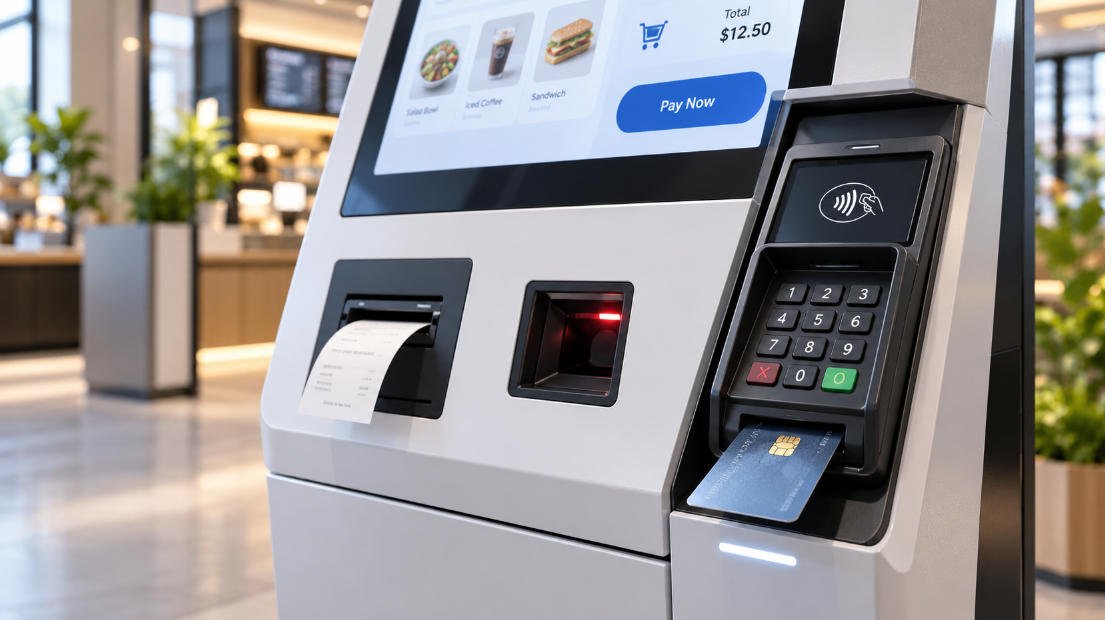
A payment terminal, for example, affects mounting dimensions, viewing angle, cable routing and service access. An A4 printer requires much more internal space and paper-replacement access than a small thermal receipt printer.
For custom deployments, AONKIOSK’s OEM/ODM self-service kiosk manufacturing service covers enclosure engineering, internal component layout, peripheral integration, thermal management, prototyping, and production. Its listed integration options include QR/barcode scanners, NFC readers, printers, cameras, RFID readers, payment terminals and other modules.
That modular approach is particularly relevant where different campus departments require variants of the same kiosk platform.
6. Treat Student Authentication as a System Requirement
Universities often operate several identification systems simultaneously.
A student may have:
- Physical student ID
- RFID/NFC campus card
- QR credential
- Mobile campus application
- Username and password
- Single sign-on account
Before selecting a card reader or NFC module, determine exactly how the university’s authentication system works.
The kiosk manufacturer generally provides the hardware interface. The university’s software provider or system integrator remains responsible for the application logic, identity platform, API integration, and credential validation.
Keeping these responsibilities clear prevents a common procurement problem: assuming that installing an RFID reader automatically creates integration with the university’s student-management system.
It does not.
Hardware compatibility, drivers, middleware, application support, and backend authentication must all be validated together.
7. Printing Requirements Deserve More Attention Than Expected
Printing remains relevant on many campuses even as services become digital.
Students may need:
- Enrollment documents
- Appointment confirmations
- Application records
- Library materials
- Certificates
- Queue tickets
- Payment receipts
- Temporary passes
The printer specification should reflect the actual output.
A thermal printer is appropriate for short receipts or queue numbers. It is not a substitute for an A4 printer when students need full-page documents.
When specifying an A4 printing student service kiosk, review:
- Laser or other print technology
- Paper capacity
- Access for paper replenishment
- Toner replacement
- Output tray design
- Paper-jam access
- Printer communication interface
- Ventilation
- Duty cycle
Service access becomes particularly important because maintenance staff should not need to dismantle the touchscreen assembly just to clear a printer jam.
8. Design for Accessibility From the Beginning
Campus technology serves a diverse population.
Accessibility therefore should not be treated as an optional accessory selected after the kiosk enclosure has already been designed.
Hardware decisions may influence:
- Touchscreen height
- Reach distance
- Approach space
- Viewing angle
- Control placement
- Payment-terminal position
- Card-reader position
- Printer-output height
- Headphone access
- Physical button requirements
Software accessibility also needs to be considered separately, including text size, contrast, screen-reader support, language selection, navigation logic, and session timing.
Applicable accessibility requirements vary by country and deployment, so the purchasing institution should identify the standards that apply to its campus and include them in the RFQ.
It is much easier to engineer accessibility into the first prototype than to modify the enclosure after production tooling and internal layouts have been approved.
9. Consider the Installation Location, Not Just the Building
Even two indoor university kiosks may experience very different operating conditions.
A terminal inside an air-conditioned administration office may operate in a controlled environment.
Another located near the entrance of a student center may face direct sunlight, frequent temperature changes, higher dust exposure, backpacks striking the enclosure, heavy daily interaction, and significantly longer operating hours.
Before approving the enclosure, document:
- Indoor, semi-outdoor, or outdoor installation
- Ambient temperature
- Sunlight exposure
- Dust exposure
- Expected traffic
- Daily operating hours
- Floor or wall mounting
- Available power
- Ethernet availability
- Wi-Fi requirements
- Installation surface
- Ventilation clearance
A freestanding campus kiosk also needs sufficient stability to tolerate repeated public interaction.
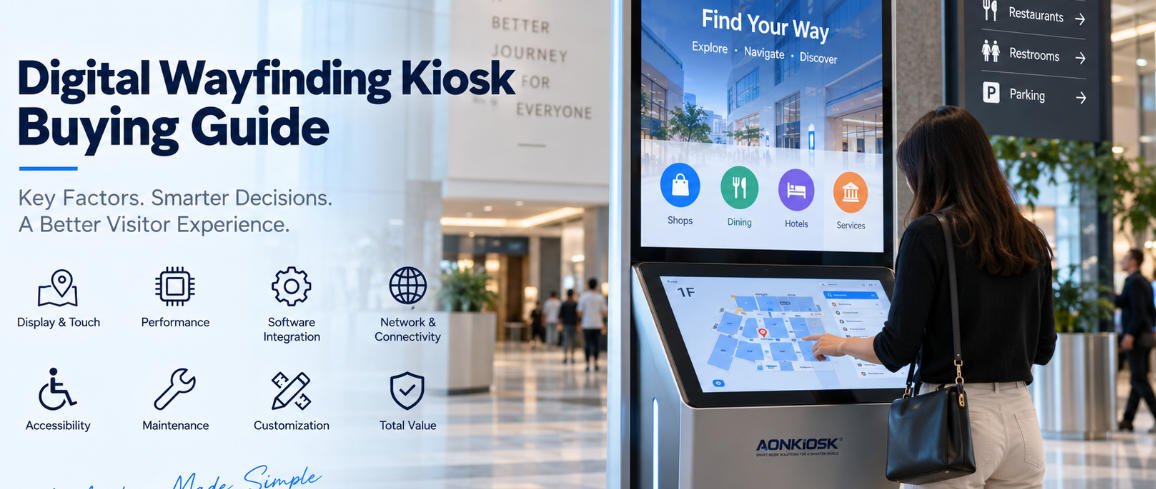
For large directory or navigation deployments, universities can additionally review AONKIOSK’s Digital Wayfinding Kiosk Buying Guide, which addresses screen architecture, enclosure design, software/hardware responsibilities, installation, and wayfinding-specific procurement considerations.
10. Make Privacy Part of the Physical Design
A campus information directory may display only public information.
A student service kiosk may display names, account information, payment details, schedules, or administrative records.
That changes the risk profile.
Consider:
- Automatic logout
- Session timeout
- Clearing locally cached information
- Browser reset after each user
- Privacy screen filters where appropriate
- Encrypted network communication
- Restricted USB access
- Locked service doors
- Secure BIOS settings
- Controlled technician access
Screen orientation also matters.
Installing a kiosk directly facing a waiting queue can make personal information visible to people standing behind the student.
Privacy is therefore partly a software issue and partly a physical deployment decision.
11. Plan Maintenance Before Approving the Enclosure
Universities may deploy kiosks across multiple buildings rather than in one centralized location.
That makes service time expensive.
Maintenance teams should be able to reach frequently serviced components without disassembling unrelated parts of the kiosk.
Ask the supplier:
- How is the printer accessed?
- Can the PC be replaced independently?
- Where are power supplies mounted?
- How are cables labeled?
- Can the display be replaced without removing every peripheral?
- Are locks standardized?
- Which spare parts should be stocked locally?
- Can the kiosk automatically restart after a power interruption?
- Is remote diagnostics support possible?
A beautifully designed enclosure can become a poor commercial product if routine maintenance requires excessive technician time.
12. Use a Pilot Before Campus-Wide Deployment
Do not move directly from CAD drawings to 100 production units.
A functional prototype should first be tested with the university’s real software and real peripherals.
After that, a small pilot can reveal problems that factory testing cannot reproduce.
Test the kiosk in an actual campus environment for:
- Touch accuracy
- Application stability
- Login and logout
- Card authentication
- QR scanning
- Printing
- Network interruption
- Power recovery
- Peripheral reconnection
- Remote updates
- Accessibility
- Screen visibility
- Thermal behavior
- Cleaning
- Student usability
- Maintenance procedures
Observe actual users rather than relying entirely on internal assumptions.
If students repeatedly hesitate before locating the scanner or retrieving a printed page, that is valuable design information.
A pilot is less expensive than correcting the same usability problem across an entire deployment.
13. Compare Quotations Using the Complete Configuration
Two kiosk quotations can differ substantially even when the exterior appearance seems similar.
Compare the actual BOM.
Check:
- LCD manufacturer and specification
- Touch technology
- Cover glass
- CPU and motherboard
- RAM and storage
- Scanner model
- Printer model
- NFC/RFID reader
- Payment integration
- Cabinet material
- Surface finish
- Locks
- Cooling system
- Internal power architecture
- Packaging
- Spare parts
- Warranty
- Documentation
Also distinguish one-time engineering costs from recurring unit costs.
A custom enclosure, prototype or specialized mounting system may require engineering investment during the first batch but not the same cost on every subsequent order.
The cheapest unit quotation is not necessarily the lowest-cost campus deployment.
14. Build One Hardware Platform Where Possible
Large universities may initially believe they need completely different kiosks for admissions, libraries, student services, navigation and payment.
Sometimes they do.
But where possible, creating a modular hardware family can simplify deployment considerably.
For example:
Base platform: touchscreen + PC + enclosure
Information version: base platform + QR scanner
Student services version: base platform + RFID/NFC + printer
Payment version: base platform + scanner + payment-terminal mount + receipt printer
Using a common structure can simplify spare-part inventory, technician training, branding, software imaging and future expansion.
This is where OEM/ODM manufacturing becomes more useful than purchasing unrelated off-the-shelf terminals for every department.
15. Campus Kiosk Procurement Checklist
Before requesting a final quotation, confirm the following:
Application
- What will students actually do?
- Which services are informational and which are transactional?
Software
- Windows, Android or another platform?
- Browser-based or native application?
- Who provides the kiosk software?
Authentication
- Student ID?
- RFID/NFC?
- QR code?
- Single sign-on?
Hardware
- Screen size?
- Printer type?
- Scanner?
- Camera?
- Payment?
- Audio?
Environment
- Indoor or outdoor?
- Operating hours?
- Expected traffic?
Accessibility
- Required standards?
- Reach and viewing requirements?
- Audio or physical controls?
Security
- Session reset?
- Peripheral access?
- Service-door locking?
- Privacy requirements?
Maintenance
- Who replenishes paper?
- Who replaces components?
- What spares will be stored locally?
Production
- Prototype quantity?
- Pilot quantity?
- Expected rollout volume?
- Future expansion?
If these questions are answered before the RFQ is issued, suppliers can quote the same scope and procurement teams can compare proposals much more accurately.
Conclusion
The most successful campus kiosk project begins with the service workflow rather than the kiosk catalogue.
A university information kiosk used primarily for maps and directories may need a large display, simple interaction and strong visibility. A student service kiosk supporting authentication, document printing or payment requires a very different internal architecture.
Define the workflow first. Then specify software, authentication, peripherals, accessibility, installation environment, privacy, maintenance and lifecycle requirements around that workflow.
Finally, validate the complete terminal through prototype and pilot deployment before committing to a campus-wide rollout.
For universities, education technology providers and system integrators developing customized self-service hardware, AONKIOSK provides configurable kiosk manufacturing covering enclosure engineering, touchscreen integration, industrial computing, printers, scanners, NFC/RFID devices, payment-terminal preparation and other commercial peripherals. Its existing information and printing kiosk platforms can also provide a starting point for campus-specific projects.
A well-selected campus kiosk should do more than look modern in a student center. It should become a dependable physical access point to the university’s digital services—easy for students to use, straightforward for technicians to maintain, and practical for the institution to scale.