





Buying a wayfinding kiosk looks straightforward until the project reaches the quotation stage.
One supplier proposes a 43-inch touchscreen. Another recommends a 55-inch display. A third suggests a dual-screen structure. Their quotations may all describe an “interactive wayfinding kiosk,” yet the machines can be very different in usability, maintainability, computing performance, installation requirements, and long-term operating cost.
That is why a digital wayfinding kiosk buying guide should begin with the deployment itself rather than with screen size or enclosure appearance.
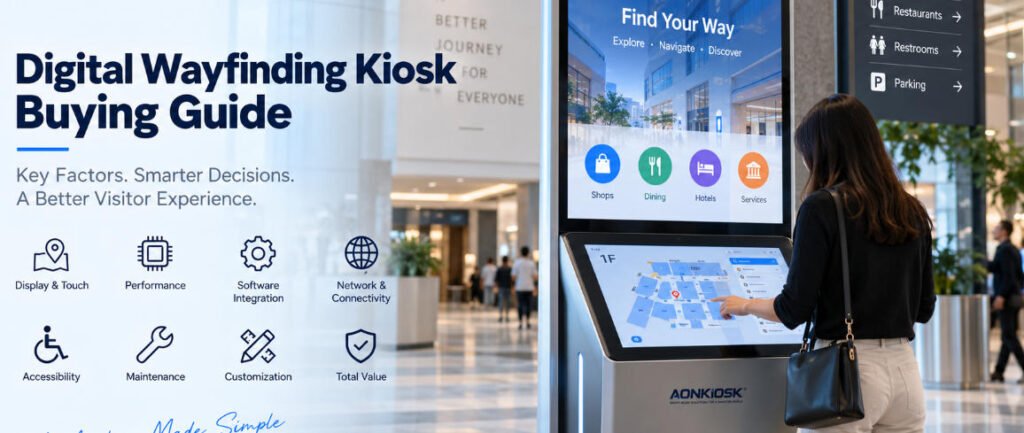
For shopping malls, hospitals, airports, universities, office buildings, museums, exhibition centers, government facilities, and large commercial complexes, a wayfinding terminal becomes a physical interface between visitors and a digital information system. If the hardware is poorly specified, even excellent navigation software cannot completely compensate for the problem.
This guide explains the practical questions procurement teams, software companies, system integrators, property operators, and project developers should evaluate before ordering an interactive wayfinding kiosk.
1. Start With the Visitor Journey, Not the Kiosk Specification
Before requesting a quotation, define exactly what visitors should accomplish at the kiosk.
A simple directory may only need to display tenants, departments, floor information, or points of interest. A more advanced system may allow users to search destinations, display an interactive map, calculate a route, scan a QR code to transfer directions to a phone, browse events, access multilingual information, or view advertising content.
These workflows influence the hardware configuration.
For example, a visitor entering a shopping center may need to search for a store and receive walking directions. In a hospital, the user may need to locate a department, laboratory, pharmacy, or registration area. At an exhibition venue, the same terminal might combine exhibitor search, hall navigation, event schedules, and promotional content.
Write these tasks into the RFQ before discussing hardware.
A useful specification could state:
“Users must be able to search approximately 500 destinations, interact with a building map, select a route, change language, and optionally scan a QR code to continue navigation on a mobile device.”
That provides a manufacturer with much more useful engineering information than simply requesting a “55-inch information kiosk.”
2. Decide Between Single-Screen and Dual-Screen Architecture
One of the first hardware decisions is how information and interaction will be divided.
A conventional interactive directory kiosk normally uses one large touchscreen for both navigation and content. This configuration works well where users approach the terminal specifically to search for information.
A dual-screen kiosk serves a slightly different purpose.
The larger upper display can continuously present advertising, announcements, branding, event information, digital signage, or general directions, while a smaller touchscreen below becomes the interactive control surface.
This arrangement can be valuable in shopping malls, airports, exhibition halls, hotels, and major public buildings because the terminal continues communicating with passing visitors even when nobody is actively using the navigation interface.
AONKIOSK’s APK868 Dual-Screen Information & Wayfinding Kiosk illustrates this architecture with a 55-inch 4K information display combined with a 21.5-inch capacitive touchscreen. The platform supports directory browsing, navigation, multimedia interaction, and information inquiry.
Neither architecture is automatically better. The correct choice depends on whether the kiosk primarily serves active searches or needs to perform both digital signage and interactive navigation.
3. Choose Screen Size According to Viewing and Interaction Distance
A larger screen is not always easier to use.
For a purely interactive kiosk, extremely large screens can create ergonomic problems because users must reach farther across the interface. Important buttons may also become difficult to access when positioned too high.
Instead, separate two questions:
How far away should information remain visible?
How close will a user stand while operating the interface?
For directory and map interaction, the touchscreen should allow comfortable viewing of labels, floor plans, destination lists, and on-screen keyboards at normal standing distance.
Large displays become more useful when the kiosk must also attract attention from farther away.
In those installations, a dual-display architecture can solve the conflict: the upper screen handles long-distance visibility, while the lower touchscreen remains positioned for comfortable interaction.
Procurement teams should therefore evaluate screen dimensions together with kiosk height, touchscreen position, viewing angle, user reach, and software layout.
4. Match Touch Technology to the Environment
Most modern indoor directory kiosks use projected capacitive touch because it provides smooth response and familiar smartphone-like interaction.
But specifying “capacitive touchscreen” alone is not enough.
Ask about:
- Protective glass thickness
- Touch accuracy
- Multi-touch support
- Controller compatibility
- Anti-glare treatment
- Fingerprint resistance
- Replacement method
- Touch performance through protective glass
Public kiosks receive far more frequent interaction than ordinary desktop displays. The touchscreen assembly should therefore be selected as a commercial component rather than simply for appearance.
For high-traffic environments, the relationship between the LCD, touch sensor, protective glass, frame, and enclosure is particularly important. A mechanically poor installation can cause pressure points, touch instability, difficult repairs, or premature damage even when the touchscreen itself is a good component.
5. Do Not Overspecify the Industrial PC
Wayfinding software varies considerably in computing requirements.
A relatively simple directory displaying locally stored maps may run comfortably on a modest Android platform. A Windows-based application using complex 3D maps, animations, video, remote management, analytics, or multiple external devices may require significantly more CPU performance and memory.
Ask the software provider to define:
- Operating system
- CPU requirement
- RAM requirement
- Storage requirement
- GPU requirement
- Required USB and serial ports
- Network requirements
- Display output requirements
- Remote-management software
- Browser or application framework
Then select the computer around those requirements.
Buying the highest available processor rarely creates meaningful value if the application does not need it. At the same time, choosing the cheapest motherboard can create performance problems when navigation software becomes more complex later.
The best configuration leaves reasonable performance headroom without turning the information kiosk into an unnecessarily expensive workstation.
6. Confirm Software and Hardware Responsibilities Early
This is one of the most important procurement issues.
The physical kiosk and the wayfinding platform are often supplied by different companies.
The kiosk manufacturer may provide the enclosure, touchscreen, industrial computer, wiring, networking hardware, speakers, scanner, camera, and other components. The software company may provide maps, directory databases, content management, navigation logic, analytics, and remote administration.
AONKIOSK focuses on self-service kiosk hardware manufacturing and hardware integration rather than developing the customer’s wayfinding platform itself. Its OEM/ODM services cover areas such as enclosure engineering, touchscreen integration, internal component layout, thermal design, peripheral integration, prototyping, and production.
Before manufacturing begins, establish responsibility for drivers, operating-system images, API compatibility, testing applications, device configuration, and final acceptance.
Many integration delays originate from unclear ownership rather than defective hardware.
7. Evaluate Network Architecture
A directory kiosk may depend heavily on network connectivity.
Content such as tenant information, room changes, events, advertising, emergency announcements, or facility directories may be updated through a central content-management platform.
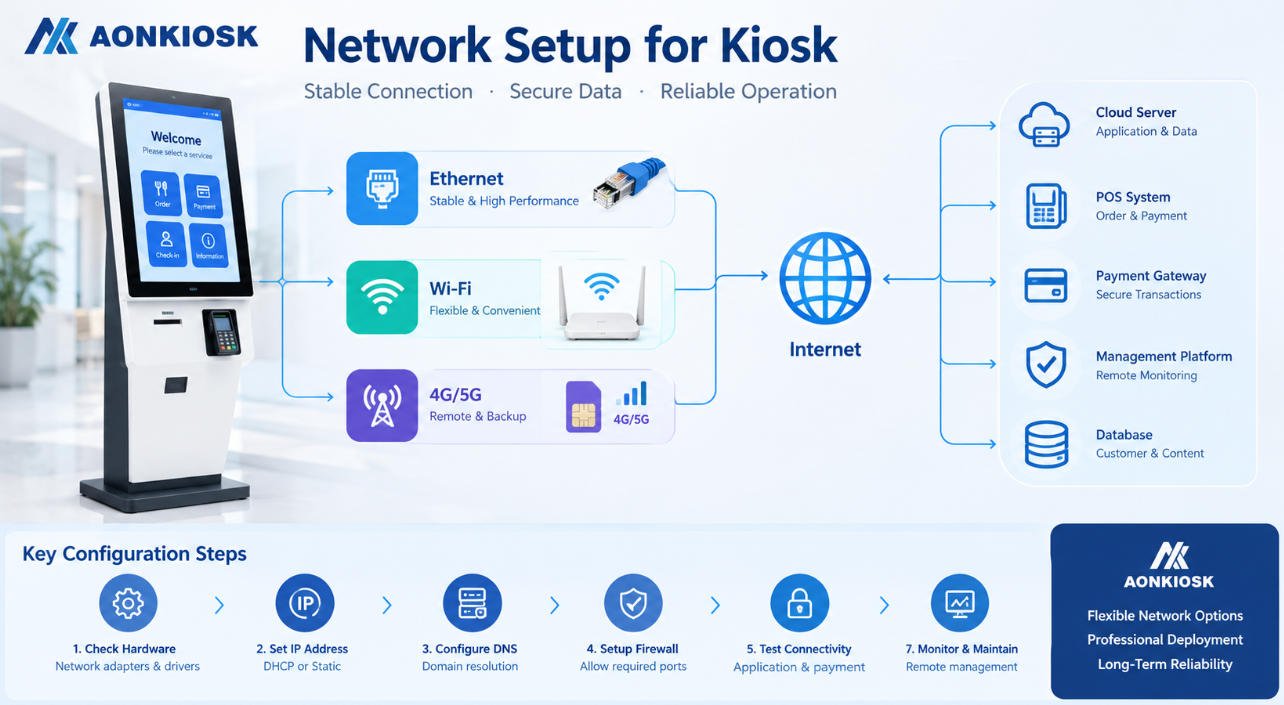
Ethernet is generally preferable where permanent cabling is available because it provides predictable connectivity.
Wi-Fi may simplify installation but depends more heavily on site coverage and network policy.
4G or other cellular connectivity can provide an alternative for locations where fixed networking is unavailable or as a backup connection.
The APK868 platform, for example, supports Ethernet, dual-band Wi-Fi, and optional 4G configurations.
The important procurement question is not “Does the kiosk have Wi-Fi?” It is whether the network architecture matches the building’s IT infrastructure and the software’s operational requirements.
8. Plan Optional Hardware Around Real Functions
Wayfinding terminals frequently become multipurpose information points over time.
Possible integrations include QR scanners, RFID readers, cameras, speakers, printers, NFC readers, microphones, or accessibility devices.
However, adding modules simply because they are available increases cost, wiring complexity, software integration requirements, and future maintenance.
Every peripheral should correspond to a defined user workflow.
A QR scanner makes sense if visitors need to retrieve bookings, tickets, visitor credentials, or personalized directions.
A printer may be useful if the application provides physical maps, visitor passes, queue numbers, or event information.
A camera might support remote assistance, visitor analytics, or another application defined by the customer.
If none of these functions are required, leaving them out often produces a cleaner and more reliable kiosk.
9. Treat Accessibility as a Hardware Requirement
Accessibility should be considered while determining kiosk dimensions, not after the enclosure has already been manufactured.
Touchscreen height, viewing angle, control position, physical reach, wheelchair clearance, and placement of peripherals can all influence whether the kiosk is practical for different users.
Software accessibility also matters. Text size, contrast, language selection, button dimensions, audio guidance, and interface complexity should complement the physical design.
Requirements vary by country and project, so procurement teams should provide the applicable accessibility standard to both the hardware manufacturer and software developer during the design stage.
Trying to solve accessibility through software alone cannot correct a touchscreen that was mechanically installed outside an appropriate reach range.
10. Design for Maintenance From the Beginning
The attractive front of a kiosk receives most of the attention during purchasing discussions. Facility teams usually care more about the back.
Ask how technicians access:
- Computer modules
- Power supplies
- Touch controllers
- Network equipment
- Display connections
- Speakers
- Optional scanners or printers
- Cooling components
A component that costs little to purchase can become expensive if replacing it requires removing an entire display assembly.
Service doors should provide practical access without compromising structural stability or public security. Internal cables should be organized and identified. Frequently replaced modules should ideally use accessible connectors and mounting brackets.
For projects involving dozens or hundreds of terminals, serviceability can have a greater financial impact over the equipment’s life than a small difference in initial purchase price.
11. Evaluate the Installation Location Before Finalizing the Cabinet
Wayfinding kiosks are often tall, visually prominent structures. That makes installation engineering important.
Confirm whether the terminal will be:
- Free-standing
- Bolted to the floor
- Wall-mounted
- Installed against a wall
- Installed in an open lobby
- Positioned near entrances
- Integrated into architectural furniture
Check power outlet location, Ethernet routing, floor structure, cable entry, base dimensions, pedestrian traffic, emergency exits, cleaning access, and delivery routes.
Also confirm whether the assembled kiosk can pass through elevators, loading docks, doors, and corridors before reaching its final position.
A beautiful enclosure that cannot be transported through the building is still a badly engineered deployment.
12. Indoor and Outdoor Wayfinding Are Different Projects
Do not assume an indoor kiosk can become an outdoor directory by installing a brighter display.
Outdoor installations introduce sunlight, rain, dust, temperature extremes, condensation, UV exposure, corrosion, and potentially greater vandalism risk.
These factors affect the enclosure, seals, display, touchscreen, thermal architecture, coating, ventilation, power system, network hardware, and installation method.
An outdoor project should therefore specify the actual environmental conditions rather than simply requesting an “outdoor information kiosk.”
For most malls, hotels, hospitals, office towers, museums, and indoor transportation facilities, an indoor commercial kiosk remains the more economical solution.
13. Decide How Much Customization Is Actually Necessary
Wayfinding projects are often highly visible, so buyers naturally want the hardware to match architectural and brand identities.
Customization can include:
- Enclosure dimensions
- Cabinet shape
- Screen orientation
- Corporate colors
- Logo treatment
- Surface finish
- LED lighting
- Computer configuration
- Peripheral openings
- Mounting structure
- Internal component layout
But full mechanical customization is not always necessary.
A standard platform with custom branding and a project-specific hardware configuration usually offers lower engineering risk and faster production.
Full customization becomes more justified when the terminal must fit a specific architectural space, incorporate unusual hardware, follow a distinctive industrial design, or be deployed at sufficient scale to justify dedicated engineering.
AONKIOSK provides OEM and ODM kiosk manufacturing services covering industrial design, mechanical engineering, prototypes, small-batch manufacturing and mass production, which allows buyers to choose the level of customization appropriate to the project rather than redesigning every kiosk unnecessarily.
14. Build a Prototype Before Large Deployment
For a customized interactive directory kiosk, a prototype is not simply a sales sample.
It is an engineering validation tool.
Install the real operating system and navigation software. Load realistic maps and directory data. Connect every required peripheral. Test the touch interface continuously. Check Wi-Fi or Ethernet performance. Evaluate screen visibility under actual lighting. Inspect thermal behavior after extended operation.
Then place the machine in front of people who were not involved in designing it.
Can they immediately understand where to touch?
Can they find a destination without assistance?
Is the touchscreen comfortable to reach?
Is the text readable?
Does the kiosk attract attention without blocking pedestrian movement?
These observations are often more useful than another round of CAD revisions.
Problems discovered in one prototype are relatively inexpensive to correct. The same problem discovered after several hundred units have been manufactured becomes a project-level issue.
15. Compare Quotations Using Total Deployment Value
When comparing suppliers, do not reduce every proposal to the unit price.
Check whether each quotation uses the same:
- Display size and panel grade
- Touchscreen technology
- Protective glass
- Processor
- Memory and storage
- Operating system
- Network configuration
- Cabinet material
- Surface treatment
- Optional modules
- Packaging
- Warranty
- Spare parts
- Testing procedure
Two kiosks that look almost identical in a rendering may use very different internal architectures.
Also compare engineering support.
Wayfinding deployments often involve cooperation between the building operator, software developer, installation contractor, network team, and kiosk manufacturer. A supplier that can review drawings, confirm interfaces, modify mounting structures, build prototypes, and provide consistent production documentation may reduce project risk far more than a small reduction in unit price.
Buyers evaluating available hardware configurations can review AONKIOSK’s Information & Wayfinding Kiosks category before determining whether an existing platform or custom enclosure is more appropriate.
A Practical RFQ Checklist
Before sending an RFQ for a digital wayfinding kiosk, prepare at least the following information:
Application: mall directory, hospital navigation, airport guidance, corporate directory, museum information, campus navigation, exhibition directory, or another application.
Software: Windows, Android, Linux, browser-based application, locally installed software, or cloud-managed platform.
Display: required screen size, resolution, brightness, orientation, and single- or dual-screen architecture.
Touch: PCAP or other required technology, protective glass, multi-touch requirements, and accessibility considerations.
Computer: required processor, RAM, storage, interfaces, and network connectivity.
Peripherals: QR scanner, RFID, NFC, camera, printer, speaker, microphone, or other modules.
Environment: indoor or outdoor, operating temperature, lighting conditions, expected daily use, and public-access risk.
Installation: floor-standing, wall-mounted, fixing method, cable entry, delivery access, and site constraints.
Customization: enclosure shape, dimensions, RAL color, logo, lighting, branding, and architectural requirements.
Project scale: prototype quantity, pilot quantity, estimated production volume, deployment locations, and rollout schedule.
Providing these details gives manufacturers enough information to quote comparable configurations instead of making assumptions.
Final Buying Advice
The most effective wayfinding terminal is not necessarily the one with the largest screen, fastest processor, or most dramatic enclosure.
It is the kiosk whose physical design disappears into the visitor journey.
Users should be able to approach it, understand the interface, find a destination, obtain the information they need, and continue moving without thinking about the hardware underneath.
For procurement teams, that simplicity requires considerable preparation.
Define the navigation workflow first. Confirm software requirements. Select screens according to viewing and interaction distance. Engineer the touchscreen position around real users. Specify network architecture. Add only peripherals that serve a defined purpose. Design maintenance access before production. Validate the complete system through a working prototype.
A digital wayfinding kiosk buying guide therefore becomes less about choosing a machine and more about coordinating software, hardware, architecture, installation, and long-term operation.
For AONKIOSK projects, the same principle applies whether the requirement is a conventional information kiosk, a compact interactive directory kiosk, or a large dual-screen wayfinding terminal: build the hardware around the deployment rather than forcing the deployment to adapt to an existing enclosure.
That distinction is what turns a touchscreen cabinet into infrastructure visitors can depend on.