





The touchscreen is the primary user interface of most self-service kiosks. Its responsiveness, durability, accuracy, and environmental compatibility directly affect how easily customers can complete an order, make a payment, check in, purchase a ticket, or search for information.
Two of the most widely used touchscreen technologies in commercial kiosks are:
- Projected capacitive touch, commonly called PCAP or capacitive touch
- Infrared touch, commonly called IR touch
Both technologies can provide reliable interaction when correctly matched to the kiosk application. However, they detect touch in different ways and behave differently when exposed to gloves, water, dust, strong light, thick cover glass, accidental contact, or frequent public use.
This knowledge-base guide explains how capacitive and infrared touchscreens work, compares their advantages and limitations, and provides practical selection and troubleshooting guidance for self-service kiosk projects.
What Is a Capacitive Touchscreen?
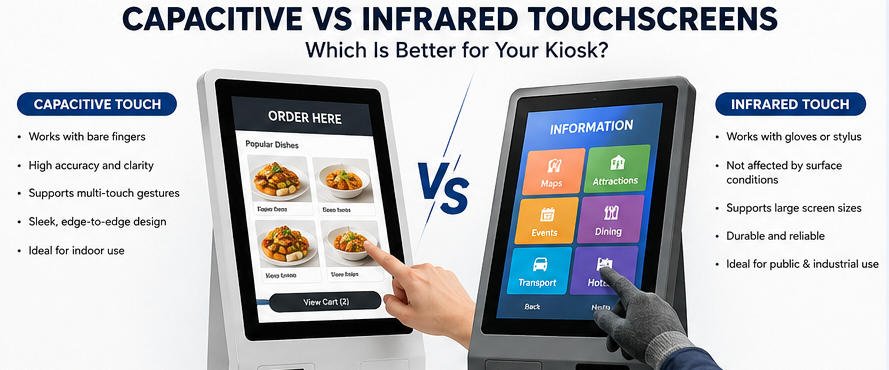
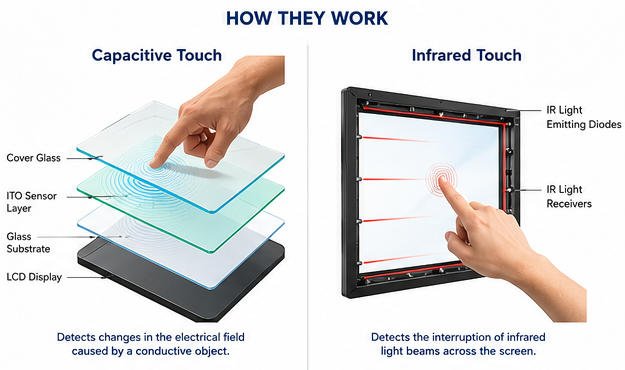
A projected capacitive touchscreen uses a transparent conductive sensor layer installed beneath the front glass.
The controller creates an electrostatic field across the sensor. When a conductive object, normally a human finger, approaches or touches the glass, it changes the local electrical field. The controller calculates the touch position and sends the corresponding coordinates to the kiosk computer.
Modern projected capacitive touchscreens commonly support:
- Fast finger response
- Multi-touch gestures
- High touch accuracy
- Edge-to-edge glass design
- Gesture control
- Dragging, zooming, and swiping
- Integration with Android, Windows, or Linux systems
Capacitive touchscreens are widely used in smartphones, tablets, point-of-sale terminals, self-ordering kiosks, hotel check-in terminals, and other applications where a modern visual appearance and precise finger interaction are important.
What Is an Infrared Touchscreen?
An infrared touchscreen uses a frame containing infrared light-emitting diodes and photodetectors around the edges of the display.
These components create an invisible grid of infrared light beams across the front of the screen. When a finger, glove, stylus, or another object interrupts the beams, the controller identifies the blocked horizontal and vertical coordinates and registers a touch.
Unlike capacitive technology, infrared touch detection does not depend on the electrical conductivity of the object.
An IR touchscreen can therefore normally be operated with:
- Bare fingers
- Medical gloves
- Work gloves
- Plastic styluses
- Passive pens
- Other non-transparent objects
Infrared touch is commonly used for large-format kiosks, industrial terminals, information displays, ticketing machines, wayfinding systems, and applications that require flexible input methods.
Capacitive vs Infrared Touch: Quick Comparison
| Feature | Capacitive Touch | Infrared Touch |
|---|---|---|
| Detection method | Change in electrical field | Interruption of infrared light beams |
| Typical input | Bare finger or compatible conductive stylus | Finger, glove, stylus, or other opaque object |
| Touch accuracy | High | High, depending on frame and calibration |
| Response feel | Fast and smartphone-like | Fast, but may feel less like a mobile device |
| Multi-touch | Commonly supported | Supported by many modern IR controllers |
| Front design | Flat, edge-to-edge glass possible | Requires an infrared frame around the display |
| Glove compatibility | Depends on glove type and controller tuning | Generally strong |
| Water sensitivity | Water may cause false touches or reduced response | Droplets or contamination may interrupt beams |
| Dust sensitivity | Sensor is protected beneath glass | Dust around the IR frame may affect detection |
| Cover-glass flexibility | Limited by glass thickness and tuning | Touch works in front of non-interactive protective glass |
| Scratch effect | Severe glass damage may affect usability | Touch detection is not dependent on a conductive glass coating |
| Typical screen sizes | Small to large | Particularly suitable for medium and large displays |
| Visual appearance | Slim and modern | Slightly raised bezel or frame |
| Typical kiosk use | Ordering, payment, check-in, retail | Ticketing, industrial, information, large displays |
Key Differences Between Capacitive and Infrared Touchscreens
1. Touch Detection Method
The most important difference is how each technology identifies a touch.
A capacitive panel detects changes in an electrical field. The object touching the screen must normally have suitable conductive properties.
An infrared panel detects a physical interruption in a light grid. The touching object does not need to conduct electricity.
This distinction explains most of the practical differences in glove support, stylus compatibility, environmental performance, and front-glass construction.
2. User Experience
Capacitive touchscreens generally provide the interaction style users expect from smartphones and tablets.
They are well suited to interfaces involving:
- Product browsing
- Menu scrolling
- Image selection
- On-screen keyboards
- Pinch-to-zoom gestures
- Drag-and-drop controls
- Small buttons or detailed interface elements
For this reason, capacitive technology is commonly selected for a restaurant self-ordering kiosk where customers browse menus, select options, customize meals, and complete payment through a graphical interface.
Infrared touchscreens can also respond quickly, but the interaction may feel slightly different because the IR grid sits above the display surface. Depending on the controller configuration, a touch may be detected just before the object physically presses against the glass.
For basic buttons, ticket selection, directory navigation, and large-format interfaces, this difference is usually not a problem.
3. Glove Operation
Infrared touchscreens have a clear advantage when users must wear gloves.
Because IR technology detects any object that blocks the light beams, it can normally recognize:
- Latex gloves
- Nitrile gloves
- Winter gloves
- Industrial work gloves
- Medical gloves
Projected capacitive panels may work with thin gloves, but performance depends on:
- Glove material
- Glove thickness
- Touch-controller sensitivity
- Cover-glass thickness
- Electrical grounding
- Environmental conditions
Special glove-compatible PCAP controllers are available, but they should be tested with the exact glove type used at the deployment site.
For hospitals, factories, warehouses, cold environments, food-processing areas, or outdoor installations, glove requirements should be confirmed before selecting the touchscreen.
4. Stylus Compatibility
Infrared touchscreens usually work with almost any opaque stylus that is large enough to interrupt the IR beams.
Capacitive screens require a conductive stylus or a controller specifically designed for active pen input. A standard plastic pen will normally not work.
When a kiosk application requires signatures, handwriting, detailed selection, or pen-based navigation, the stylus and touch controller should be evaluated as one complete system.
5. Multi-Touch Support
Projected capacitive technology commonly supports ten-point or higher multi-touch input, depending on the panel and controller.
This makes it suitable for:
- Pinch-to-zoom
- Two-finger navigation
- Interactive maps
- Collaborative displays
- Complex gesture-based applications
Modern infrared touch frames can also support multiple touch points. However, performance varies by controller, frame size, object spacing, and software compatibility.
Most conventional kiosk workflows only require one touch point at a time. Multi-touch should therefore be treated as an application requirement rather than an automatic purchasing priority.
6. Front-Surface Design
Capacitive touchscreens can be integrated behind a continuous sheet of glass, creating a flat and visually clean front surface.
This design provides several advantages:
- Modern appearance
- Easier cleaning
- Fewer edges where dirt can accumulate
- Better resistance to spilled liquids entering the display opening
- Easier integration into premium kiosk enclosures
Infrared touchscreens require transmitters and receivers around the screen perimeter. The frame creates a slightly raised border around the active area.
The frame can be integrated into the kiosk bezel, but it normally cannot provide the same completely flat edge-to-edge appearance as PCAP glass.
7. Cover-Glass Thickness
Projected capacitive touch performance is affected by the thickness and material of the cover glass.
Using thicker protective glass may reduce touch sensitivity unless the sensor, controller, firmware, grounding, and glass construction are designed together.
For vandal-resistant applications, the complete PCAP stack should be validated during prototype testing.
Infrared technology detects objects above the glass surface and is not dependent on sensing through the glass. This makes it easier to use thick protective glass in front of the display.
IR touch may therefore be suitable for public terminals requiring:
- Thick tempered glass
- Impact-resistant covers
- Replaceable front glass
- Additional protection from vandalism
However, the protective glass and IR frame must still be mechanically aligned so that the beams are not obstructed.
8. Water and Liquid Exposure
Neither technology should automatically be assumed to be immune to water.
On a capacitive screen, water droplets, condensation, cleaning liquid, or a wet finger can change the electrical field. Depending on the controller and firmware, this may cause:
- False touches
- Missed touches
- Pointer movement
- Temporary loss of response
- Unintended selections
Industrial PCAP controllers may include water-rejection modes, but performance should be tested using the expected liquid conditions.
On an infrared screen, water droplets, accumulated moisture, dirt, or residue around the frame may block or scatter infrared beams. This can create a constant touch point or an unresponsive area.
For kiosks used near drink counters, swimming facilities, outdoor entrances, or food-service areas, enclosure sealing and touchscreen drainage are as important as the touch technology itself.
9. Dust and Contamination
A capacitive sensor is laminated beneath the front glass, so normal surface dust does not usually interrupt the sensing grid. Heavy contamination can still interfere with user interaction or cleaning, but the sensing components remain protected.
An infrared frame contains exposed optical paths around the display perimeter. Dust, grease, insects, paper fragments, food residue, or cleaning deposits can block the beams.
IR-equipped kiosks should therefore include:
- A frame design that minimizes debris accumulation
- Regular cleaning procedures
- Correct bezel alignment
- Easy maintenance access
- Inspection of the emitter and receiver openings
For dusty industrial environments, the kiosk manufacturer should evaluate how the IR frame will be protected without blocking its optical grid.
10. Sunlight and Strong Ambient Light
Strong sunlight or intense infrared sources can affect some IR touch systems, especially if the controller does not provide sufficient ambient-light rejection.
Possible symptoms include intermittent touches, dead zones, or unstable coordinates.
Commercial IR controllers designed for bright environments can reduce this risk, but outdoor testing remains necessary.
Capacitive screens are not based on optical beam detection and are generally less affected by infrared light. However, outdoor PCAP operation can still be influenced by rain, condensation, electrical noise, temperature, and grounding conditions.
An outdoor kiosk therefore requires a complete environmental design rather than touchscreen selection alone.
Advantages of Capacitive Touchscreens
Projected capacitive touch is often the preferred option for customer-facing kiosks requiring a premium appearance and smartphone-like interaction.
Its main advantages include:
- Smooth and responsive finger operation
- High positional accuracy
- Strong multi-touch support
- Flat front-glass integration
- Easy-to-clean surface
- Good visual transparency
- Suitable for detailed graphical interfaces
- Familiar experience for most users
- Reduced dust accumulation around the display edge
Capacitive touch is commonly recommended for:
- Restaurant self-ordering kiosks
- Retail payment kiosks
- Hotel check-in terminals
- Visitor registration kiosks
- Healthcare registration kiosks
- Indoor self-service payment machines
- Customer-facing POS terminals
Limitations of Capacitive Touchscreens
Possible limitations include:
- Thick gloves may not be detected
- Standard plastic styluses do not work
- Water can cause incorrect input
- Thick cover glass requires careful engineering
- Controller tuning and grounding are important
- Severe electrical interference may affect touch stability
- Replacement glass and touch sensors may be integrated as one assembly
These limitations do not mean PCAP is unreliable. They indicate that the sensor, controller, cover glass, enclosure, computer, power supply, and grounding should be designed as a complete touch system.
Advantages of Infrared Touchscreens
Infrared touch is often selected when flexible input and protective-glass construction are more important than a completely flat front surface.
Its main advantages include:
- Operation with bare fingers or gloves
- Compatibility with passive styluses
- No conductive input requirement
- Suitable for larger displays
- Can work with thick protective glass
- Touch sensing is independent of a conductive glass coating
- Straightforward replacement of the front glass in some designs
- Useful for industrial and high-traffic environments
IR touch is commonly recommended for:
- Large information kiosks
- Industrial control terminals
- Interactive directories
- Museum displays
- Public wayfinding kiosks
- Outdoor or semi-outdoor terminals after environmental validation
- Ticket vending machines
- Applications requiring glove operation
A ticketing kiosk may use either technology. IR can be advantageous when the terminal is installed in a transport environment where users may wear gloves or where a thick protective front panel is required.
Limitations of Infrared Touchscreens
Potential limitations include:
- The frame creates a raised bezel
- Dust or residue can block the optical beams
- Water droplets near the frame may create false touches
- Strong ambient infrared light may affect poorly protected systems
- Small objects may not be detected if they do not block enough beams
- The frame must remain correctly aligned
- Accidental objects resting across the screen may activate touch
- Cleaning requires attention to the frame edges
The IR frame should never be covered, compressed, misaligned, or obstructed by the kiosk enclosure.
Which Touchscreen Is Better for a Kiosk?
There is no universally better option. The correct touchscreen depends on how and where the kiosk will be used.
Choose Capacitive Touch When:
- Users will primarily operate the kiosk with bare fingers
- A modern edge-to-edge glass appearance is required
- The interface includes detailed buttons or gestures
- Multi-touch performance is important
- The kiosk is installed indoors
- Frequent cleaning is required
- The application should feel similar to a smartphone or tablet
For most indoor restaurant ordering, hotel check-in, visitor registration, and retail payment kiosks, projected capacitive touch is usually the first option to evaluate.
Choose Infrared Touch When:
- Users regularly wear gloves
- Passive stylus input is required
- Thick protective glass is necessary
- The display is relatively large
- The application mainly uses large buttons
- The front glass should be independently replaceable
- The operating environment makes conductive touch input less practical
IR technology is frequently considered for industrial systems, public information terminals, large ticketing displays, and special-purpose kiosks.
Application-Based Recommendations
Restaurant Self-Ordering Kiosks
Recommended starting point: capacitive touch.
Customers expect quick scrolling, accurate menu selection, and a familiar smartphone-like experience. A flat surface also makes cleaning easier in food-service environments.
IR may be considered when users wear thick gloves or when unusually thick protective glass is required.
Retail and Payment Kiosks
Recommended starting point: capacitive touch.
Retail applications often involve small controls, payment confirmation, on-screen keyboards, membership entry, and detailed product selection.
The touchscreen should be tested near payment terminals and other electronics to verify that electromagnetic interference does not affect operation.
Hotel Check-In Kiosks
Recommended starting point: capacitive touch.
A premium glass appearance suits hotel environments, while accurate touch supports guest-data entry, reservation searches, room selection, and digital signatures.
Ticketing Kiosks
Recommended technology: capacitive or infrared, depending on the location.
Indoor cinema and event kiosks usually benefit from PCAP. Transport terminals exposed to gloves, dust, temperature changes, or heavier public use may justify an IR evaluation.
Information and Wayfinding Kiosks
Recommended technology: application-dependent.
Capacitive touch is suitable for detailed interactive maps and gesture control. IR is useful for large-format displays or installations using thicker protective glass.
Industrial Kiosks
Recommended starting point: infrared touch when gloves are mandatory.
PCAP can still be used if the controller is validated with the exact gloves, cover glass, grounding system, and environmental conditions.
Outdoor Kiosks
Recommended technology: determined by environmental testing.
Outdoor suitability depends on more than touch type. The complete system must account for:
- Rain and condensation
- Direct sunlight
- Temperature range
- UV exposure
- Dust
- Grounding
- Electrical noise
- Enclosure sealing
- Drainage
- Heating or ventilation
- Display brightness
Neither PCAP nor IR should be approved for an outdoor project solely from a specification sheet.

Troubleshooting a Capacitive Touchscreen
Problem: The Screen Does Not Respond
Check the following:
- Confirm that the USB or serial touch cable is connected.
- Check whether the touchscreen controller appears in the operating system.
- Restart the kiosk computer.
- Test another USB port.
- Inspect the cable for damage.
- Confirm that the correct driver is installed when a driver is required.
- Disconnect other USB devices to rule out a power or communication conflict.
- Verify the touchscreen grounding connection.
Problem: Touch Coordinates Are Incorrect
Possible causes include:
- Incorrect screen orientation
- Operating-system display rotation
- Wrong touch monitor assigned in a dual-screen system
- Controller calibration error
- Driver configuration problem
- Replaced panel without recalibration
Run the controller calibration utility and confirm that display orientation matches the touch-coordinate orientation.
Problem: False or Random Touches
Check for:
- Water or cleaning liquid on the glass
- Poor grounding
- Unstable power supply
- Electromagnetic interference
- Damaged touch cable
- Cable routed near high-current devices
- Loose controller connection
- Incorrect sensitivity settings
- Pressure from the metal bezel against the touch assembly
Temporarily disconnect nearby peripherals to identify possible electrical interference.
Problem: Touch Works With a Finger but Not With Gloves
This may be normal for the installed configuration.
Possible solutions include:
- Increase controller sensitivity if supported
- Use thinner compatible gloves
- Test conductive touchscreen gloves
- Reduce cover-glass thickness
- Replace the controller with a glove-compatible model
- Evaluate infrared touch for the next hardware revision
Troubleshooting an Infrared Touchscreen
Problem: One Area of the Screen Does Not Respond
Inspect the IR frame for:
- Dust
- Grease
- Paper fragments
- Stickers
- Protective film
- Mechanical obstruction
- Misaligned bezel
- Damaged emitter or receiver sections
Clean the frame carefully using the manufacturer-approved method.
Problem: The Cursor Remains in One Position
A beam may be continuously blocked.
Check for:
- Water droplets
- Dirt around the frame
- An object touching the screen edge
- Deformed enclosure parts
- Incorrectly installed decorative trim
- Loose or twisted IR frame
- Shipping protection that was not removed
Problem: Touch Is Unstable in Bright Sunlight
Possible actions include:
- Shade the display
- Confirm that the IR controller supports sunlight rejection
- Inspect whether direct sunlight reaches the receiver side
- Update controller firmware when supported
- Test a higher-grade outdoor IR frame
- Reconsider PCAP for that installation
Problem: Touch Stops After the Kiosk Is Reassembled
The enclosure may be blocking the IR grid.
Confirm that:
- The frame is not compressed
- The bezel opening is correctly sized
- No foam, tape, glass edge, or trim covers the optical path
- The frame remains square and flat
- All controller cables are securely connected
Installation and Engineering Considerations
Touchscreen reliability depends on more than the panel itself.
During kiosk engineering, the following factors should be reviewed:
Mechanical Integration
The enclosure must not apply excessive pressure to the touch panel or IR frame. Mounting tolerances should allow for material expansion, transportation vibration, and service access.
Grounding
PCAP systems require correct electrical grounding to maintain stable touch performance. The display, controller, computer, chassis, and power system should follow the supplier’s grounding recommendations.
Cable Routing
Touch cables should be separated from:
- AC power cables
- Motors
- High-current printer wiring
- Inverters
- LED power supplies
- Contactors
- Cash-handling equipment
Poor cable routing may create intermittent communication or touch noise.
Controller Compatibility
The touchscreen controller must be compatible with:
- Operating system
- Screen resolution
- Display orientation
- USB or serial interface
- Required number of touch points
- Glove mode
- Water-rejection mode
- Wake-from-sleep behavior
Serviceability
The touchscreen should be replaceable without dismantling the entire kiosk whenever practical.
A service-friendly design may include:
- Removable rear access panel
- Labeled cables
- Standard connectors
- Independent display and touch modules
- Accessible controller board
- Replaceable front glass
- Documented calibration procedure
For custom projects, AONKIOSK’s OEM and ODM self-service kiosk manufacturing service supports touchscreen selection, structural engineering, display integration, cable routing, peripheral compatibility, prototyping, and production testing.
Touchscreen Selection Checklist
Before confirming a touchscreen, answer the following questions:
- Will users operate the screen with bare fingers, gloves, or a stylus?
- Is multi-touch required by the software?
- What is the smallest touch target in the interface?
- Will the kiosk be installed indoors, outdoors, or in a semi-outdoor location?
- Is the environment exposed to water, condensation, grease, dust, or direct sunlight?
- Is a completely flat front glass required?
- What cover-glass thickness is needed?
- Is vandal resistance required?
- What display size and orientation will be used?
- Which operating system will run on the kiosk?
- Does the application require gestures?
- How frequently will the screen be cleaned?
- Can the touchscreen be serviced from the rear?
- Is glove compatibility confirmed using the actual gloves?
- Has the complete assembly been tested before mass production?
Touchscreen selection should be completed together with display, enclosure, computer, power, software, and environmental planning. To understand how these components operate as one system, see How Does a Kiosk Work?.
Prototype Testing Recommendations
A specification sheet cannot reproduce every real deployment condition.
Before batch production, test the complete kiosk prototype for:
- Touch accuracy at the center and edges
- Rapid repeated input
- Long-press and drag operation
- Multi-touch behavior
- Wet-finger operation
- Glove compatibility
- Cleaning-liquid exposure
- Dust accumulation
- Bright ambient light
- Display rotation
- System sleep and wake
- Power interruption and restart
- USB reconnection
- Peripheral interference
- Grounding stability
- Temperature changes
- Continuous operation
- Enclosure pressure and alignment
Testing should use the final cover glass, production enclosure, computer, power supply, cabling, operating system, software, and peripheral configuration.
Frequently Asked Questions
Is capacitive touch more accurate than infrared touch?
Both technologies can provide high accuracy. PCAP usually offers a more smartphone-like response and is often preferred for detailed interfaces. IR accuracy depends on the frame resolution, controller, calibration, screen size, and installation quality.
Can an infrared touchscreen support multi-touch?
Yes. Many modern infrared frames support multi-touch. The number of touch points and practical performance depend on the selected controller and frame.
Can a capacitive touchscreen work with gloves?
It may work with thin or conductive gloves, especially when the controller includes a glove mode. Thick glove compatibility must be tested with the final glass and controller configuration.
Can an infrared touchscreen work through glass?
IR beams pass across the front of the display rather than sensing through the glass. Thick protective glass can therefore be installed behind the IR frame, provided that the glass and enclosure do not obstruct the beam grid.
Which technology is easier to clean?
A flat PCAP glass surface is generally easier to wipe because it has fewer raised edges. IR frames require additional cleaning around the perimeter to prevent contamination from blocking the beams.
Which touchscreen is better for outdoor kiosks?
Neither technology is automatically suitable for every outdoor location. PCAP may be affected by rain, condensation, grounding, or electrical noise. IR may be affected by contamination or intense ambient light. Outdoor selection requires prototype testing under expected environmental conditions.
Which touch technology has a longer service life?
Service life depends on component quality, environmental exposure, cleaning methods, installation, electrical design, and usage intensity. Both technologies can provide long commercial service when industrial-grade components are correctly integrated.
Can the touch technology be changed after the kiosk is manufactured?
Sometimes, but the change may require a new front bezel, cover glass, mounting structure, controller, cable layout, and software configuration. It is more efficient to select and test the correct technology during the prototype stage.
Conclusion
Capacitive and infrared touchscreens are both proven technologies for commercial self-service kiosks.
Capacitive touch is generally best suited to customer-facing applications that require precise finger input, gesture support, a flat glass surface, and a modern smartphone-like experience.
Infrared touch is particularly useful when users wear gloves, passive stylus input is required, the display is large, or thick protective glass is part of the kiosk design.
The final decision should not be based on touchscreen technology alone. Installation environment, user behavior, interface design, glass construction, cleaning procedures, operating system, grounding, enclosure structure, and maintenance requirements must all be evaluated together.
AONKIOSK develops customizable self-service kiosk hardware with capacitive and infrared touchscreen options for restaurant ordering, retail payment, hotel check-in, ticketing, information, wayfinding, and other commercial applications. Visit the AONKIOSK Knowledge Base for additional hardware selection, system architecture, deployment, and troubleshooting guides.