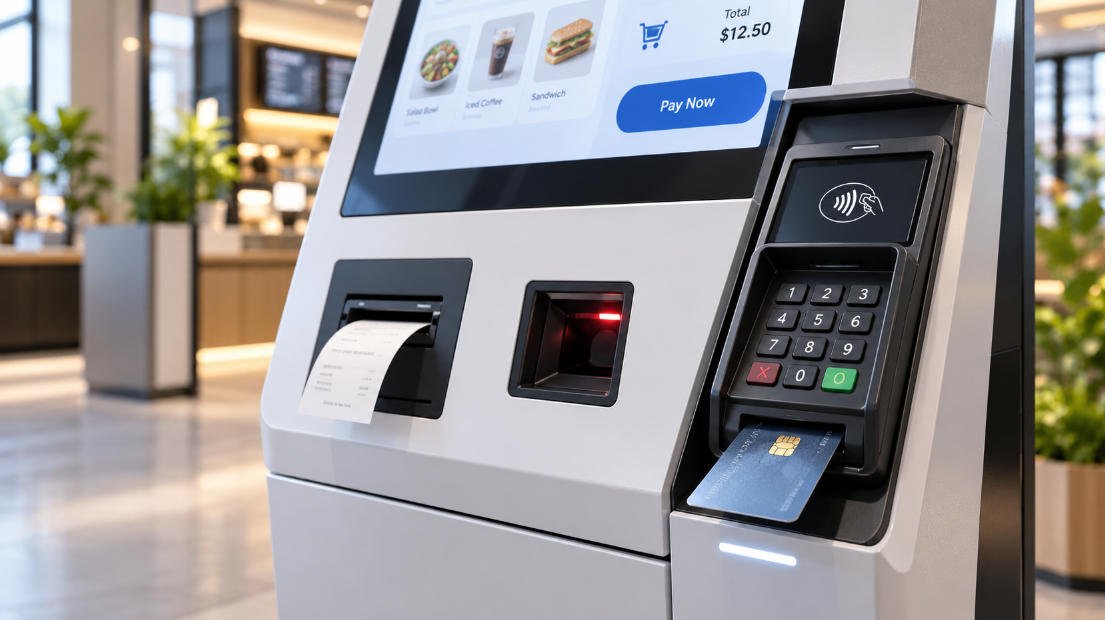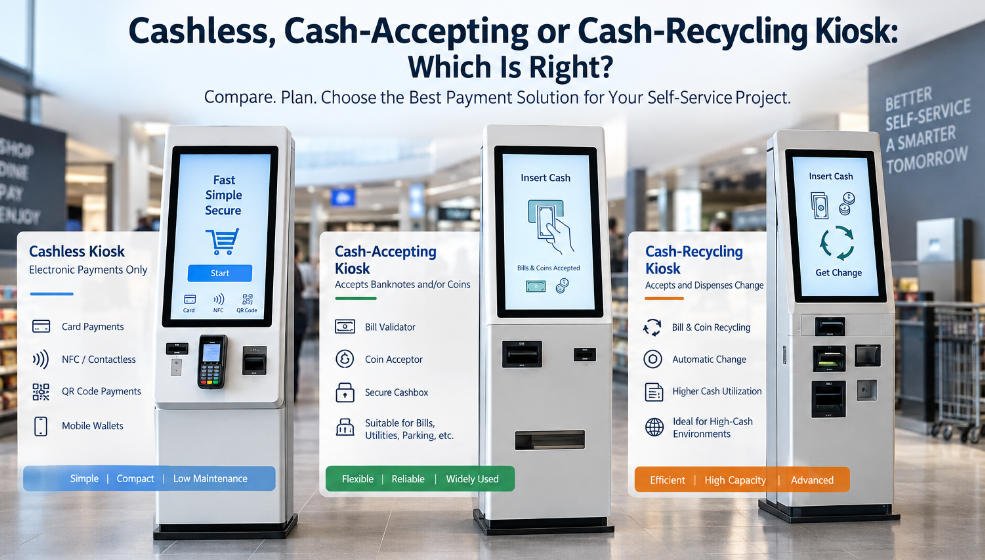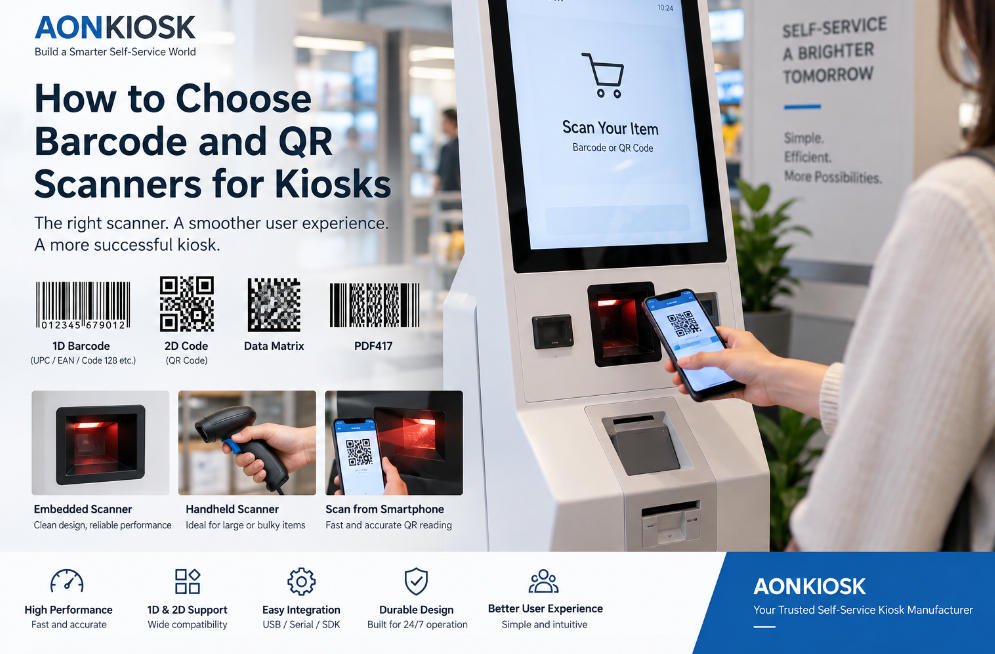






A thermal printer is one of the most commonly integrated peripheral devices in a self-service kiosk. It converts digital transaction data into a physical receipt, ticket, queue number, confirmation slip or service record without requiring ink cartridges or toner.
Although the printer may occupy only a small part of the kiosk enclosure, its reliability directly affects the complete user workflow. A kiosk can have a functioning touchscreen, computer and payment terminal, but users may still consider the transaction unsuccessful when the receipt or ticket is not printed correctly.
For this reason, printer selection should not be treated as a separate purchasing decision. The printer mechanism, paper specification, presenter design, mounting position, software driver, power supply, maintenance access and enclosure structure must be evaluated as one integrated system.
This guide explains how thermal printers work in kiosks, how to select the correct printer, how to integrate it into the enclosure and how to resolve common printing problems.
1. What Is a Kiosk Thermal Printer?
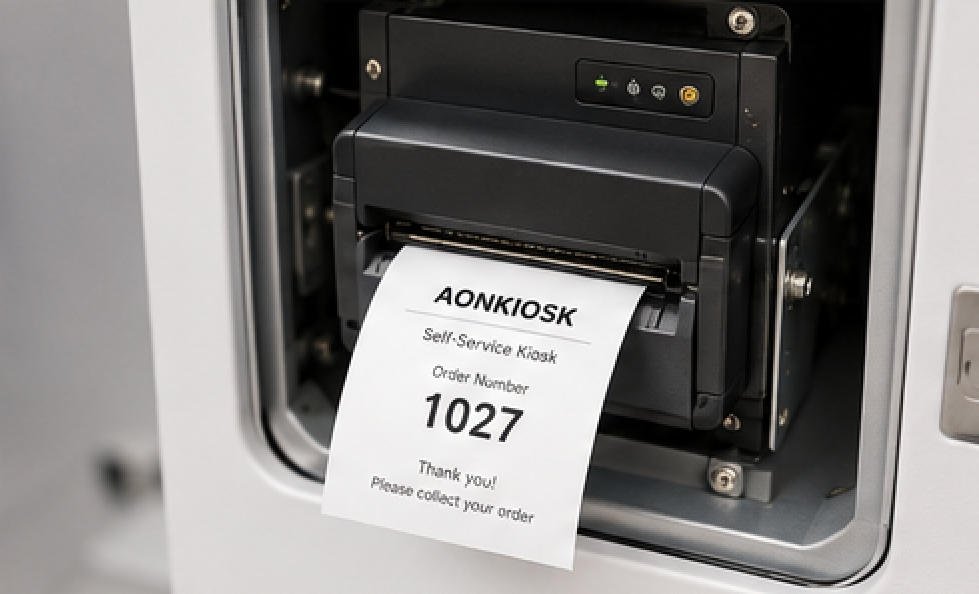
A kiosk thermal printer is an embedded printing device designed for installation inside an unattended terminal.
Unlike a desktop receipt printer placed on a counter, an embedded kiosk printer normally does not have a complete external housing. It is mounted directly to an internal bracket and connected to the kiosk computer, power supply and paper-output opening.
Thermal printing uses heat to create text or images on heat-sensitive paper. The printhead contains small heating elements that activate specific areas of the paper as it moves through the mechanism.
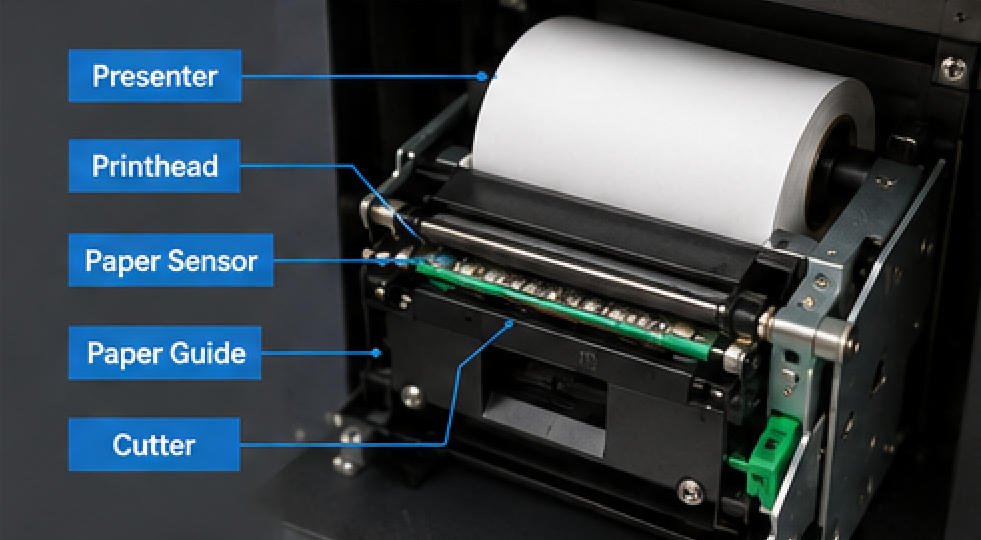
A typical kiosk printer assembly may include:
- Thermal printhead
- Paper-feed motor
- Paper sensor
- Cutter
- Presenter or eject mechanism
- Paper holder
- Control board
- USB or serial interface
- Power connector
- Paper-low sensor
- Status indicator
The printer operates as part of the kiosk’s complete hardware architecture. For an overview of how printers, computers, displays and other modules are arranged, see the kiosk hardware structure overview.
2. Common Applications
Thermal printers are used when a self-service transaction requires physical output.
Restaurant Self-Ordering Kiosks
A printer may produce:
- Customer receipts
- Order numbers
- Kitchen collection slips
- Payment confirmations
- Promotional coupons
In a restaurant self-ordering kiosk, the receipt printer must operate quickly during peak periods and remain accessible to restaurant employees replacing paper rolls.
Retail and Self-Checkout Kiosks
Retail applications commonly print:
- Purchase receipts
- Return references
- Transaction numbers
- Discount coupons
- Loyalty information
A retail payment kiosk may process hundreds of transactions per day, making cutter durability, paper capacity and printer-status monitoring especially important.
Ticketing Kiosks
Ticketing systems may print:
- Admission tickets
- Transportation tickets
- Boarding documents
- Parking tickets
- Queue numbers
- Reservation confirmations
Ticket material may be thicker than standard receipt paper. The printer must therefore be tested with the actual ticket width, thickness and coating before production.
Hotel, Healthcare and Public-Service Kiosks
These kiosks may print registration slips, payment records, check-in confirmations, appointment information or queue numbers.
In these environments, the document must be easy to collect and should not remain exposed inside the output slot after printing.
3. Direct Thermal vs Thermal Transfer Printing
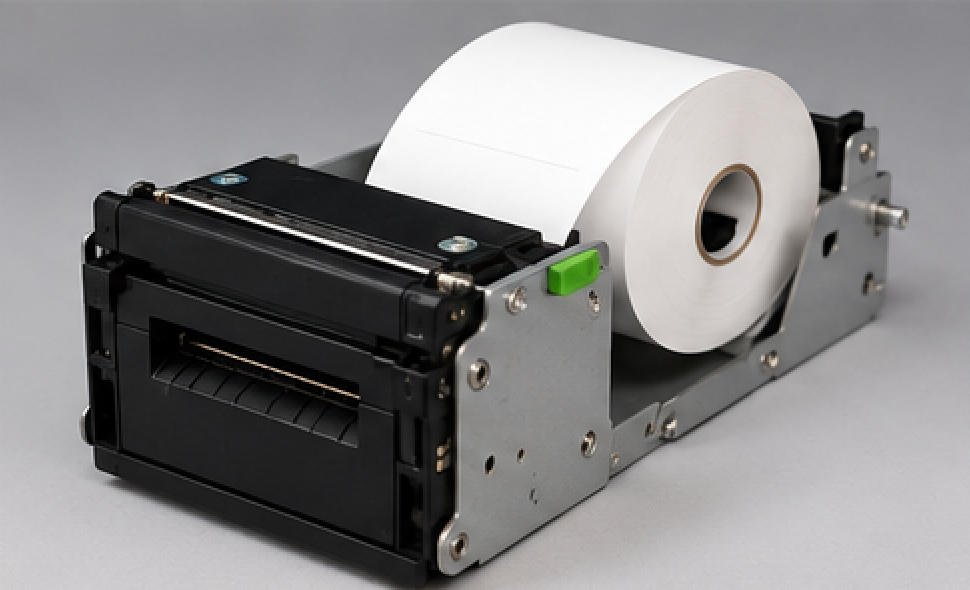
Most self-service kiosks use direct thermal printing, but the difference between the two technologies should be understood.
Direct Thermal Printing
Direct thermal printers apply heat directly to coated thermal paper.
Advantages include:
- No ink or ribbon
- Compact printer mechanism
- Simple maintenance
- Fast printing
- Low operating complexity
- Suitable for receipts and short-term documents
The main limitation is document life. Thermal paper may fade when exposed to heat, sunlight, moisture, plasticizers or certain chemicals.
Direct thermal printing is usually suitable for receipts, queue tickets, order slips and temporary transaction records.
Thermal Transfer Printing
Thermal transfer printers heat a ribbon that transfers material onto paper or synthetic media.
Advantages include:
- Longer-lasting output
- Better resistance to heat and light
- Support for labels and synthetic materials
- Suitable for durable identification documents
However, thermal transfer systems require ribbon replacement and normally need more internal space. They are therefore less common in standard ordering and payment kiosks.
For most commercial self-service applications, direct thermal printing provides the best balance between speed, size and maintenance requirements.
4. Key Printer Specifications
Printer selection should begin with the actual application rather than choosing a model based only on cost or printing speed.
Paper Width
Common paper widths include:
- 58 mm
- 80 mm
- 112 mm
An 80 mm printer is widely used for restaurant and retail receipts because it provides enough width for product names, prices, tax information, QR codes and branding.
A 58 mm printer requires less enclosure space but offers a narrower print area. It may be suitable for queue numbers, compact receipts and basic confirmation slips.
Wider printers may be required for tickets, forms or documents containing detailed information.
Paper-Roll Diameter
Roll diameter determines how frequently staff must replace the paper.
A small roll saves internal space but increases maintenance frequency. A larger roll can support more transactions but requires a larger paper compartment and stronger holder.
The design team should estimate:
- Average receipt length
- Number of transactions per day
- Paper length per roll
- Acceptable replacement frequency
Paper capacity should be calculated using realistic transaction data rather than the printer’s maximum supported roll size alone.
Printing Speed
Printing speed is commonly expressed in millimetres per second.
A higher speed can reduce customer waiting time, but the final output speed also depends on:
- Receipt length
- Graphic density
- Driver settings
- Communication interface
- Cutter operation
- Software processing
- Paper quality
For a short receipt, extremely high rated speed may provide little practical benefit. Stable feeding and consistent cutting are normally more important than maximum speed.
Print Resolution
Typical thermal-printer resolution is 203 dpi. This is generally sufficient for:
- Text
- Logos
- Barcodes
- QR codes
- Basic graphics
Higher resolution may improve small text or detailed images but can increase printing time and data size.
QR codes and barcodes should always be tested using the intended scanner, print density and paper type.
Cutter Type
An automatic cutter separates the printed document from the paper roll.
Common cutting methods include:
- Full cut
- Partial cut
- Full or partial cut selectable through software
Partial cutting leaves a small connection between the receipt and roll, helping prevent the receipt from falling inside or outside the kiosk.
The cutter lifetime should be evaluated against the expected number of daily transactions. The printer should also provide a practical method for clearing cutter jams.
Presenter and Retraction Function
A presenter holds the printed receipt until the complete document has been printed and cut. It then presents the receipt through the output opening.
This prevents users from pulling the paper before printing is finished.
Some printers also support retraction. If the user does not collect the receipt within a defined period, the printer pulls it back into an internal storage area.
Retraction can be useful in high-traffic public locations because it prevents abandoned receipts from accumulating around the kiosk. However, it requires additional internal space and a removable collection container.
5. Communication Interfaces
The printer must communicate reliably with the kiosk computer or mainboard.
USB
USB is common because it is easy to configure and supported by most Windows and Android platforms.
Potential problems include:
- Loose connectors
- USB power-management settings
- Driver conflicts
- Port-number changes
- Cable damage
- Disconnection during maintenance
Locking connectors or cable-retention brackets can reduce accidental disconnection.
Serial Communication
RS-232 serial communication is widely used in industrial equipment because it provides stable, predictable communication.
Serial integration requires the correct:
- COM port
- Baud rate
- Data bits
- Stop bits
- Parity setting
- Flow-control setting
Incorrect communication parameters may cause unreadable output or prevent the printer from responding.
Ethernet
Network printers can be monitored and controlled over a local network. This may be useful when multiple kiosks are managed centrally.
However, network configuration introduces additional requirements such as IP addressing, network security and connection recovery.
The selected interface should be supported by the kiosk software and the installed computing platform. More information about computer interfaces and operating-system compatibility is available in the industrial PC in kiosk guide.
6. Mechanical Integration Inside the Kiosk
A printer cannot simply be placed behind an opening in the enclosure. Its position must be controlled accurately.
Mounting Bracket
The bracket should:
- Hold the printer rigidly
- Maintain alignment with the output slot
- Resist vibration during cutting
- Allow printer removal
- Avoid blocking connectors
- Support adjustment during assembly
The bracket should use the printer manufacturer’s defined mounting points. Clamping the printer incorrectly can deform the mechanism or affect paper feeding.
Output-Slot Alignment
The printer outlet, presenter and enclosure opening must follow the same paper path.
Misalignment can cause:
- Paper curling
- Receipt obstruction
- Torn edges
- Presenter jams
- Receipts falling inside the cabinet
- Difficulty collecting the receipt
The opening should have smooth edges and sufficient clearance, but it should not be so large that users can reach internal components.
Paper-Roll Position
The paper holder should maintain consistent roll alignment and prevent the roll from moving sideways.
The paper path should avoid:
- Sharp bends
- Excessive tension
- Contact with cables
- Contact with hot components
- Abrasive sheet-metal edges
- Interference with the service door
Paper should move naturally from the roll into the printer without being pulled at an angle.
Service Access
Staff should be able to replace paper and clear jams without removing unrelated components.
A practical design normally provides:
- Lockable service door
- Clear paper-loading direction
- Space for both hands
- Visible status indicators
- Accessible release lever
- Removable waste-paper container
- Labelled cables and connectors
Compact structures require additional planning. For example, a wall-mounted kiosk structure may offer limited depth, so printer position, roll diameter and door-opening direction must be confirmed early in the design process.
7. Power-Supply Requirements
Thermal printers draw more current while heating the printhead and operating the cutter than they do while idle.
An undersized power supply may cause:
- Light or incomplete printing
- Random printer resets
- Cutter failure
- Computer instability
- USB disconnection
- Kiosk shutdown
The power design should account for the printer’s peak current, not only its average consumption.
The printer may use 12 VDC, 24 VDC or another specified input. Voltage polarity and connector type must be verified before installation.
Where possible, the printer should receive power through a dedicated protected output rather than sharing an inadequately sized cable with several high-load peripherals.
Grounding and cable routing should also be reviewed to reduce electrical noise and communication errors.
8. Software and Driver Integration
A thermal printer depends on correct software configuration.
The kiosk application may communicate with the printer through:
- Windows driver
- Android SDK
- ESC/POS commands
- Manufacturer API
- Serial command set
- Network protocol
Before selecting the printer, confirm that the manufacturer provides documentation and software support for the intended operating system.
Software integration should cover:
- Printer detection
- Paper status
- Cover-open status
- Paper-low warning
- Paper-out warning
- Cutter error
- Presenter status
- Print-job timeout
- Automatic retry
- Error reporting
- Remote monitoring
A failed print job should not leave the user uncertain. The software should display a clear message and determine whether the transaction can be completed digitally, retried or transferred to staff assistance.
The complete interaction between the touchscreen, software, payment system, printer and backend platform is explained in How Does a Kiosk Work?.
9. Installation and Commissioning Checklist
Before deploying the kiosk, verify the printer using the actual enclosure, paper and software.
Check the following:
- Printer is securely mounted
- Paper roll rotates freely
- Paper enters the mechanism centrally
- Output slot is correctly aligned
- Receipt can be collected easily
- Cutter operates without obstruction
- Presenter does not damage the receipt
- USB or serial cable is secured
- Power connector cannot loosen
- Printer driver loads after restart
- Paper-out status is detected
- Cover-open status is detected
- Printing resumes after paper replacement
- QR codes and barcodes scan correctly
- Long receipts do not jam
- Printed text is dark and readable
- Service staff can access the mechanism safely
Testing should include repeated printing rather than a single demonstration. A production-equivalent prototype is especially important for an OEM and ODM self-service kiosk project because small changes to the enclosure, paper holder or mounting bracket can affect printer reliability.
10. Routine Maintenance
Regular printer maintenance reduces jams and protects print quality.
Clean the Printhead
Paper dust and coating residue can accumulate on the printhead.
Use the cleaning method recommended by the printer manufacturer. Normally, the printer should be powered off and allowed to cool before cleaning.
Do not use sharp objects, abrasive materials or excessive force.
Clean the Paper Path
Remove:
- Paper dust
- Torn paper
- Adhesive residue
- Foreign objects
- Accumulated receipt fragments
The rollers and sensors should remain clean so the printer can detect and transport paper correctly.
Inspect the Cutter
Check the cutter area for paper fragments or signs of mechanical resistance.
Do not force the cutter manually unless the printer documentation specifically describes a safe release procedure.
Check Cables and Brackets
During maintenance, verify that:
- Connectors remain fully inserted
- Cables are not pinched
- Bracket screws are tight
- Paper does not contact wiring
- Printer alignment has not changed
- Ventilation openings remain clear
Maintenance intervals should be based on transaction volume and environmental conditions. A busy restaurant or supermarket may require more frequent inspection than a low-use visitor-information terminal.
11. Common Thermal Printer Problems
Printer Does Not Power On
Possible causes:
- No power input
- Incorrect voltage
- Loose connector
- Blown fuse
- Damaged power adapter
- Internal printer fault
Verify the power supply with the printer disconnected from other loads where appropriate.
Printer Is Online but Does Not Print
Check:
- Selected printer in the software
- USB or COM-port assignment
- Driver installation
- Communication settings
- Print queue
- Printer error status
- Application permissions
Restarting the kiosk may temporarily restore operation, but the root cause should still be identified.
Paper Feeds but Output Is Blank
Common causes include:
- Thermal paper installed backwards
- Non-thermal paper
- Printhead cable problem
- Incorrect print-density setting
- Damaged printhead
Scratch both sides of the paper with a suitable blunt object. The thermal side normally produces a dark mark.
Printing Is Too Light
Possible causes:
- Low print-density setting
- Incorrect paper
- Dirty printhead
- Insufficient power
- Excessive print speed
- Worn printhead
Test with approved paper before replacing the printer.
Paper Jams Frequently
Check for:
- Misaligned paper holder
- Incorrect roll width
- Damaged paper edge
- Excessive paper curl
- Obstructed output slot
- Bent mounting bracket
- Foreign material in the presenter
- User pulling the receipt too early
Repeated jams usually indicate a mechanical or paper-path problem rather than a software fault.
Cutter Error
Turn off the printer before inspecting the cutter area.
Remove loose paper carefully and use the documented cutter-release procedure. If the error returns frequently, inspect the mounting alignment, paper thickness and cutter condition.
Receipt Remains Inside the Kiosk
This normally indicates:
- Output-slot misalignment
- Presenter malfunction
- Insufficient opening clearance
- Paper curling
- Incorrect receipt length
- Obstruction near the outlet
The test should be repeated with both short and long receipts.
12. Selecting a Thermal Printer for a Kiosk Project
Before confirming a printer model, provide the kiosk manufacturer with:
- Application type
- Receipt or ticket format
- Paper width
- Maximum roll diameter
- Expected daily transactions
- Operating system
- Communication interface
- Required printing speed
- Cutter requirement
- Presenter requirement
- Retraction requirement
- Barcode or QR-code requirement
- Installation environment
- Available enclosure space
- Maintenance method
The actual printer, paper roll and sample output should be tested during prototype development.
AONKIOSK designs and manufactures configurable self-service kiosk hardware for ordering, payment, check-in, retail, ticketing, information and public-service applications. Printer integration can include customized brackets, output openings, paper holders, maintenance doors, cable routing and internal component layouts.
Conclusion
A reliable kiosk thermal printer depends on more than print speed or paper width. It must be compatible with the kiosk software, power system, enclosure structure, paper specification and maintenance process.
The most important design decisions are printer type, paper capacity, cutter and presenter configuration, interface compatibility, peak power demand, output-slot alignment and service accessibility.
Testing the complete printer assembly in a production-equivalent kiosk is the most effective way to identify paper-path, power, communication and maintenance problems before batch production.
When the printer is selected and integrated as part of the complete kiosk system, it can provide consistent receipt or ticket output while reducing service interruptions and maintaining a clear self-service workflow.